Get Started
Use Mobile Schedules
Review schedules and manage overrides in the mobile app
The PagerDuty mobile app is designed with the responder experience in mind. You can easily access schedules, create overrides, and view previous and future on-call shifts.
Edit Schedules
View Schedules
To browse schedules in the mobile app, navigate to More Schedules. The mobile app presents two tabs: My Teams to view schedules associated with your Teams, and All to view all schedules in your organization account.
Select a schedule from the list to see its detailed view. A two-week calendar view displays at the top. Select a specific day or scroll through the timeline to find a particular shift. The duration of a shift displays for each entry, even if the shift spans multiple days.
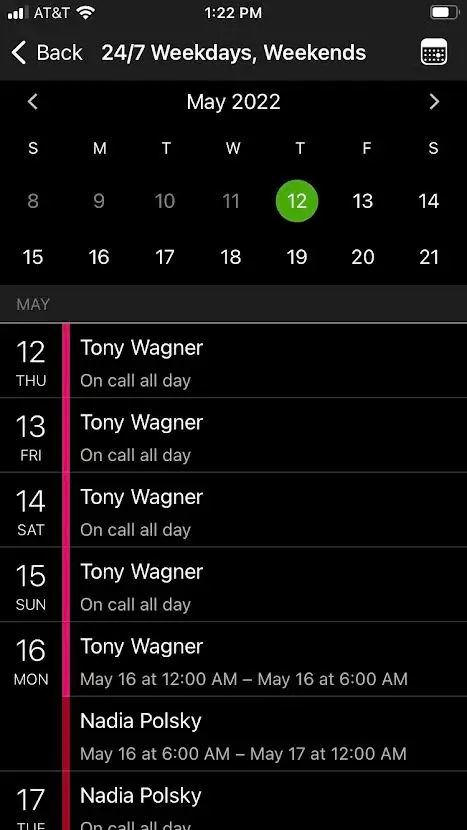 Detailed View
Regular shifts show the schedule color of the user in a solid color.
 Regular Shift
Overridden shifts display a horizontally striped color.
 Overridden Shift
Gaps in schedules appear as No One On Call.
 No One On Call
You can also view future or past shifts and overrides by swiping or scrolling the calendar and selecting a date. To return to today, click the Calendar icon in the top-right corner.
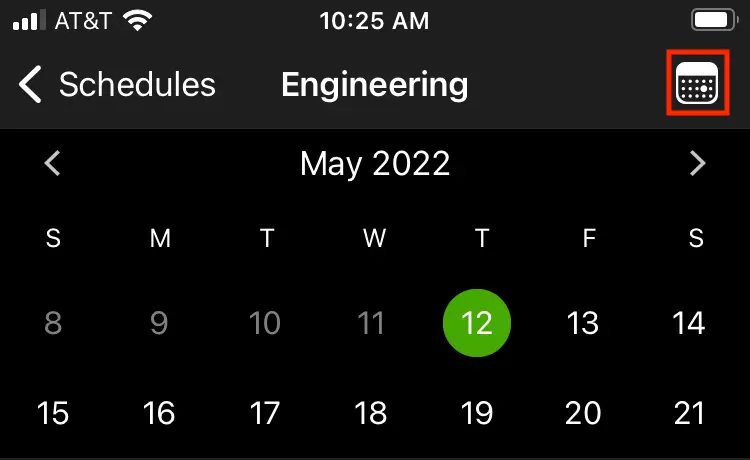 Return to Today
My On-Call Shifts
Search Schedules
- Navigate to More Schedules.
- Click the Search icon and enter a search term.
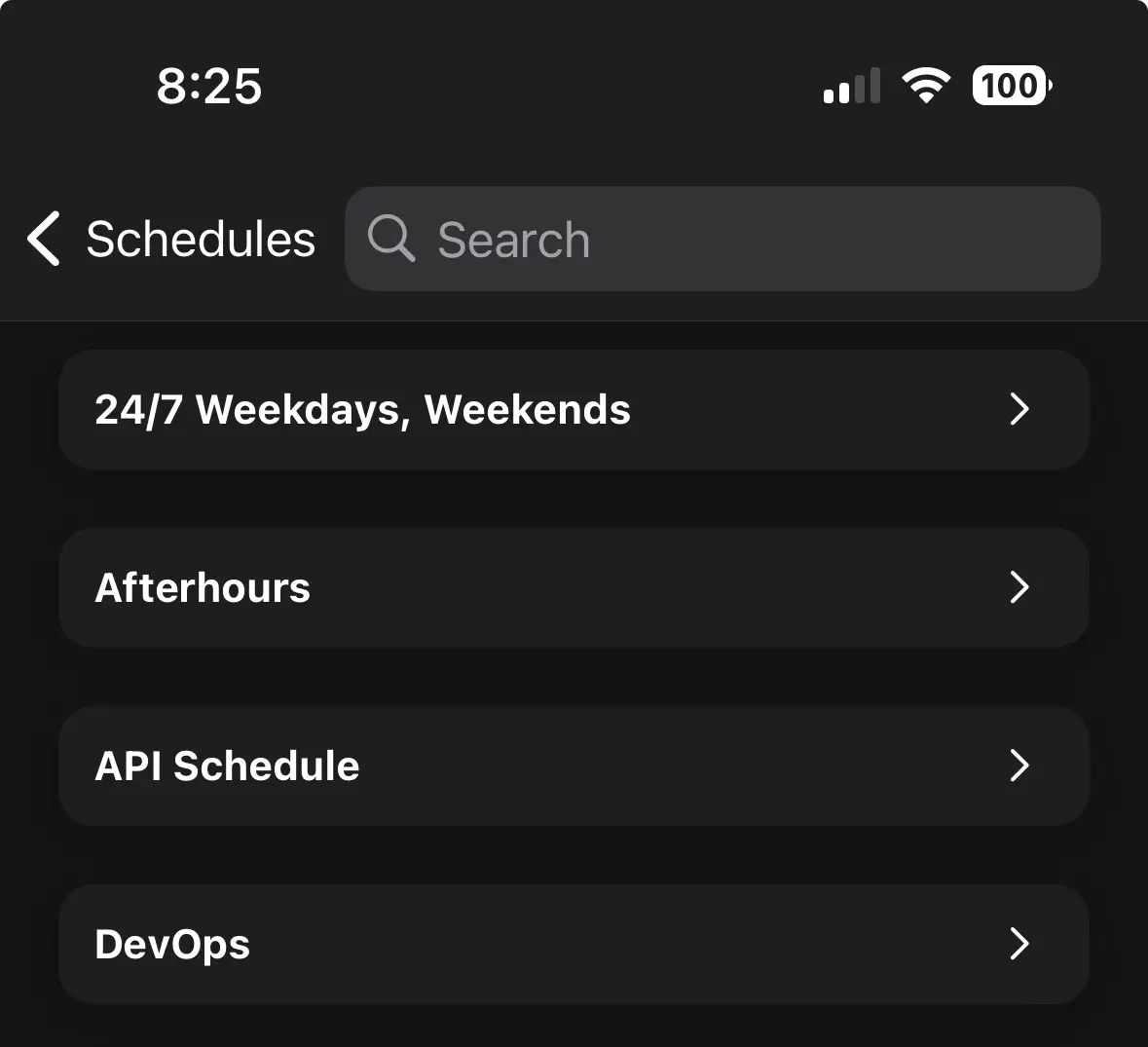 Search Schedules
- Select a schedule from the list of results.
Overrides
There are two ways to set the duration of an override:
Enter Start and End Times
Select a Duration
Delete an Override
You can delete an override in the mobile app:
- Navigate to your preferred schedule and select the overridden shift.
- In the Shift Already Overridden dialog, select Delete Override.
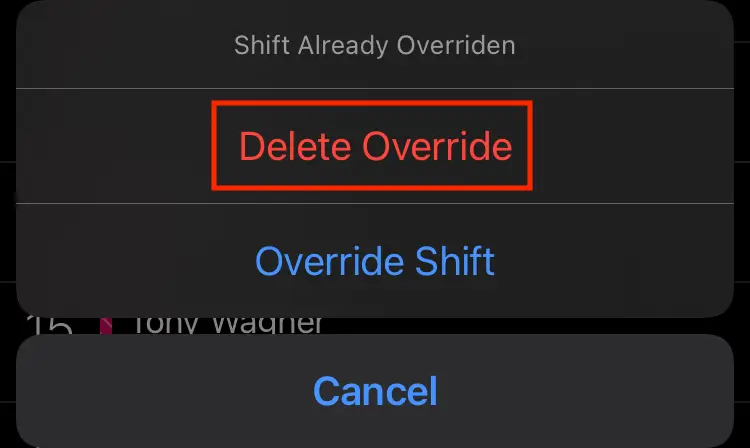 Delete Override