Integrations
Amazon EventBridge Integration Guide
Configure the Amazon EventBridge integration
Amazon EventBridge + PagerDuty Benefits
- Amazon EventBridge allows teams to easily create event-driven workflows that connect native AWS services with third-party SaaS solutions like PagerDuty.
- With Amazon EventBridge, PagerDuty customers can leverage the full breadth of AWS-supported integrations and functionality.
Requirements
To Configure the Integration:
- In AWS: For each account that you would like to integrate with PagerDuty, obtain the AWS account ID(s) from your AWS account administrator.
- In PagerDuty: This integration requires a Manager, Admin, Global Admin or Account Owner base role to configure.
To Use the Integration:
- In PagerDuty: All users, except Limited Stakeholders and Full Stakeholders, can trigger incidents in order to use the EventBridge integration.
How it Works
- When you create or update a PagerDuty incident, it sends an event or webhook to notify a designated Event Source in your AWS Account and Region.
- You can create an Event Bus to retrieve these notifications and deliver them to an AWS target (such as Lambda) to run a specific function, workflow, SNS topic for another notification delivery, etc.
Version
This guide details configuration of the Amazon EventBridge v1 integration.
Integration Walkthrough
In PagerDuty
-
Navigate to Services Service Directory click the name of the service where you would like to configure the integration.
-
Select the Integrations tab. Under the Extensions and Add-Ons section, click Add or manage extensions.
-
Click the New Extension button. In the Extension Type dropdown, search and select Amazon EventBridge. A dialog will pop up prompting you to open the configuration page. Click Open.
-
On the Amazon EventBridge configuration page, click the Add Service button and perform the following:
- Name: Enter a name for this extension.
- AWS Account ID: Enter your AWS account ID.
- AWS Region: Select the AWS region where you would like to deliver PagerDuty webhooks. For example, if the Lambda functions that you want to target exist in us-west-1, please select N. California.
- Services: Select the same Service that you selected in step 1, above. The incidents created on this service will send updates to the AWS Account ID and Region specified above.
- Event Source Name: Enter a name that will be identifiable when it's received in Amazon EventBridge. There are different naming schemes that you can follow. To start, PagerDuty will automatically prepend your PagerDuty subdomain to this Event Source Name. The full Partner Event Source name will follow this format:
aws.partner/pagerduty.com/{pagerduty-subdomain}-{eventSourceName}- It’s a good practice to label your Event Source Name such that the PagerDuty technical service sending incident webhooks is easily identifiable by the appropriate teams with access.
- Click Create to save.
-
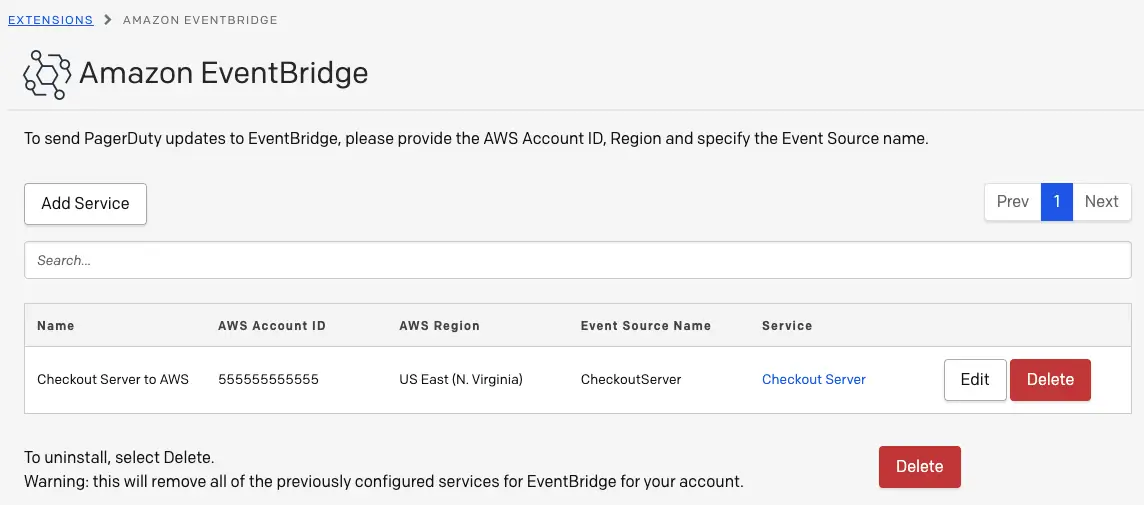
After creation, the Amazon EventBridge configuration page will display the new extension that will send incident-related information to the specified AWS account ID and region. Keep this page up for reference as you continue to the next section.
In the AWS Console
To complete configuration, you will need to create an Event Bus in the AWS Console to receive incident information from PagerDuty.
- Navigate to the Partner Event Sources page under the Integration header in the left menu.
- In the top menu, select the region dropdown and change the AWS Region to the one specified on the Amazon EventBridge configuration page (Step 4, above).
- In the Partner event sources search bar, search and select the Event Source Name that you entered on the Amazon EventBridge configuration page (Step 4, above). Next, click Associate with event bus in the top right.
- On the next screen, click Associate. You should see a dialog confirming that you successfully associated the event source with the event bus.
- Next, select Rules in the left menu. From the Event Bus dropdown, select the Event Bus you just associated, and click Create rule.
- On the next screen, perform the following:
-
Name: Enter a name that can be easily identified.
-
Description (optional): Enter a description of the rule, pattern and target(s).
-
Enable the rule on the selected event bus: Toggle to the on position.
-
Rule with an event pattern: This will automatically be preselected.
-
Click Next to continue.
- On the next page, perform the following:
- Event source: Select Other.
- Sample event (optional): If you would like to view sample events, you may do so in this section.
- Event Pattern: Select the Custom Patterns (JSON Editor) tab. Enter the following in the Event Pattern field:
{"detail-type":["PagerDuty Webhook"]} - Click Next to continue.
- On the next page, perform the following:
- Target types: Select AWS service.
- Select a target: Select your target (e.g., Lambda).
- Function: Select what you would like to happen once an event matching the Event Pattern (e.g., executing a specific Lambda function).
- Configure other additional settings to your preference.
- Click Next to continue.
- On the next page, optionally add tags to your preference. Click Next to continue.
- On the final page, review your settings and click Create Rule. The integration is now complete. To test the integration, create an incident on the integrated PagerDuty service.