Integrations
Google Workspace Integration Guide
Configure the Google Workspace integration.
Google Workspace Integration Capabilities
- Connect your PagerDuty account with your Google Workspace account.
- Allow incident workflows to create on-demand Google Meet meetings and attach them to incidents.
Availability
This integration is available on current Business, Enterprise for Incident Management, and Digital Operations (Legacy) plans. Contact the Sales Team to upgrade your account to include this integration.
Limited Use Policy
The use of raw or derived data received from Workspace APIs adheres to the Google User Data Policy, including the Limited Use requirements.
Requirements
| Application | Requirement |
|---|---|
| PagerDuty | You must have the Admin, Global Admin, or Account Owner role to configure the integration. |
| You must have administrator permissions to configure the integration. |
How It Works
- When you connect your PagerDuty account with your Google Workspace account, PagerDuty authenticates with Google via OAuth 2.0 and establishes a secure connection.
- When an incident configured with the Google Meet: Add a Conference Bridge incident workflow integration triggers, PagerDuty automatically generates an incident-specific meeting ID and adds it to the incident.
- Responders join the Google Meet conference bridge directly from the incident in the web app or mobile app, from conference-bridge notifications, or via One Touch to Join.
Configure the Integration
- In the PagerDuty web app, navigate to Integrations Extensions Google.
- On the Google Workspace page, click Connect a new Workspace.
- On the Google authorization screen, select a Google account.
- Click Continue to allow signing into your account, and click Allow to confirm the Google account integration with PagerDuty.
After successful integration, you see a confirmation message in the web app and the PagerDuty account connects.
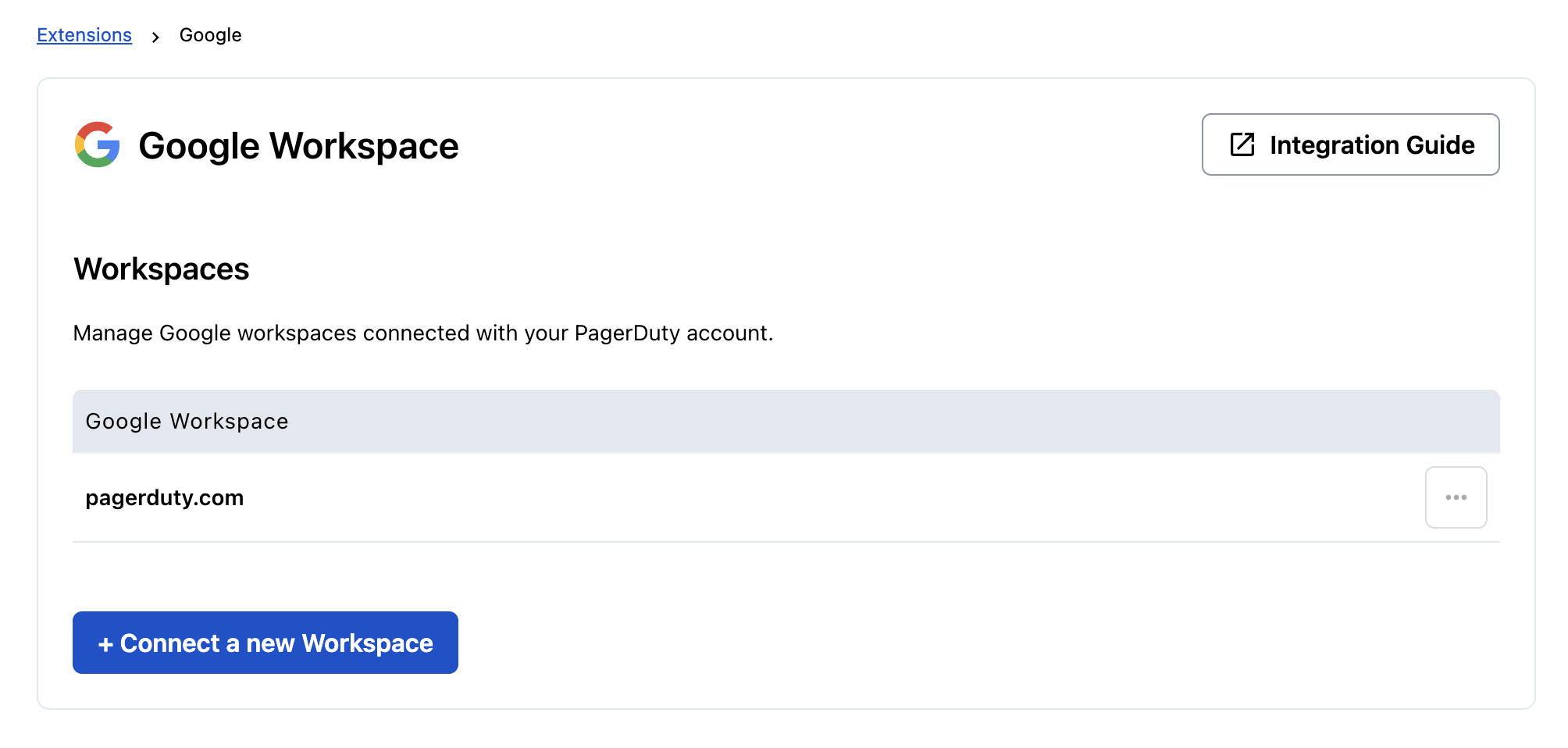 Google workspace integration
Reauthorize the Google Integration
To reauthorize the Google integration:
- In the PagerDuty web app, navigate to Integrations Extensions Google.
- Click ... and click Reauthorize to refresh your Google account integration with PagerDuty and accept required scopes again.
Remove the Google Integration
To remove the Google integration:
- In the PagerDuty web app, navigate to Integrations Extensions Google.
- Click ... and click Disconnect to disconnect your Google account integration with PagerDuty.