Incident Management
Conference Bridge
Add a conference bridge in order to easily connect and collaborate during major incident response
A conference bridge is a central channel where all responders can gather for collaboration. Conference bridges allow responders to connect to your preferred web conferencing provider directly from an incident, via phone, or meeting URL. You can use the same conference bridge for all major incidents, or configure multiple as needed.
There are two ways to create conference bridges in your PagerDuty account:
And there are two ways to add a conference bridge to an incident:
- Manually Add a Conference Bridge to an Incident via Add Responders
- Add a Conference Bridge to an Incident with an Incident Workflow
Availability
Best Practice
Create an Account-Level Conference Bridge
You can add conference bridges as account-level extensions to view a persistent list of conference lines to choose from when triggering an incident.
- In the PagerDuty web app, navigate to Integrations Extensions.
- Select the Conference Bridges tab.
- Click New Conference Bridge.
- Enter the following based on your preferences. You must enter either a Conference Number or Conference URL, or you may enter both options:
| Field | Instructions |
|---|---|
| Label | Enter a logical name for the conference bridge to help you identify it in the conference bridge drop-down. |
| Description | Enter a brief description of the conference bridge. |
| Conference Number | Enter the phone number users can call into, if applicable. Phone numbers must be in the following format: 415-555-1212,,,,1234#, where a comma (,) represents a one-second wait and pound (#) completes access code input. |
| Conference URL | Enter a meeting URL, if applicable. |
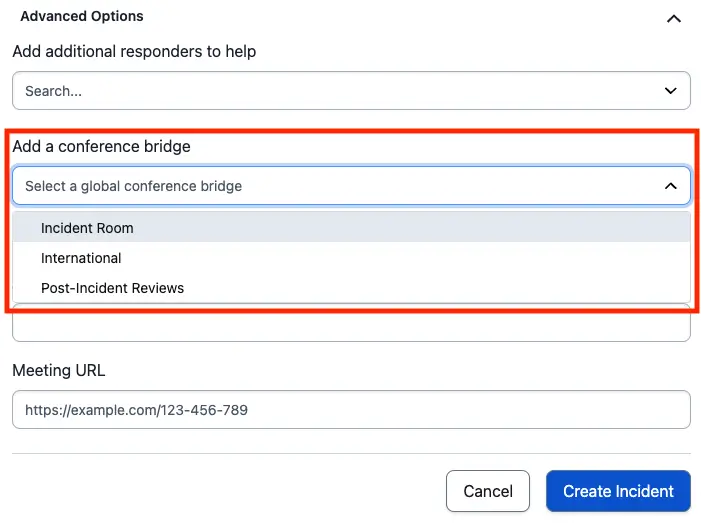
- Click Create. The conference bridge becomes available as an option under Advanced Options when creating a new incident.
Edit an Account-Level Conference Bridge
- Navigate to Integrations Extensions.
- Select the Conference Bridges tab.
- On the right of your desired conference bridge, click Edit.
- Edit the necessary details.
- Click Save.
Delete an Account-Level Conference Bridge
- Navigate to Integrations Extensions.
- Select the Conference Bridges tab.
- On the right of your desired conference bridge, click Delete.
- In the confirmation dialog that appears, click Delete.
Create a Service-Level Conference Bridge
Conference Bridge for All Incidents
- In the PagerDuty web app, navigate to Services Service Directory.
- Click the name of your desired service and select the Settings tab.
- Scroll to the Coordinate Responders and Stakeholders section and click Edit on the right.
- Enter the conference bridge information for your service. You must enter either a Conference Bridge Dial-In Number or Conference Bridge Meeting URL, or you may enter both options:
- Conference Bridge Dial-In Number: Enter the phone number users must call to join the conference, if applicable. Phone numbers must be in the following format:
415-555-1212,,,,1234#, where a comma (,) represents a one-second wait and pound (#) completes access code input. - Conference Bridge Meeting URL: Enter a meeting URL, if applicable.
- Conference Bridge Dial-In Number: Enter the phone number users must call to join the conference, if applicable. Phone numbers must be in the following format:
- Click Save Changes.
When an incident is triggered on your service, the conference bridge information appears in the web app and in email notifications.
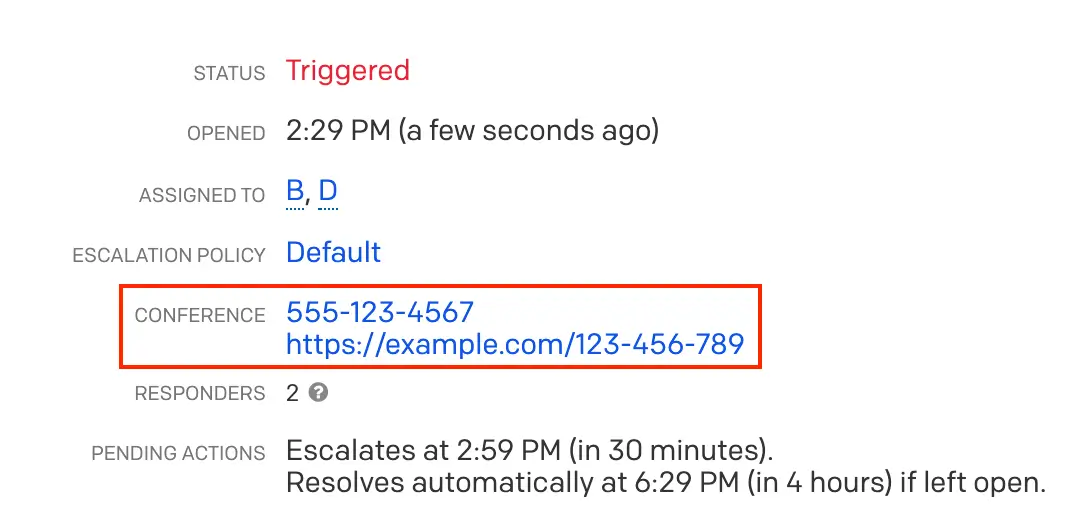 Conference bridge details
Edit a Service-Level Conference Bridge
- Navigate to Services Service Directory.
- Select the service containing the conference bridge that you want to edit.
- Select the Settings tab.
- Scroll to the Coordinate Responders and Stakeholders section and click Edit.
- Edit the Conference Bridge Dial-In Number and/or Conference Bridge Meeting URL as necessary.
- Click Save Changes.
Delete a Service-Level Conference Bridge
- Navigate to Services Service Directory.
- Select the service containing the conference bridge that you want to delete.
- Select the Settings tab.
- Scroll to Coordinate Responders and Stakeholders section and click Edit to the right.
- Remove the Conference Bridge Dial-In Number and/or Conference Bridge Meeting URL, as applicable.
- Click Save Changes.
Manually Add a Conference Bridge to an Incident via Add Responders
If you do not have conference bridge information added to your service, use the Add Responders feature to input the conference bridge information.
Add Responders Requirement
- After an incident is triggered, acknowledge the incident and click Add Responders.
- Select the Users and/or Escalation Policies to add to the incident (required for this option).
- Under Add a conference bridge, if you already have an account-level or service-level Conference Bridge configured, use the dropdown to Select a pre-configured conference bridge. Alternatively, you can add the Area Code, Dial-in Number, and Meeting URL to manually create a conference bridge.
Note: Phone numbers must be in the following format:415-555-1212,,,,1234#, where a comma (,) represents a one-second wait and pound (#) completes access code input. - Click Save.
Requests are sent to responders, who can review conference bridge details on the incident details page and in the responder email notifications.
Add a Conference Bridge to an Incident with an Incident Workflow
Availability
Adding a conference bridge to an Incident Workflow allows you to automatically mobilize responders when specific conditions are met or with a single click. Refer to Incident Workflows for instructions on adding a conference bridge to a workflow.
Join a Conference Bridge as a Responder
Conference bridge information is available in incidents in the web app, email notifications, Slack (if you have a Slack integration configured) and via voice call. When referencing the web app, email notifications, or Slack, responders must manually dial in to the conference bridge or click the link. For voice-call notifications, responders can use the One Touch To Join feature.
Example Responder Notifications
Conference Bridge Information in the Web App
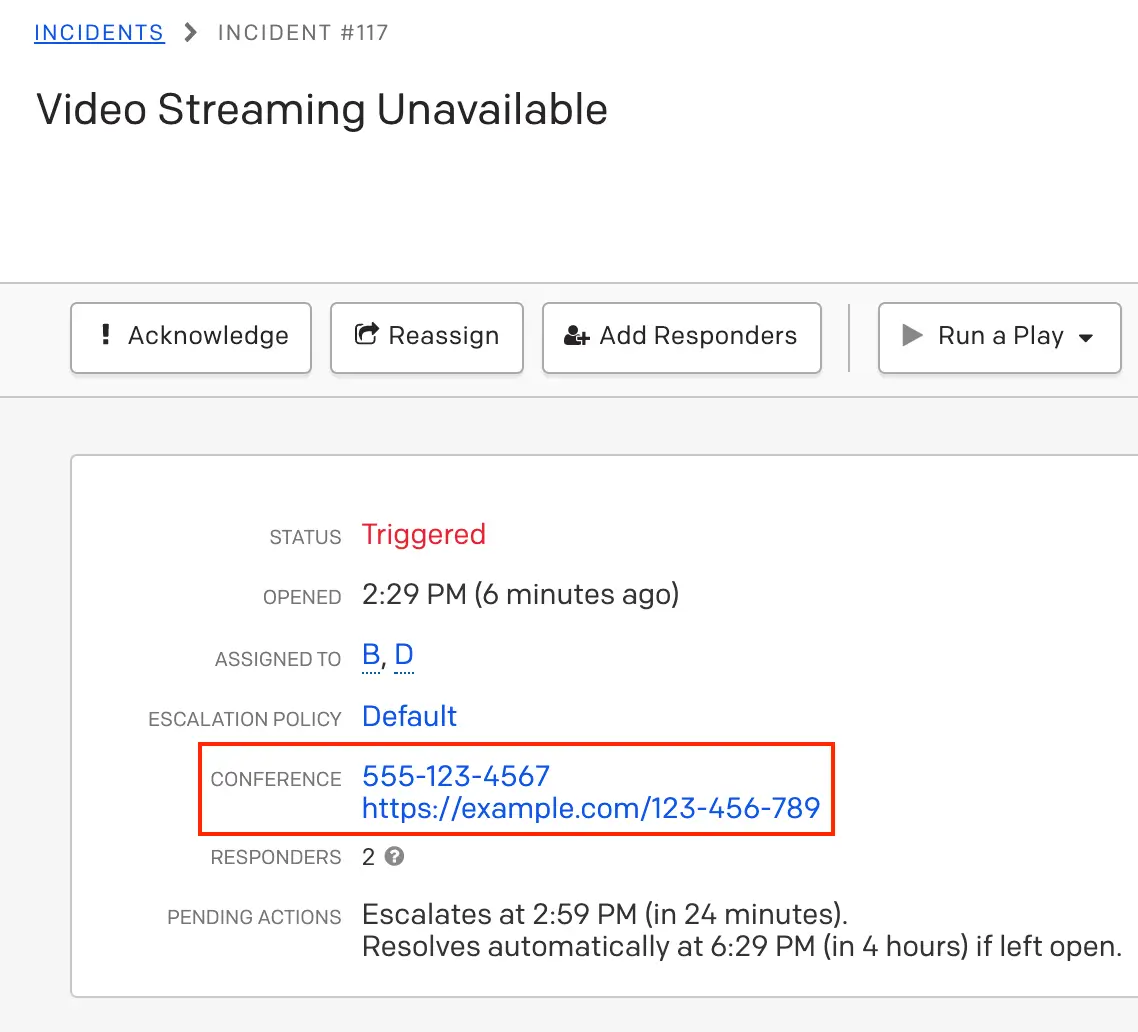 Conference bridge information in the web app
Conference Bridge Information in Email Notifications
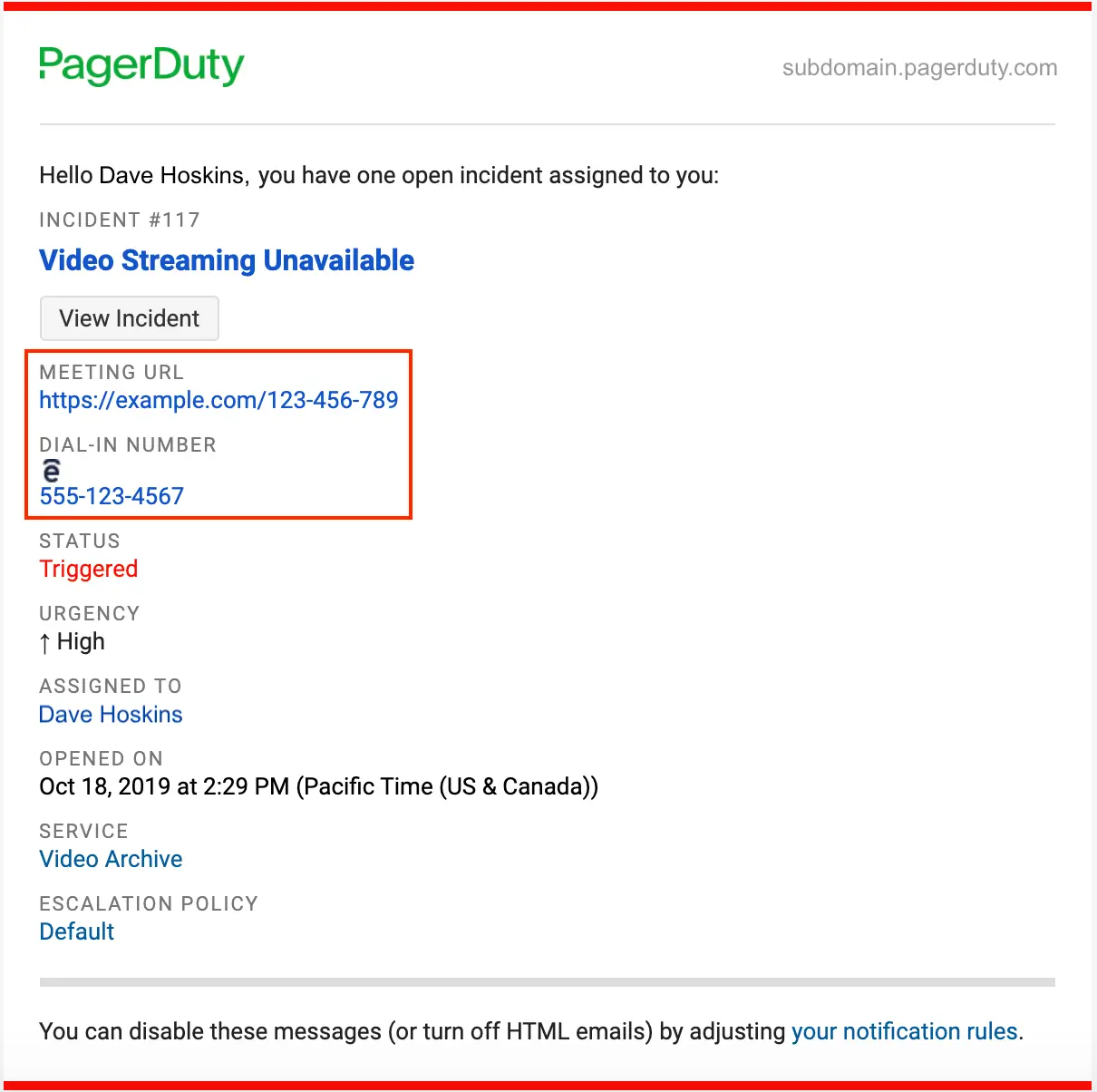 Conference bridge information in email notifications
Conference Bridge Information in Slack Notifications
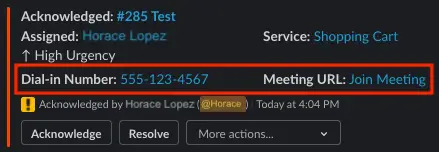 Conference bridge information in Slack notifications
Conference Bridge Information in Voice Call Notifications
When responders receive voice call notifications, they will hear the following prompt:
PagerDuty Alert. Please help me with [Incident Title]
Press
[#]to accept
Press[#]to decline
Response Numbers
By default, users do not receive conference bridge information in the voice call. Once accepted, they need to check the incident in the web app, an email notification, or a Slack notification to obtain the conference bridge information and enter the bridge manually.
If you require responders to be able to join conference bridges via voice call notifications, use the One Touch To Join Conference Bridge add-on feature.
One Touch To Join Conference Bridge
Note
The One Touch To Join Conference Bridge feature enables rapid assembly of response teams by giving responders a push-button way to join a conference bridge. This feature relies on two core PagerDuty Platform features: Conference Bridge and Add Responders. When responders are added to an incident, and they receive a voice call, they can select “Join the bridge”, which immediately adds them to the conference call. The One Touch To Join Conference Bridge solution works with your existing direct-dial conference bridge provider and reduces effective time-to-engage and resolution time for major incidents.
Configure One Touch To Join Conference Bridge
- Configure a conference bridge.
- Responders must have the following:
- A phone number listed in the Contact Information tab of their PagerDuty user profile.
- A high-urgency notification rule in the Notification Rules tab using this phone number in their user profile.
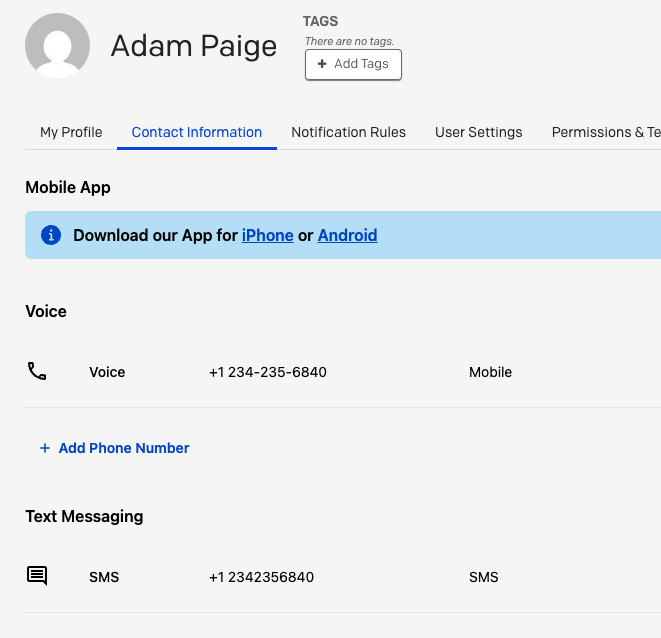 Phone contact method
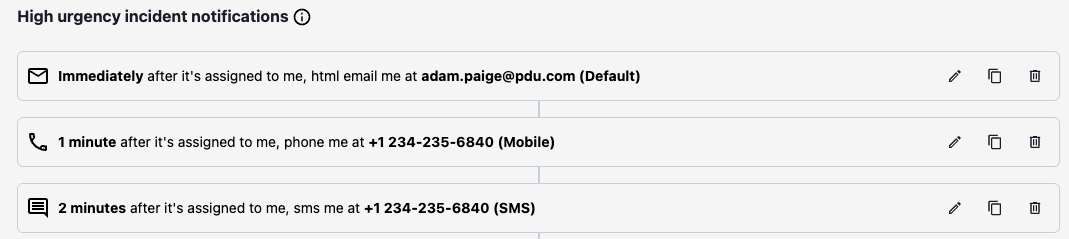 Phone notification rule
- During an incident with a conference bridge, add responders by using the Add Responders feature or at scale with Incident Workflows.
Any requested responder with the above configuration will receive a voice call with the following phrasing:
PagerDuty Alert. Please help with [Incident Title]
Press 1 to join the bridge
Press 2 to accept the request
Press 3 to decline the request
The following table lists the effects of each response to the voice call:
| Response | Result | Responder Status | Conference Bridge Impact | Incident Timeline |
|---|---|---|---|---|
| 1 — Join the Bridge | Responder joins the bridge and the responder request is accepted. | Marked as Joined, per the icon on the Responders box in the Incident Detail page. | Responder automatically joins the bridge. No manual dialing required. | Entry created showing when the responder joined the call. |
| 2 — Accept the Request | Responder request is accepted. | Marked as Joined. | Responder must manually dial into the bridge. Participation is not visible on the timeline. | Entry created showing the accepted request. |
| 3 — Decline the Request | Responder request is declined. | Marked as Declined. If the responder is part of an escalation policy, the next escalation level is paged. | None. | Entry created documenting the declined request. |
| No Answer | Responder request is unanswered. | Remains Pending. If the responder is part of an escalation policy, the next escalation level is paged. | None. | None. |
Logged Events
Whenever a responder who has joined the bridge via One Touch To Join disconnects, or when the bridge call ends, the Incident Timeline reflects these departures as well. This information is made available in Postmortems and Jeli Post Incident Reviews.
Connection Duration
You can add as many responders to your conference bridge as your conference provider allows. One Touch To Join calls will disconnect after two hours. If the responder still needs to participate in the call, they can manually redial the bridge using the conference details attached to the PagerDuty incident.
Missed Calls
If a responder misses a voice call, PagerDuty attempts to reach them via each configured contact method for their high-urgency notification rules. PagerDuty recommends configuring at least two contact methods so that if a notification for one channel is missed, context is provided in another channel. For example, if a user misses a voice call, they can still manually join the conference bridge using information from the web app, an email notification, or a Slack message, but they cannot use One Touch To Join.
Supported Countries
The One Touch To Join feature is supported in over 30 of our highest responder countries. Countries are classified into one of the two groups: Base or Premium (refer to the following table). The One Touch To Join feature is available when both of the following are true:
- The conference bridge is hosted in a Base country.
- Requested responders' phone numbers are from a Base or Premium Country.
| Base Countries | Premium Countries* |
|---|---|
| Australia, Canada, China, Germany, India, Japan, Luxembourg, Mexico, New Zealand, United Kingdom, United States | All Base countries, Argentina, Brazil, Bulgaria, Costa Rica, Czech Republic, France, Guatemala, Hungary, Indonesia, Ireland, Israel, Netherlands, Nigeria, Pakistan, Philippines, Poland, Russia, Singapore, South Africa, Spain, Sri Lanka, Taiwan, Ukraine |
*One Touch To Join works with conference bridges hosted in Base countries only.