Incident Management
Google Calendar Extension
The Google Calendar extension syncs calendar events with PagerDuty. The extension integrates with Shift Agent to detect scheduling conflicts before they impact coverage, and it operates independently to support standalone scheduling needs. This integration reduces manual availability updates and maintains operational continuity while respecting scheduled commitments.
Availability
Permission Scope Details
- The Google Calendar integration connects at an account level. PagerDuty reads Out of Office events only for Google Calendar accounts with a corresponding PagerDuty user. PagerDuty identifies users by matching email addresses.
- The scope
https://www.googleapis.com/auth/calendar.events.freebusydoes not enable PagerDuty to view all calendar events or user data. - PagerDuty does not store data unrelated to Out of Office events. PagerDuty stores and displays Out of Office dates and times for specific users on the PagerDuty schedule page to determine conflicts.
- PagerDuty cannot read event titles, view users on events, or write to calendars.
Set Up the Google Calendar Extension
-
In Google Workspace, follow the instructions to Create a service account to share credentials with PagerDuty. In Advanced settings, configure the following fields:
Field Value Domain-wide Delegation Enable Google Workspace Marketplace OAuth Client Enable -
Navigate to Main Menu APIs & Services OAuth consent screen.
-
Select Data Access and click Click or remove scopes.
-
Click the Filter search field and select Scope.
-
Search for and select
https://www.googleapis.com/auth/calendar.events.freebusy. -
Select the Google Calendar API checkbox and click Update.
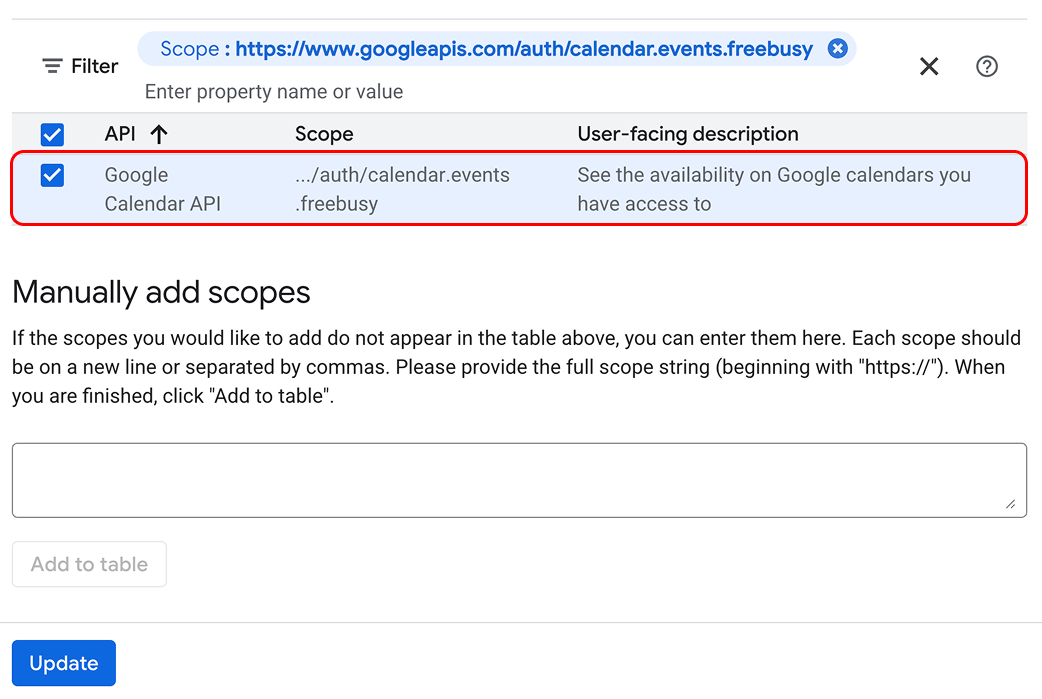 Enable Google Calendar API Scope
- In the PagerDuty web app, navigate to Integrations Extensions.
- Click New Extension and select Google Calendar.
- On the Google Calendar extension page, upload your Google Workspace token file. View Google's Creating a service account documentation for more information about your Google Workspace access token.
- Navigate to the Google Workspace Admin Console and add a new client with an ID matching the service account client ID.
- Note: You can add only one file for each Google Workspace.
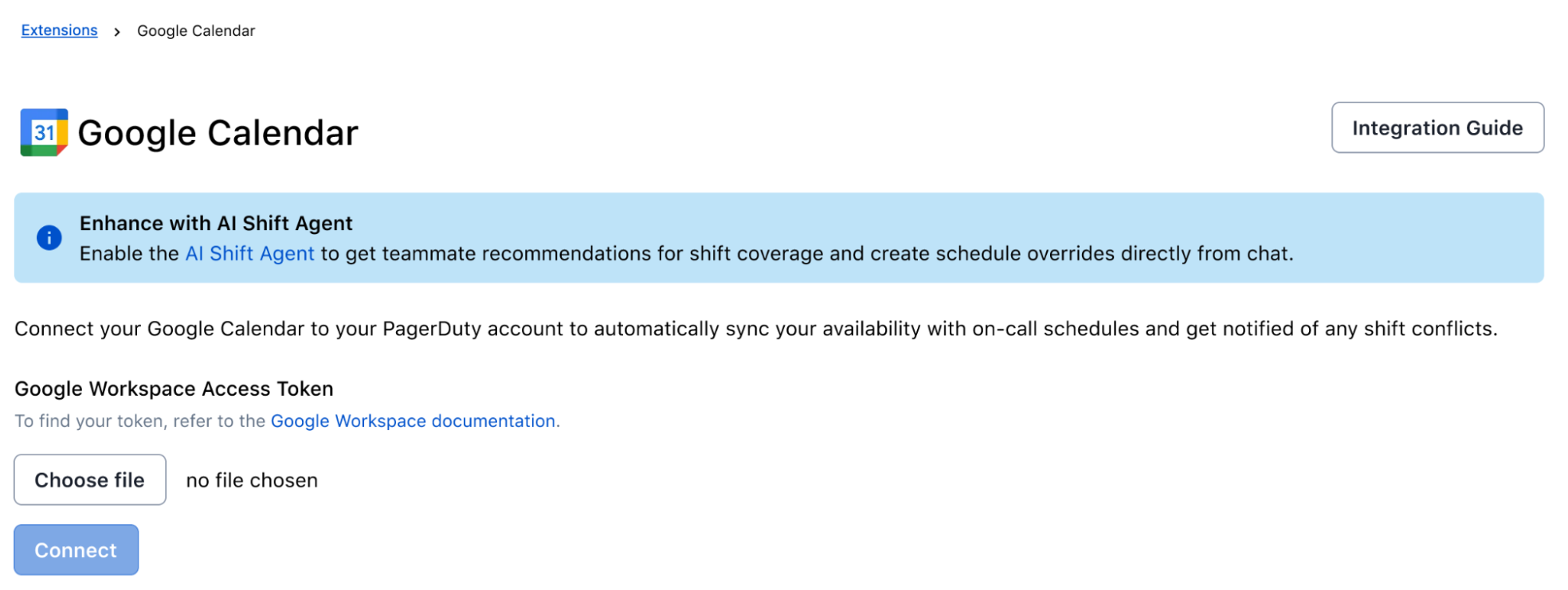 Upload Google Workspace Access Token
Calendar Event Limit
Google Calendar Update Schedule
I am going to be on vacation June 13) to immediately include recent availability updates.Use Focus Time to Block Meetings
Configure Account-Level Notification Settings
Navigate to Integrations Extensions Google Calendar to adjust notification settings.
When enabled, you can suppress Slack conflict alerts that occur during your Google Calendar Out of Office (OOO) event. Alerts outside the OOO window deliver normally. This configuration reduces noise from last‑minute OOO blocks added to schedules.
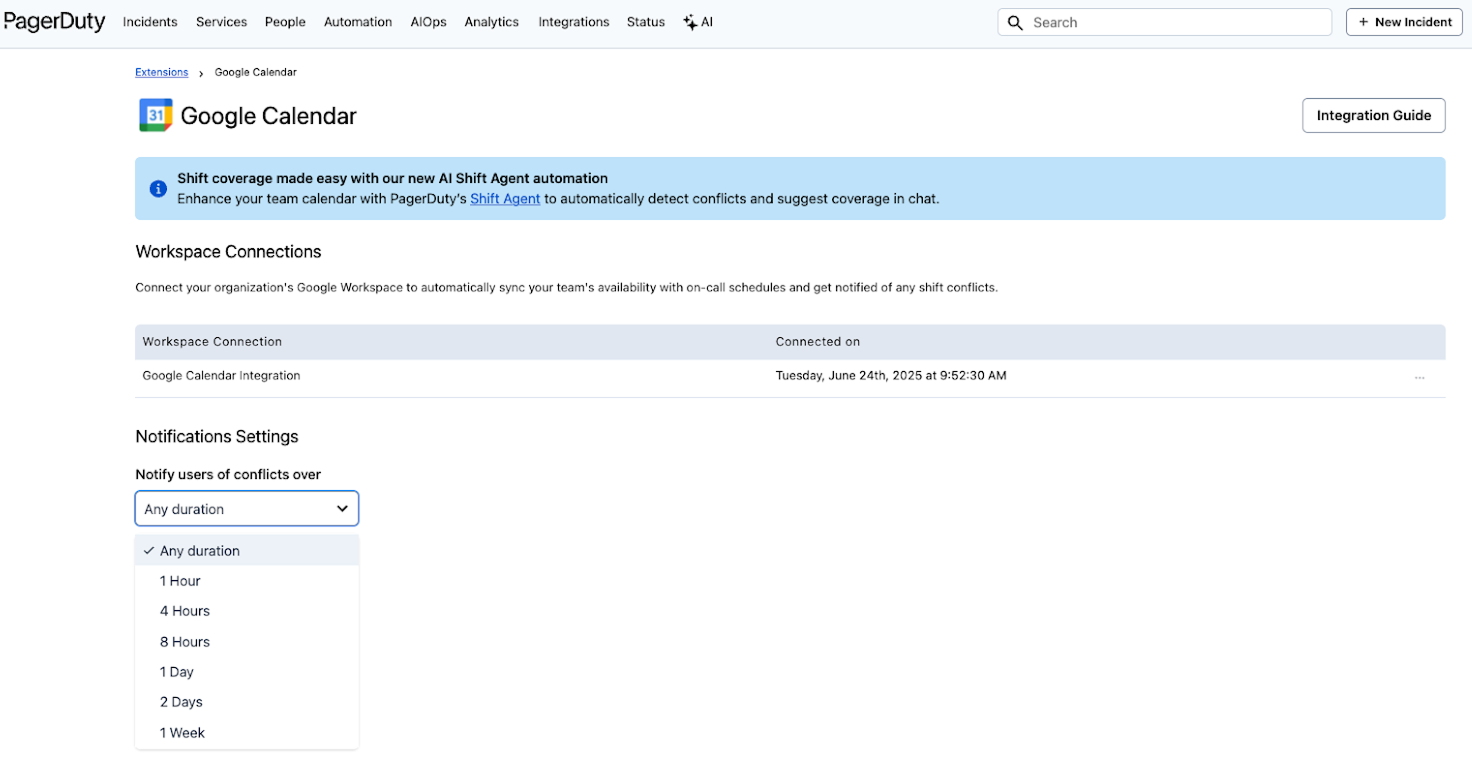 Google Calendar Notification Settings