Incident Management
Incident Priority
Establish an incident classification scheme and assign incident priorities for effective triage
Incident priority allows you to classify incidents by priority levels. Just as alerts can have different severity levels and notifications can have different urgency levels, incidents can be classified into different priority levels. Priority labels are customized on a per-account basis, so you can configure the priority scheme in PagerDuty to match the scheme you may already be using in other tools.
- Establish an Incident Classification Scheme
- Configure Incident Priority
- Prioritize an Incident
- Disable Incident Priority
Establish an Incident Classification Scheme
Before configuring incident priority, establish an incident classification scheme. Your incident classification scheme establishes a common language and criteria for communicating about incident levels and response elements. This information is ideally shared organization-wide. Remember that this scheme is not just for technical responders and support staff; other parts of your organization may need to be aware of incidents and their assessed impact, and occasionally participate in incident response, as well.
The following are the steps to establish an incident classification scheme:
- List the incident classification levels: This is usually P1 through P5 (for priority), or SEV-1 through SEV-5 (for severity). Typically, the lower the number, the higher its impact (i.e., P1 is more important than P5).
- Define what each level means: Describe the impact and characteristics that apply to each classification level. These guidelines must be clear and objective enough that responders can accurately assess an open incident and assign it to a level. That said, incidents may be upgraded or downgraded as the situation evolves.
- Define the expected response: For each classification level, identify the expected scope and response urgency. Some organizations also have formal or informal service-level agreements at each level.
For more information and examples, refer to Severity Levels in the Incident Response Guide.
If your organization does not have an incident classification scheme in place, defining a limited number of classification levels is essential for effective triage and major incident response processes. If, on the other hand, you have more than five classification levels, think critically about how many levels would benefit your organization in practice. The more levels you have, the more complex and time-consuming triage can become.
Tip
--- for any unused levels.Configure Incident Priority
After establishing your incident classification scheme, the next step is to configure the levels in PagerDuty.
Required User Permissions
To configure this feature, in the PagerDuty web app:
- Navigate to User Icon Account Settings Incident Settings tab.
- Toggle Enable incident priority levels to the on position.
- Under Incident Priority, you can classify incidents with five different priority levels. Customize your levels with the following:
| Field | More info |
|---|---|
| Priority Level | This is typically P1-P5 or SEV-1-SEV-5. |
| Color | Color labels draw attention to the most important incidents in a dashboard or other view. Use distinctive colors for the levels corresponding to major incidents to enhance visibility of the most important incidents. For example, at PagerDuty, we use red and orange for our two highest levels, and blue and gray for lower-priority incident levels. |
| Description (optional) | Describe the incident impact and characteristics that apply to each classification level. These guidelines must be clear and objective enough that responders can accurately assess an open incident and assign it exactly one level. |
- Click Save.
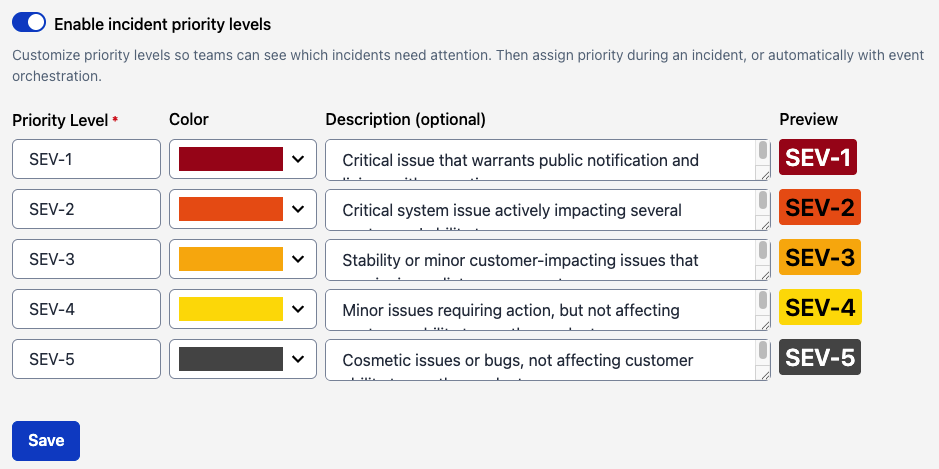 Configure incident priority
Priority is displayed on the Incidents page and on an incident's details page in both the web and mobile apps.
Prioritize an Incident
Prioritizing incidents helps drive decisions around the response process and provides valuable context for others. When looking at an incident, the priority provides an immediate, clear indication of the prior assessment that hass been performed. You can set the Incident priority at creation or after the incident has been triggered. The following is an incident with a priority level set, SEV-1:
 Prioritize an incident during triage
In addition, priority is clearly displayed on the incident dashboard, making it easy to see when critical issues are active. You can sort incidents by priority on this page, so that whether looking at incidents for a single team or across your whole organization, you can instantly see critical issues:
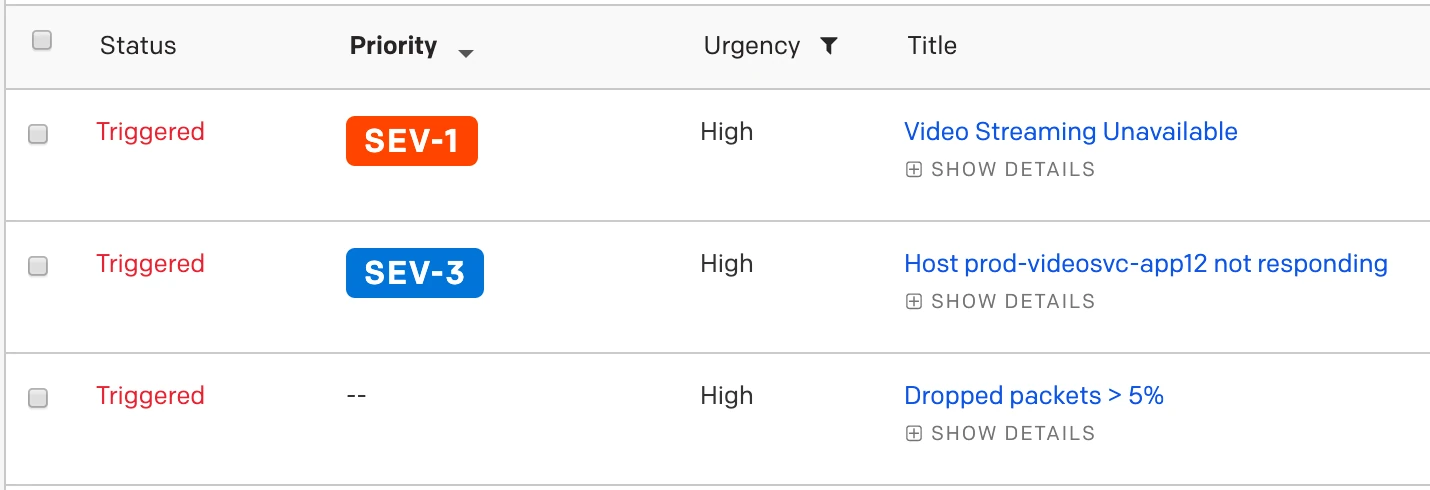 View incident priority
You can set incident priority in multiple ways:
Disable Incident Priority
As an Account Owner, you can disable incident priority in the web app using the following steps:
- Navigate to User Icon Account Settings Incident Settings tab.
- Toggle Enable Incident Priority Levels to the off position. Once disabled, the Priority column on your Incidents page no longer appears.
Retained Configuration Settings