Incident Management
Incident Types
Streamline and customize incident management with distinct Incident Types
Within an organization, there are often many different types of incidents that require a unique response process. For example, a major incident typically follows a different process than a security incident or compliance incident. The Incident Types feature allows organizations to create custom types that determine the set of Custom Fields available on an incident, tailored to their diverse response processes. By categorizing incidents, teams can reduce confusion and ensure that they engage the right processes and responders for each incident type, leading to quicker resolution and minimized business impact.
Availability
| Pricing Plan | Base and Major Incident Types | Security Incident Type | Custom Incident Types |
|---|---|---|---|
| Legacy Plans | ✓ | — | — |
| Free (current) | ✓ | ✓ | — |
| Professional (current) | ✓ | ✓ | — |
| Business (current) | ✓ | ✓ | Three |
| Enterprise (current) | ✓ | ✓ | 100 with up to three levels of nesting |
Contact the Sales Team to expand your account's Incident Types functionality.
Required User Permissions
- All users, except for Limited Stakeholders, can view Incident Types.
- Any user with permission to create an incident can select an Incident Type at incident creation.
- Users with Responder permissions on an incident can update its type.
- Admins and the Account Owner can create and edit Incident Types.
Incident Type Foundational Concepts
Inheritance
Incident Types use an inheritance model. When you add a new custom field to a type, that field is also added to all of the type's children. This model provides the flexibility to add custom fields to all incidents in an account, or to concentrate them to a specific incident type.
While creating a new incident type, you will specify a Parent Type, which defines where in the hierarchy the new type will live. You can have at most three levels of inheritance on your account.
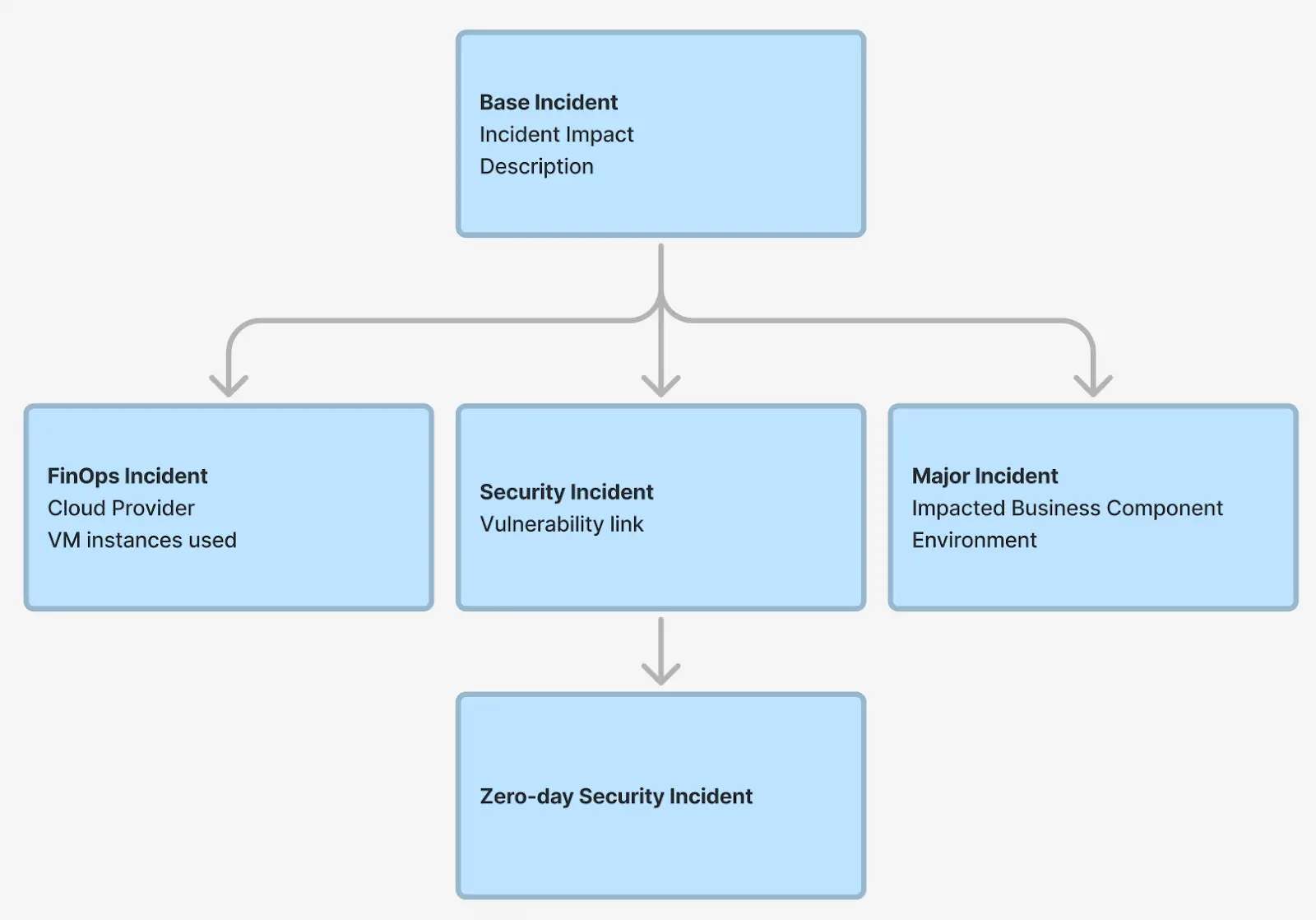
Click the Display Inherited Fields checkbox while configuring an Incident Type to view which fields are inherited:

Default Incident Types
All pricing plans, including legacy plans, have access to the Base Incident and Major Incident default types. In addition, customers on current Free, Professional, Business, and Enterprise pricing plans have access to Security Incidents, a third default type. These are described below:
- Base Incident - By default, all incidents created are a “Base Incident”. The Base Incident is also always at the top of the inheritance hierarchy. You can use the Base Incident to add fields that should apply globally to all incidents within PagerDuty.
- Major Incident - The Major Incident is used for configuring your major incident response process. You can use this default incident type for tasks such as triggering a major incident workflow, creating custom fields specific to major incidents, and more.
- Security Incident - An incident caused by a potential security threat that requires specialized investigation and response.
Typically, these default incident types are configured to work out of the box. However, some customers may need to enable them to start creating incidents of that type. Refer to Enable an Incident Type for more information.
Configure Incident Types
Create an Incident Type
To create an Incident Type in the PagerDuty web app:
- Navigate to Incidents Incident Types.
- In the left pane, click New Incident Type.
- Enter the following information:
| Field | Instructions |
|---|---|
| Parent Type | Select an Incident Type to inherit from. |
| Display Name | Enter a user-friendly name to display for this incident type — for example, "Security Incident", "Legal Incident", or "Billing Incident". |
| API Name | Enter a unique name for use with the REST API. This field can only contain lowercase letters, numbers, and underscores. You cannot change this value after initial creation. |
| Description | Enter a description for the Incident Type. |
| Enable Type | Select Enable or Disable. |
- Click Create.
Add Custom Fields
After creating an Incident Type, you can add custom fields to that type. Refer to the Configure Custom Fields article for more information.
Edit Incident Types
- Navigate to Incidents Incident Types.
- Select your preferred Incident Type.
- Make your desired changes (e.g., Add Fields or adjust Settings).
- Click Save.
Disable or Enable Incident Types
Delete Incident Types
Perform the following steps to disable or enable incident types:
- Navigate to Incidents Incident Types.
- Select any child of the Base Incident type.
- Click the Settings tab.
- Select Disable in the Enable Incident Type dropdown.
- Click Save.
Note: To disable an Incident Type, you must also disable any child types.
Set Incident Type on an Incident
By default, all incidents created are a “Base Incident”. The Base Incident is at the top of the inheritance hierarchy.
Set or Change an Incident Type
View Incident Types on Incidents
You can view Incident Types in multiple ways: