Integrations
Microsoft Teams Integration Guide
Microsoft Teams + PagerDuty Integration Benefits
- Reduce downtime and streamline incident remediation by adding PagerDuty’s incident management functionality to Microsoft Teams' collaboration tools.
- Send PagerDuty incident notifications with critical details to team channel members.
- Team channel members can view and create incidents. They can acknowledge, resolve, and perform other actions within Microsoft Teams.
Requirements
A PagerDuty Admin is required to authorize the connection of PagerDuty to Microsoft Teams. If you do not have this role, please reach out to a PagerDuty Admin or Account Owner within your organization to configure the integration. For more information about these PagerDuty user roles, please read our Advanced Permissions guide.
A Microsoft Teams Admin must enable third-party apps for your organization to download the PagerDuty app.
A Microsoft Admin will need to authorize the Microsoft Graph API permissions required by the PagerDuty app.
Flexible Permission Model
PagerDuty supports both **Application **and **Delegated **permissions. This allows your Microsoft Admin to choose between high-automation (Application) or user-specific (Delegated) access.
- Application Permissions: Best for background automation; requires a one-time Admin consent.
- Delegated Permissions: Best for strict security; requires individual users to authenticate via the
graphAuthcommand.
Private & Shared Channels
Please note that the PagerDuty application cannot currently be integrated with private or shared channels in Microsoft Teams.
We do support the creation of private Microsoft Teams chats for an incident, using our Teams actions in Incident Workflows.
How it Works
- PagerDuty’s Microsoft Teams application installs into a team and can be configured for one or more of the team’s channels.
- A PagerDuty service uses webhooks to send information about an incident to a PagerDuty-developed Microsoft Teams service. This service receives the webhook from PagerDuty, composes a message, and sends it to team channels via Microsoft’s Bot Kit Framework. Any subsequent changes to the PagerDuty incident will be reflected in the channel's progress updates, and additional incident details can be viewed in the Microsoft Teams notification card.
- Read more about how authentication with Microsoft Teams works.
Version
This guide is for our latest Microsoft Teams integration, version 1.2.0.
Looking for a Different Version?
The legacy Microsoft Teams integration guide is also available for those who have previously installed and are still using that version. The legacy Microsoft Teams application is no longer available for initial installation from the Microsoft store. For customers using the legacy application, Microsoft has kept all configurations and will continue to support the integration for these customers.
If you would like to upgrade your application from the legacy to the most current version, please follow our Upgrade Instructions
Integration Walkthrough
Connect PagerDuty to a Microsoft Team
Note: These steps are only necessary upon initial app installation to a Microsoft Team. If the PagerDuty app is already installed in your team, you can proceed with linking PagerDuty services to your team’s channels.
- From the Microsoft Teams Marketplace app store within Microsoft Teams, search and click the PagerDuty app. If your PagerDuty account is hosted in the EU service region, click the PagerDuty EU app.
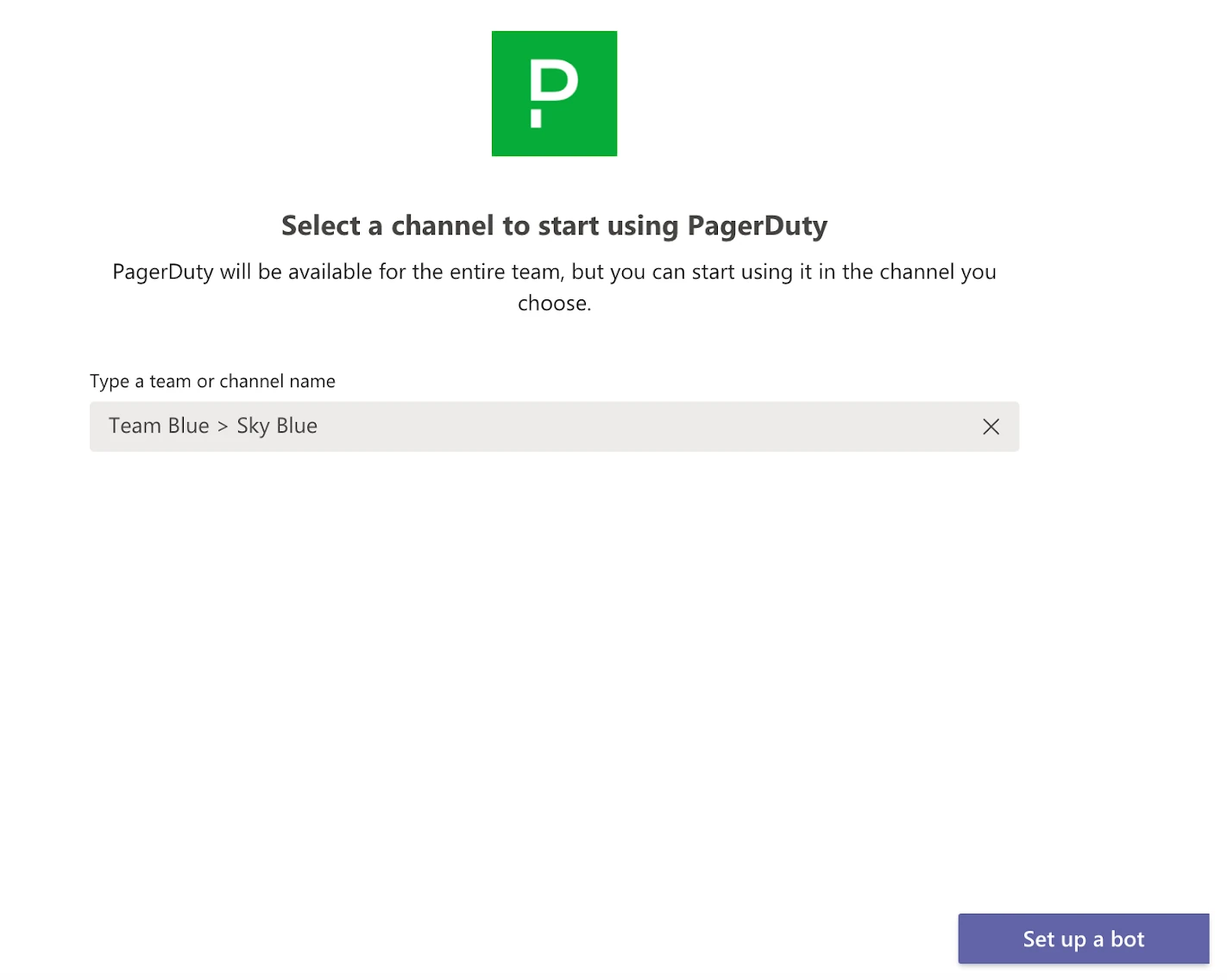
- Click Add to a Team and select a Team or Channel for initial installation. The app will be installed in standard channels within the selected team.
-
Click Set up a bot to install the app.
After the installation, you will receive a message in a private chat with the PagerDuty bot, confirming that the installation is complete.
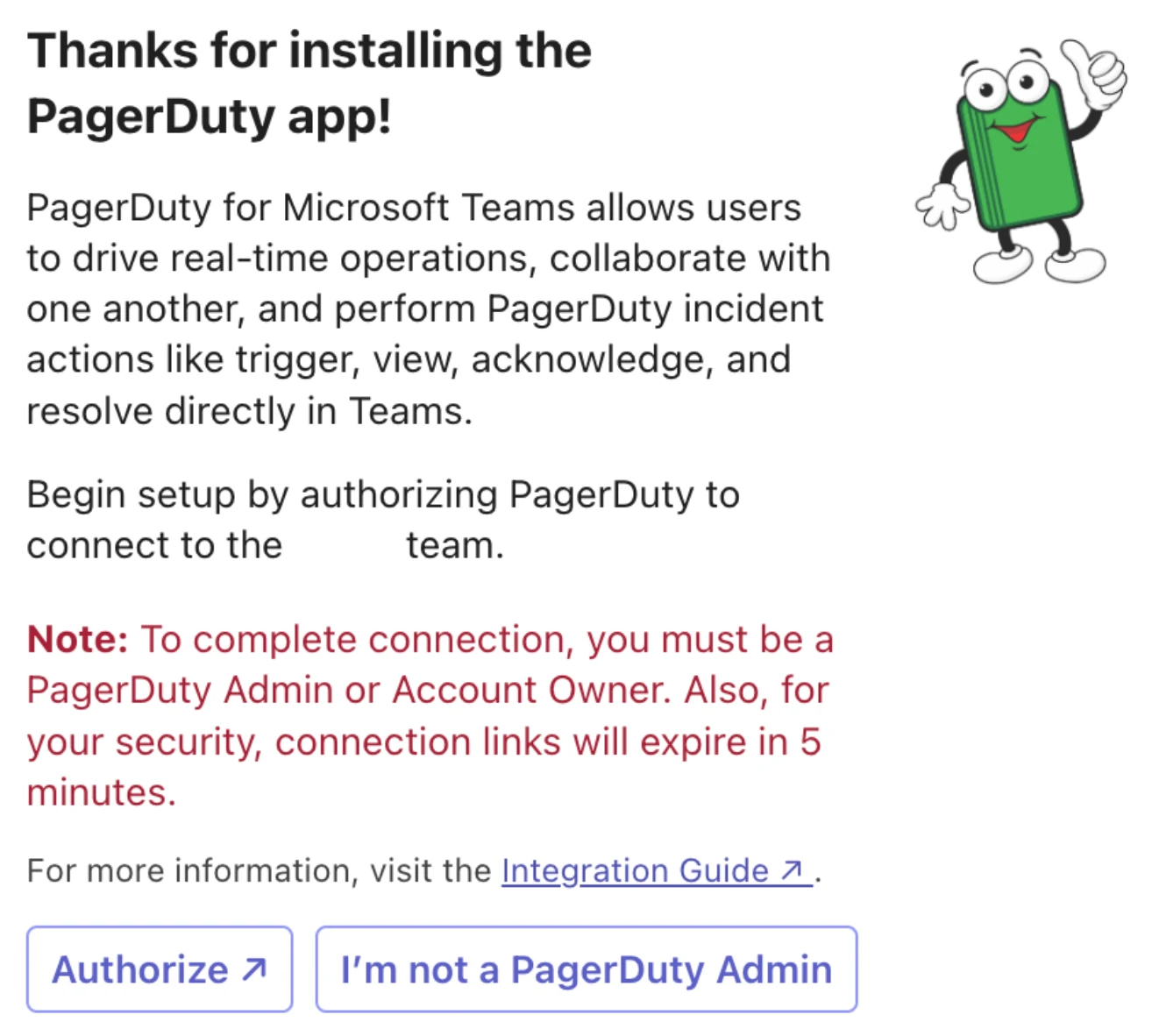
Note: The PagerDuty app's presence on this team may prevent you from receiving this private chat message from the PagerDuty bot. Please remove the PagerDuty app from the team first, then repeat step 2 to add the PagerDuty app to the team. 4. Click into the chat message with the PagerDuty bot.
-
If you are a PagerDuty Admin: Click Authorize to connect your team to PagerDuty.
-
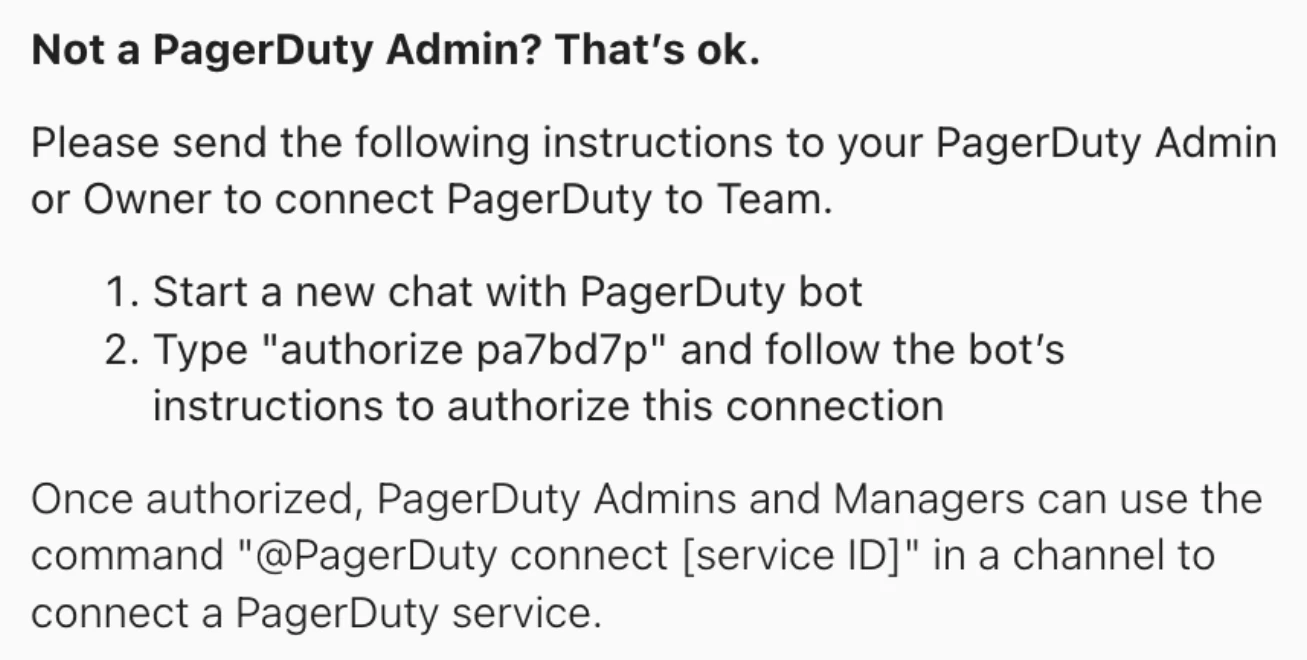
If you are not a PagerDuty Admin: Click I'm not a PagerDuty Admin.
The message will be expanded to include instructions that you can send to your PagerDuty Admin to authorize your team's connection to PagerDuty.
 5. After your PagerDuty Admin clicks Authorize, a PagerDuty login page will open in a separate window. Log in with PagerDuty Admin or Account Owner credentials to connect PagerDuty to the team you selected.
Note: If you are already logged into PagerDuty, this step will be bypassed.
You will be directed to the Microsoft Teams Integration page in your PagerDuty account, and you should see a success message:
"You've successfully connected the [YOUR TEAM NAME] team to PagerDuty".
If you receive the following error messages:
- "We can't connect Microsoft Teams to PagerDuty. Authorization cannot be completed at this time. You may close this window."
- "We can't connect Microsoft Teams to PagerDuty. The authorization link has expired or is not valid. Return to Teams to generate a new one. You may close this window."
Your PagerDuty user account may not have the correct permissions to complete the setup, or the connection link has expired. Ensure that your PagerDuty role is an Account Owner or Global Admin, check to see if another private chat with the PagerDuty bot has been sent with a renewed link, and retry authorizing the connection from Microsoft Teams.
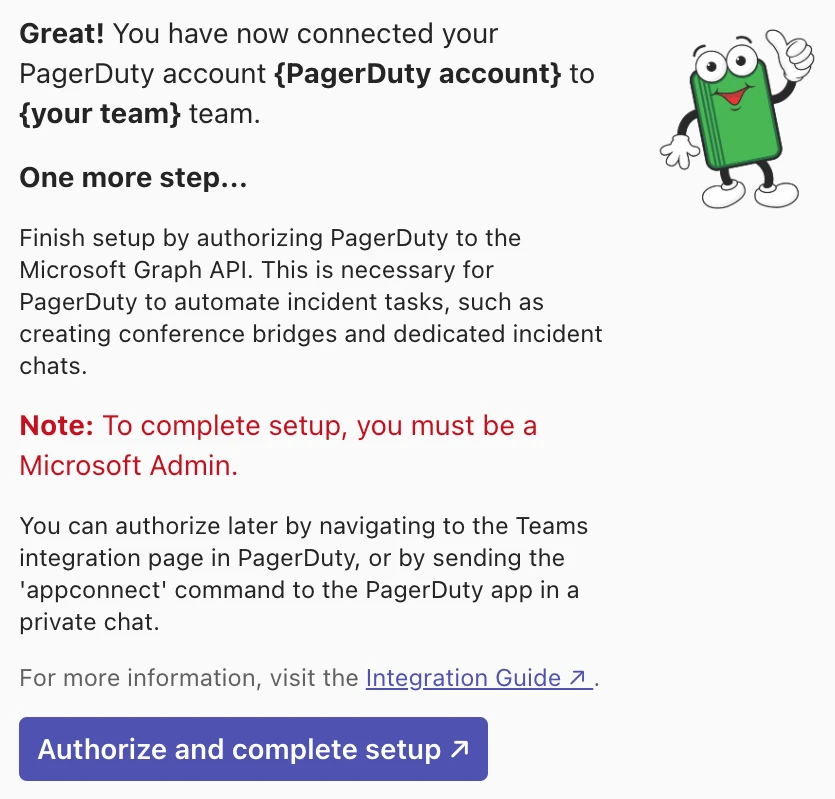
- For the final phase of setup, you will receive a message from the PagerDuty app to complete setup by authorizing PagerDuty to the Microsoft Graph API.
-
If you are a Microsoft Admin: Click Authorize and complete setup.
-
If you are not a Microsoft Admin:
- Ask your Microsoft admin to message the PagerDuty app with the command
appconnectto complete this step - Or ask them to visit the PagerDuty web app, navigate to Integrations → Microsoft Teams Integration, and click
Authorize
- Ask your Microsoft admin to message the PagerDuty app with the command
-
After clicking Authorize and complete setup, a Microsoft permissions prompt will open in a separate window. Click Accept.
Note: For a full list of the permissions being requested and their purpose, see the FAQ: What Microsoft Graph permissions are required by the PagerDuty app?
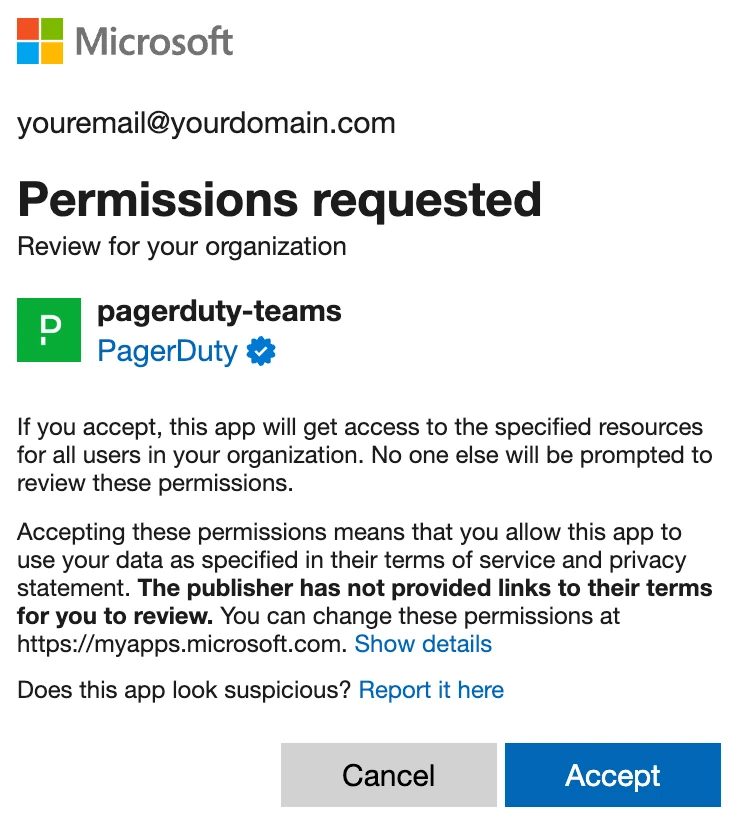 8. Setup is now complete!
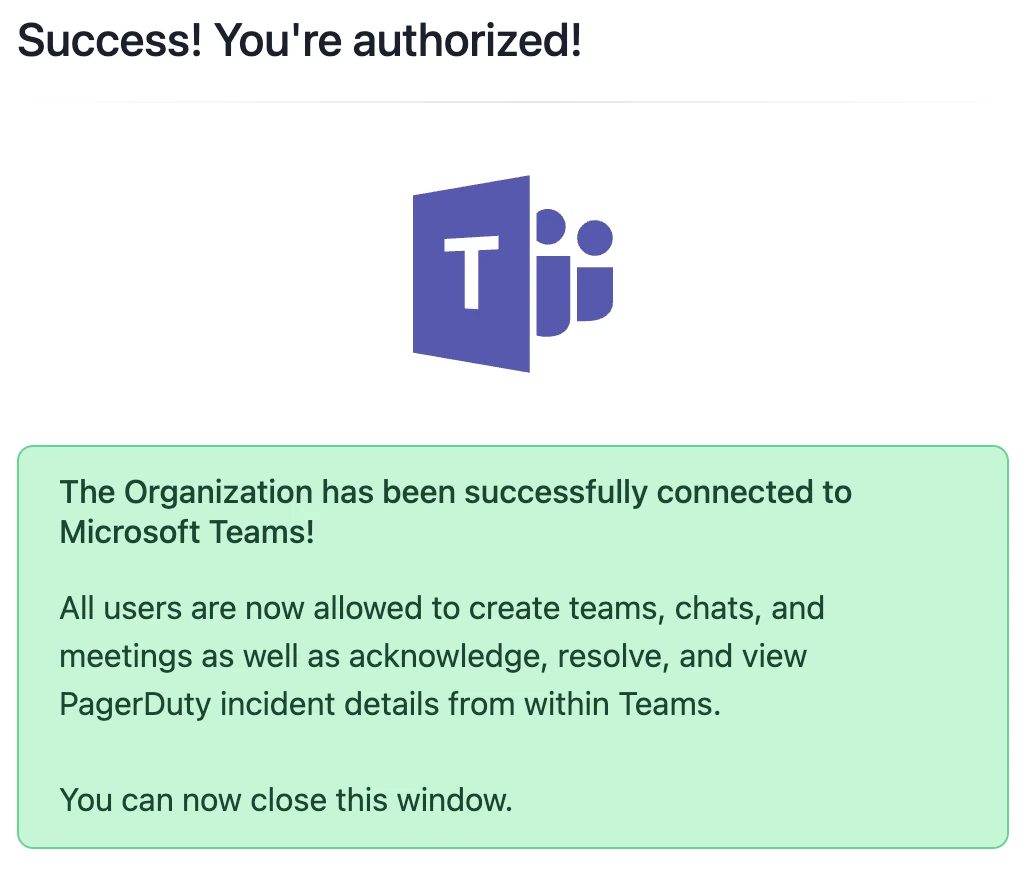 Authorization successful
To Connect Additional Teams to the Same PagerDuty Account
-
Repeat step 1 of this section from within Microsoft Teams.
Alternatively, a PagerDuty Admin can visit the PagerDuty web app, navigate to Integrations → Microsoft Teams Integration, and click + Connect More Teams.
 Connect More Teams button on the Microsoft Teams integration page in PagerDuty
- Follow steps 2 to 5, then repeat the process for each additional team you want to connect to PagerDuty.
To enable PagerDuty to create Microsoft Teams meetings
During setup, your Microsoft admin granted PagerDuty access to the Microsoft Graph API. One of the permissions we request is for the ability to create calendar events. This allows our application to create a calendar event and attach a Microsoft Teams meeting, which will be used as the PagerDuty incident’s conference bridge.
The permission to create calendar events is optional. If you need to revoke this permission, your Microsoft admin must configure an access policy to allow applications to create new Teams meetings on behalf of users. Please see the official Microsoft documentation for instructions, or have your Microsoft admin run the following PowerShell command:
Note: PAGERDUTY_ACCESS_POLICY in the following is a placeholder policy name, and can be modified.
Install-Module -Name PowerShellGet -Force -AllowClobber
Install-Module -Name MicrosoftTeams -Force -AllowClobber
Import-Module MicrosoftTeams
$credential = Get-Credential
Connect-MicrosoftTeams -Credential $credential
New-CsApplicationAccessPolicy -Identity "PAGERDUTY_ACCESS_POLICY" -AppIds "05ffe668-5b27-45ff-a64d-b2ed6c475d7a" -Description "Policy for enabling online meetings with application token for PagerDuty"
Grant-CsApplicationAccessPolicy -PolicyName "PAGERDUTY_ACCESS_POLICY" -Global
Or the following command for customers in the EU:
Install-Module -Name PowerShellGet -Force -AllowClobber
Install-Module -Name MicrosoftTeams -Force -AllowClobber
Import-Module MicrosoftTeams
$credential = Get-Credential
Connect-MicrosoftTeams -Credential $credential
New-CsApplicationAccessPolicy -Identity "PAGERDUTY_ACCESS_POLICY" -AppIds "8f79a561-d2f1-4a1e-8092-c2039043a40e" -Description "Policy for enabling online meetings with application token for PagerDuty"
Grant-CsApplicationAccessPolicy -PolicyName "PAGERDUTY_ACCESS_POLICY" -Global
Link PagerDuty Services to Microsoft Teams Channels
After you connect PagerDuty to your team, you can begin linking PageDuty services to your team's channels. You can link a channel to one or many PagerDuty services.
Required User Permissions
PagerDuty Admins can configure service-channel mappings through the PagerDuty web app or the PagerDuty app in Microsoft Teams.
PagerDuty Managers can configure service-channel mappings through the PagerDuty app in Microsoft Teams only.
- PagerDuty Managers (base role) can link any PagerDuty service to Microsoft Team channels.
- PagerDuty Managers (team role) can link their PagerDuty team’s services to Microsoft Team channels.
Using the PagerDuty Web App
- In the PagerDuty web app, navigate to Integrations → Microsoft Teams Integration.
- Expand the team that you have connected to PagerDuty, and click + Connect Notification Channel.
- Select which PagerDuty service and which Microsoft Teams channel that you would like to connect to each other from the dropdown lists.
- Click Connect to complete the service-channel connection.
- Repeat these steps to connect additional services and channels.
Using the PagerDuty App in Microsoft Teams
- In Microsoft Teams, under the team you have connected to PagerDuty, select the channel that you would like to connect to a PagerDuty service.
- Click Start a post.
- Enter the following app command, ensuring the PagerDuty bot is mentioned in the message:
@PagerDuty connect [link to the service URL in PagerDuty] - Click Connect Service.
- Repeat these steps to connect additional services and channels.
Once the PagerDuty service is connected to a team’s channel, incident notifications will be visible to all members in the channel.
Link PagerDuty and Microsoft Teams User Accounts
Responders must link their PagerDuty and Microsoft Teams user accounts to perform incident actions in Microsoft Teams. Also, responders with linked user accounts are automatically added to the Microsoft Teams meeting and/or chat, when a meeting and/or chat is created for the incident.
- To receive a personal account mapping link, users can follow the below options:
- Click Link Accounts on the welcome message posted by the PagerDuty bot in the General channel, upon successfully connecting its team to PagerDuty.
- Click Link Accounts on the welcome message posted by the PagerDuty bot in a channel, upon successfully connecting the channel to a PagerDuty service. OR
- In a private chat message with the PagerDuty bot, enter
linkUser
You will receive a private chat message from the PagerDuty bot, containing your personal user account mapping button.
- From the PagerDuty bot's private chat message, click Link Accounts.
- A PagerDuty login page will open in a separate window. Log in with your PagerDuty credentials to link your PagerDuty and Microsoft Teams user accounts.
Note: If you have already logged in, this step will be bypassed.
You will be directed to the Microsoft Teams Integration page in your PagerDuty account, and you should see a success message:You've successfully linked your user accounts.
All PagerDuty actions you perform as
[MS-TEAMS-NAME]in Microsoft Teams will be associated with[PAGERDUTY-NAME](PAGERDUTY-EMAIL) in PagerDuty.If you this is not correct, please enter the
@PagerDuty unlinkUsercommand in Microsoft Teams to unlink your account.
If you receive an error, verify that the PagerDuty credentials are correct and the user account is provisioned in the correct PagerDuty account. To find which PagerDuty account is connected to Microsoft Teams, enter the app command@PagerDuty openin any channel. Your organization’s PagerDuty account will open in a new browser window, and you can see your account’s subdomain in the address bar (e.g.subdomain.pagerduty.com).
Microsoft Teams User Guide
Upgrade PagerDuty's Microsoft Teams Application
To use the features in the latest Microsoft Teams integration, customers using the legacy Microsoft Teams connector application will need to upgrade.
Microsoft no longer supports the legacy Microsoft Teams application. If you have been using the legacy Microsoft Teams application and would like to upgrade to the current version, you must first remove the legacy connectors.
- In your Microsoft Teams console, search for and select the Pagerduty (Legacy) app.
- Click Add to a Team and select the team that is using the legacy connectors.
- Once a team has been selected, click Set up Connectorto go to the connectors page. In the left menu, navigate to Manage Configured.
- Click the Manage button next to the connector. The remove option is located towards the bottom of the page.
- After you have removed all the connectors, you will need to remove the app from the team. Navigate to Teams click the ellipsis to the right of your team's name Manage team Apps tab click the to the right of the PagerDuty (Legacy) app.
- Repeat the above steps for each team that uses connectors.
Microsoft Teams User Guide
Please read our Microsoft Teams User Guide for more information about using the integration after it has been configured.