Integrations
Live Call Routing
Trigger incidents from live calls and voicemails with a dedicated number
Live Call Routing (LCR) allows organizations to expand their customer support by directing incoming phone calls and voicemails to on-call responders. You can configure a fixed, dedicated number (local or toll-free, where available) to dynamically route calls or voicemails to the on-call responder and trigger incidents.
Requirements
You must have Live Call Routing enabled on your account before you can configure it.
- Live Call Routing is available as an add-on to customers on Professional and Business plans, and is included on the following plans: Enterprise for Incident Management and Digital Operations (Legacy). Contact our Sales Team if you would like to upgrade to a plan with this feature.
- Once enabled, all users (with the exception of Limited Users) can view, add, edit, and delete Live Call Routing numbers.
- Some accounts may require users to log in to view the Live Call Routing page, and restrict page editing to Manager, Global Admin, and Account Owner base roles. Contact your Account Manager if you would like to adjust these settings.
- Responders' phone systems must support Dual-Tone Multi-Frequency (DTMF) out-of-band using RFC-2833 (RTP events). In-band DTMF and SIP INFO are not supported. This is particularly important for Cisco Webex Calling users.
Add a Live Call Routing Number — US Region
US Service Region
- Navigate to Integrations Live Call Routing.
- Click New Routing Number.
Maximum Lines Reached
- Select the Country where you want the number to be based and enter a Preferred Area Code (optional), if available.
- Click Continue to create the number.
- Enter a Name for the routing number. Your Live Call Routing Phone number is automatically generated and displayed below the name field.
- Under What should happen when a call is connected?, choose one of the following options:
- Play greeting and go to voicemail. Send the voicemail recording to the current on-call responder
- Play greeting and call the current on-call responder. This option requires additional configuration:
- Choose a call display option:
- Show the incoming caller's number on the call display (Default)
- Show your LCR number on call display
- How long before call escalates to the next level (seconds): Select how many seconds pass before escalating — 15 s, 20 s (default), 30 s, 45 s, or 60 s.
- Skip Numbers that were already dialed on other EP levels (optional)
- Resolve Incident when call is completed with on-call user (optional)
- Choose a call display option:
Toll-Free LCR Number Regulations in Australia
- Under How should caller be greeted on the call?, choose one of the following options:
- Read a greeting message for me: Enter the message you want the caller to hear via automated message. To prevent service names from being read aloud, check the Only play this greeting, do not read out the service name(s) checkbox.
- Upload my own audio file to use as the greeting: Upload an MP3 audio file to play instead of an automated message. Click Choose File and select your audio file.
- Select an associated Service where you want incidents to trigger. This automatically assigns the service to Keypad # 1. To add more services, click Add Another Service.
- Click Update Routing Number to save your Live Call Routing number.
To add additional Live Call Routing lines or to request a toll-free number, contact our Sales Team.
Add a Live Call Routing Number — EU Region
EU Service Region
Edit a Live Call Routing Number
- Navigate to Integrations Live Call Routing and click View Settings on the number you want to edit.
- Make the necessary updates and click Update Routing Number to save your changes.
Delete a Live Call Routing Number
Non-Reversible Action
- Navigate to Integrations Live Call Routing and click Delete on the number you want to delete.
- Click OK in the prompt to confirm deletion.
Supported Countries
A Live Call Routing phone number's availability varies depending on your country and service region. The lists below represent countries where you can create an inbound Live Call Routing number. Responders can receive Live Call Routing-generated calls in any country where Phone Notifications are supported.
Availability
Calls to China Not Supported
US Service Region
Regular Phone Numbers
- Australia
- Canada
- Czech Republic/Czechia
- Israel
- Puerto Rico
- United Kingdom of Great Britain and North Ireland
- United States of America
Toll-Free Numbers
Subject to availability, you can configure a toll-free Live Call Routing phone number in the following countries. Toll-free numbers are administered separately from regular phone numbers. Contact our Sales Team if you would like to upgrade to a plan with this feature.
- Canada
- United Kingdom of Great Britain and Northern Ireland
- United States of America
EU Service Region
Due to local regulations, self-service purchases of Live Call Routing numbers are not supported in the EU Service Region. Contact our Sales or Customer Success teams to create a Live Call Routing number in the EU service region.
Regular Phone Numbers
- Australia
- Canada
- Germany
- Norway
- Romania
- Spain
- United Kingdom of Great Britain and North Ireland
- United States of America
Toll-Free Numbers
Subject to availability, you can configure a toll-free Live Call Routing phone number in the following country. Toll-free numbers are administered separately from regular phone numbers. Contact our Sales Team if you would like to upgrade to a plan with this feature.
- United Kingdom of Great Britain and North Ireland
Configuration Behavior
There are two ways to configure Live Call Routing's connection type:
- Play greeting and go to voicemail — the on-call responder receives the voicemail recording.
- Play greeting and call the current on-call responder
Play Greeting and Go to Voicemail
This setting triggers a PagerDuty incident after the caller leaves a voicemail. The caller's message attaches to the newly triggered incident, which is assigned to the on-call responder on the first level of the escalation policy. If more than one person is on call, PagerDuty assigns the incident to all responders on the first escalation rule. The incident then escalates according to the service's escalation policy.
Disable Voicemail (US Service Region Only)
Listen to a Voicemail
To listen to a voicemail attached to an incident, navigate to the Incidents page or open the incident directly, then click Show Details Listen to Recording.
To listen from the mobile app, tap the incident to view its details, then tap Listen to Recording.
Play Greeting and Call the Current On-Call Responder
This setting creates an Acknowledged PagerDuty incident when a responder answers the call. You can configure the incident to automatically Resolve when the call ends. If a responder has more than one phone number on their user profile, PagerDuty calls them at the first number listed on their Contact Information tab.
Escalation Behaviors
- PagerDuty attempts to connect the caller with the on-call responder on the first level of the escalation policy.
- You can configure how long each responder has to answer the call before it escalates to the next responder. The default is 20 seconds.
- If more than one responder is on call in a single level, PagerDuty randomly cycles through all responders on that escalation level, calling one at a time.
- Round Robin Scheduling does not apply to Live Call Routing when the connection is configured to connect directly to an on-call responder. Live Call Routing attempts to contact all on-call responders on an escalation level if other responders on the same level do not answer.
- If the responder does not answer, PagerDuty attempts to contact on-call responders at each remaining level of the escalation policy until someone answers. PagerDuty will not attempt to call the first level responders again. Even if the escalation policy is configured to repeat one or more times, Live Call Routing only goes through the escalation policy one time.
- If no one answers, PagerDuty prompts the caller to leave a message. An incident triggers with the inbound caller ID in the incident description, assigned to the on-call responder on the first level of the escalation policy. If Round Robin Scheduling is enabled, the incident is assigned to the user at the front of the assignment ring, and the ring rotates.
- The incident then escalates according to the service's escalation policy.
Show the Live Call Routing Number on Your Phone's Display
For calls that connect directly with responders, you can select an option to show the Live Call Routing number — instead of the caller's number — when a responder receives a call. This can be useful for adding to a contacts list so it is clear when a call relates to PagerDuty and Live Call Routing.
Country Limitations
Anonymous or Restricted Caller ID Behavior
Prevent Live Call Routing from Reading Your Services' Names
If you select Read a greeting message for me in step 7 of Add a Live Call Routing Number, Live Call Routing attempts by default to read your services' names to the caller so they can connect to the correct escalation policy. If your services reference internal terms or nomenclature, this information may not be meaningful to the caller.
You can configure Live Call Routing to only play the greeting without reading service names. If you select this option, update the greeting with caller-friendly information.
Text-to-Speech Pronunciation
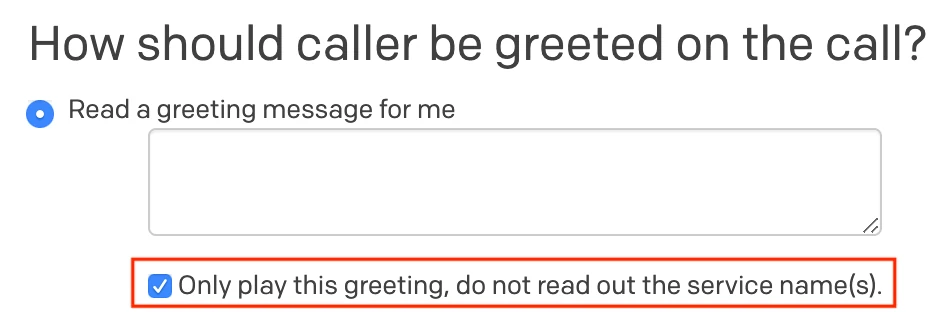 Prevent Live Call Routing from reading your services' names
Upload Your Own Audio Message
Select Upload my own audio file to use as the greeting and upload an MP3 file to play for the caller instead of an automated message.
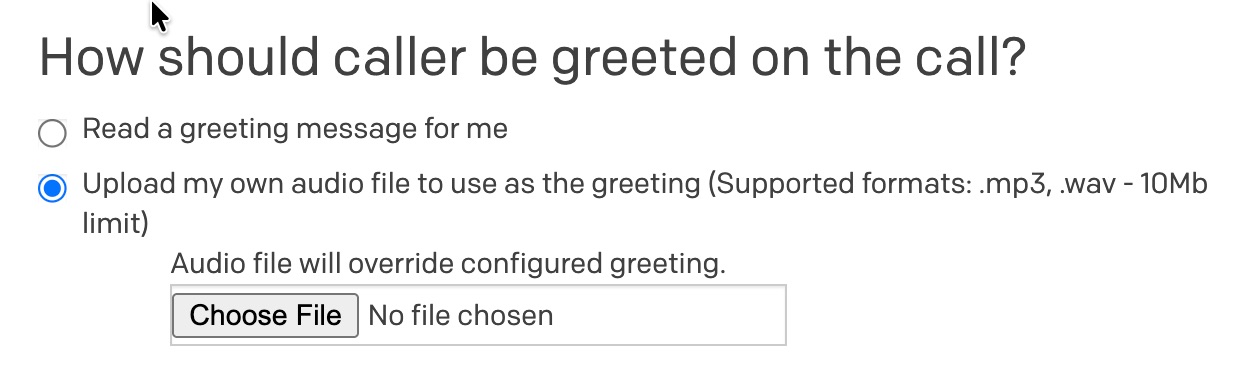 Upload audio message
Audio File Requirements
Supported formats: .mp3 or .wav
Maximum file size: 10 MB
Processing time: It may take up to one minute for the audio to become available to callers after you save your changes.
Associate Multiple Services with a Live Call Routing Number
You can associate up to nine services with a single Live Call Routing number. This creates a phone tree structure that prompts the caller to select an option. When dialing in, an automated voice announces "Press 1 for Nagios Critical. Press 2 for Datadog Alerts." and so on. Depending on the caller's selection, LCR connects them to the appropriate response team. If the caller does not make a selection, the greeting loops three times and then ends the call.
To change the order in which services are announced — most critical first, for example — rearrange the list of services on the routing number's Edit screen.
Troubleshooting Guide
"You have reached a PagerDuty Live Call Routing line that is not set up yet; please call back later"
If callers hear this message, check the following and make adjustments in your LCR configuration as needed:
- Is at least one service associated with the Live Call Routing phone number?
- Are the associated services disabled or in a maintenance window?
- Is anyone on call for this service? An incident cannot trigger if no one is on call.
- Do the on-call responders in the service's escalation policy have a phone contact method listed in the Contact Information section of their user profile? Live Call Routing checks users' SMS contact methods, and on-call responders must have a number listed in the Phone field of their contact information.
LCR Calls Fail to Accept DTMF Input by Pressing 1
If responders are unable to accept LCR calls by pressing 1, this may be due to Dual-Tone Multi-Frequency (DTMF) compatibility issues between your phone system and PagerDuty's telephony provider (Twilio).
What Is DTMF?
DTMF (Dual-Tone Multi-Frequency) is the technology that allows you to press keys on your phone to send signals — such as pressing 1 to accept a Live Call Routing call. See DTMF signaling for more information.
Requirements
- PagerDuty's telephony provider (Twilio) requires DTMF to be sent out-of-band using RFC-2833 (RTP events).
- In-band DTMF and SIP INFO methods are not supported and will not be detected.
- DTMF payload type must match (typically payload type 101).
- Transport protocol (TCP vs. UDP) must be compatible.
Common Causes
- Phone system configured for in-band DTMF instead of RFC-2833 out-of-band
- DTMF payload type mismatch (for example, payload type 96 vs. 101)
- Transport protocol incompatibility (UDP vs. TCP)
Resolution Steps
For Cisco Webex Calling users:
- Verify your Cisco Webex Calling or gateway configuration uses RFC-2833 (out-of-band) DTMF.
- Confirm the DTMF payload type matches PagerDuty's telephony provider requirements (typically payload type 101).
- Verify your transport protocol (TCP/UDP) is compatible with current requirements.
To troubleshoot:
- Contact PagerDuty Support with the following information:
- Call SIDs or timestamps of failed LCR call attempts
- Your phone system type and current DTMF configuration
- Current transport protocol settings (TCP/UDP)
- Request current DTMF payload type and transport protocol requirements from Support.
DTMF Requirement
Depending on your Live Call Routing configuration, callers can expect the following behavior when no one is on call on the first escalation level but there are people on call at a higher level:
- Connect Directly: The caller hears "Attempting to connect you to an on-call responder." Live Call Routing skips the first escalation level and tries the next level until it finds someone who is on call.
- Leave Message: The caller hears the Message to Caller and a beep prompting them to leave a message. A PagerDuty incident triggers and is assigned to the first escalation level with an on-call user.
Depending on your Live Call Routing configuration, callers can expect the following behavior when a service is set to low urgency or is on a low-urgency setting due to support hours:
- Connect Directly: Live Call Routing calls the first-level on-call user and, if there is no answer, calls on-call users at higher escalation levels. If there is still no answer, the caller is prompted to leave a message and a PagerDuty incident triggers.
- Leave Message: The caller hears the Message to Caller and a beep prompting them to leave a message. A low-urgency incident triggers and is assigned to the first escalation level with an on-call user. PagerDuty sends incident notifications according to the on-call user's low-urgency notification settings.
No. Live Call Routing does not follow the timing rules between escalation policy levels when you select the connect directly option. To connect callers to a responder as quickly as possible, if the user on the first escalation level does not answer, Live Call Routing immediately tries to contact the on-call responder at the next escalation level.
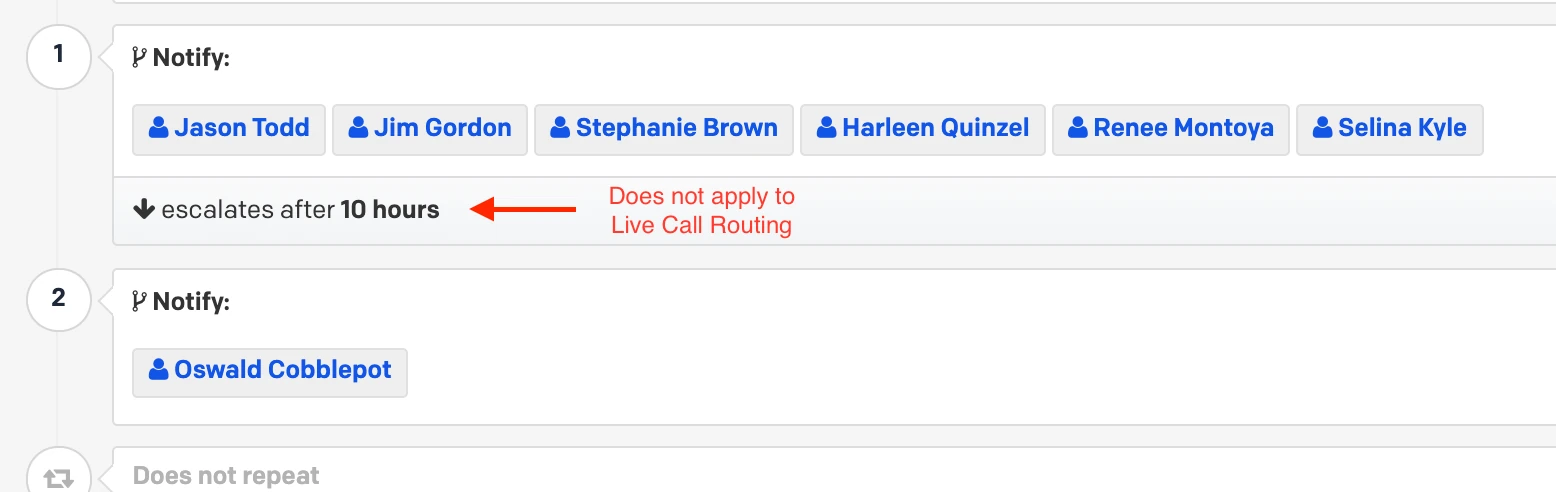 Escalation timeout
Live Call Routing is designed to handle voice calls and does not support SMS messages. Text messages sent to a Live Call Routing number do not trigger an incident or route to the on-call responder.