Integrations
Microsoft Teams User Guide
Using the Microsoft Teams integration after installation
After completing the initial configuration, you can manage PagerDuty incidents in Microsoft Teams.
App Commands
The PagerDuty application offers a variety of app commands. In any of your team channels, enter @PagerDuty [COMMAND], replacing [COMMAND] with any of the following:
help: View the list of available commands.open: Open PagerDuty in a new browser window.linkUser: Link your PagerDuty and Teams user accounts.unlinkUser: Unlink your PagerDuty and Teams user accounts.trigger: Complete the form to create a new incident.appconnect: Authorize PagerDuty with the Microsoft Graph API to create Microsoft Teams meetings and dedicated chats for PagerDuty incidents.
Additional Commands
PagerDuty Admin or Manager Role Required
connect [SERVICE-URL]: Use the PagerDuty service page URL to connect a PagerDuty service to a channel.
PagerDuty Admin Role Required
authorize [KEY]: In a private PagerDuty bot message, use the unique key provided to authorize PagerDuty to connect to a team.configure: Open PagerDuty's app configuration page in your browser.
PagerDuty Advance Assistant Feature Required
advance [QUESTION]: Interact with the PagerDuty Advance Assistant by asking questions to receive wider context, potential root causes, and on-call information.amazonq [QUESTION]: Use PagerDuty Advance to retrieve information from data sources in Amazon Q.
Incident Actions
Requirements
To perform an incident action in Microsoft Teams, your PagerDuty and Microsoft Teams accounts must be linked. If accounts are not linked, you will receive a private bot message with a personal link to complete the process.
When an incident notification posts in a Microsoft Teams channel, channel members can perform the following actions:
- Acknowledge
- Resolve
- Add Note
- Create Meeting
- Create Chat
- New Status Update
- Select to access:
All incident actions performed in Microsoft Teams update the incident in PagerDuty.
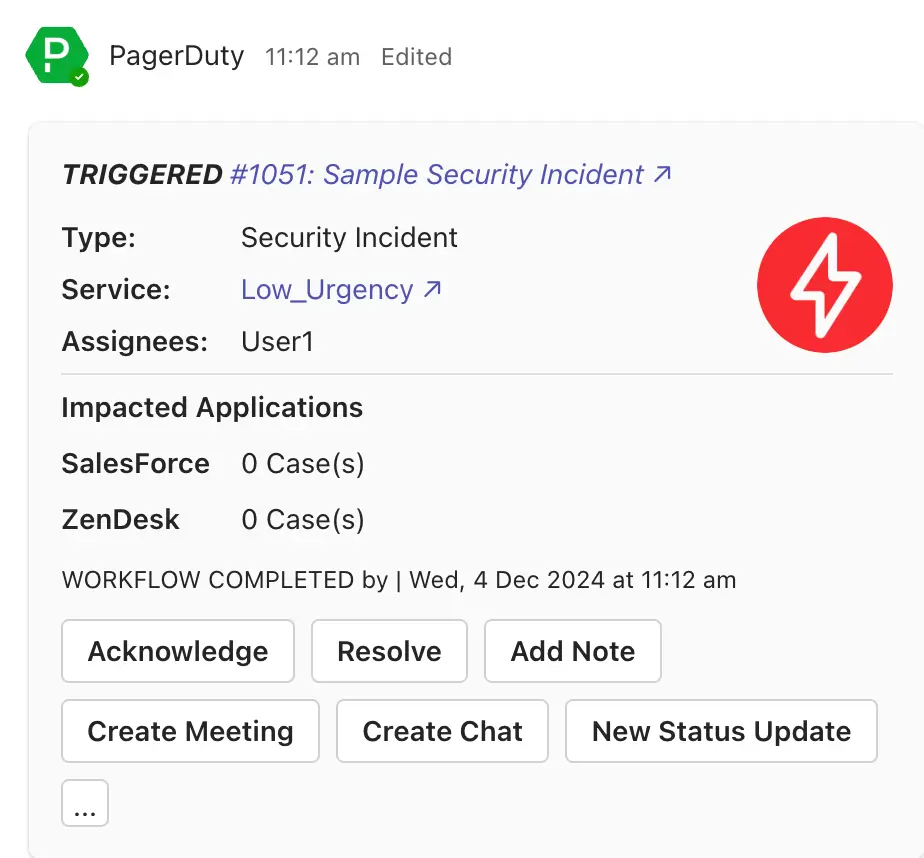 Incident card
Update Custom Fields
You can update an incident's custom fields via command.
Incident Dedicated Chats Only
Custom fields can only be updated within an incident's dedicated chat
.
- In an incident's dedicated chat, click on the right side of the message box, then select PagerDuty.
- Select your custom field and update the value.
Create Microsoft Teams Meetings
Users can create Microsoft Teams meetings that are assigned as the incident-specific Conference Bridge in PagerDuty incidents.
All incident responders are automatically added to the meeting if their PagerDuty and Microsoft Teams user accounts are connected. New responders joining a meeting have access to all prior chat history.
Default Behavior for Creating Meetings
With the optional Calendars.ReadWrite permission granted to the application, PagerDuty creates a calendar event and attaches a Microsoft Teams meeting, which is used as the incident's conference bridge. The event appears on the calendar of the meeting organizer.
If you prefer to create meetings without calendar events, you can revoke the optional permission, but you will need to manually configure an access policy to allow the application to create meetings.
There are three ways to create Microsoft Teams meetings:
- Create a meeting conference bridge from Microsoft Teams
- Create a meeting conference bridge from the PagerDuty web app
- Create a meeting conference bridge through Incident Workflows
Create a Meeting Conference Bridge From Microsoft Teams
-
After an incident notification posts in a Microsoft Teams channel, click Create Meeting from the incident actions.
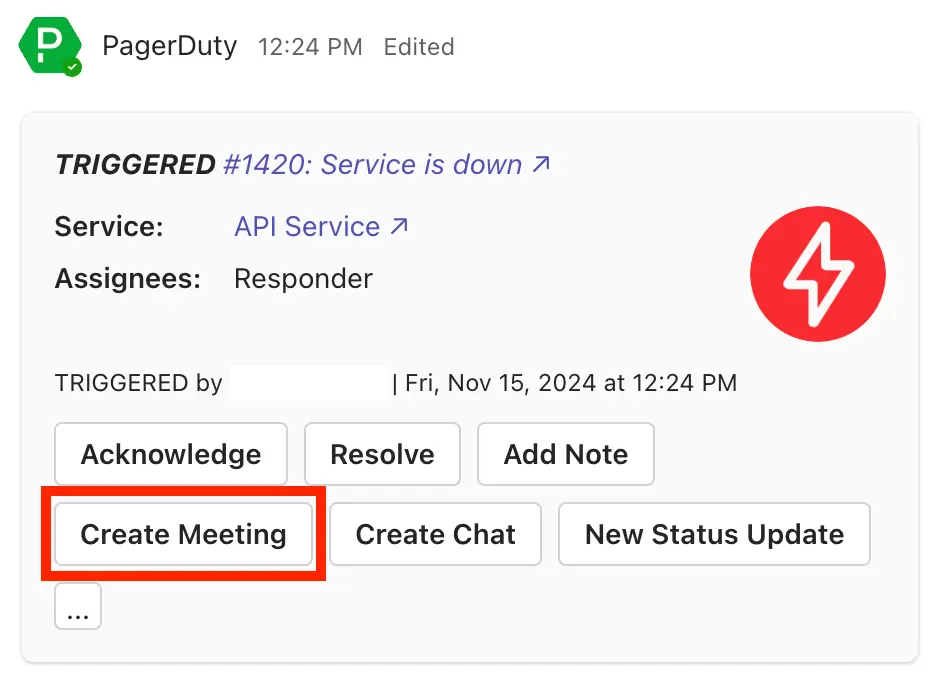 Create Meeting
 -
When the confirmation message appears, click Confirm to add all current responders with linked PagerDuty accounts automatically.
-
After the meeting is created, Create Meeting is replaced by Join Meeting. The dial-in number, if available, is populated in the incident notification card.
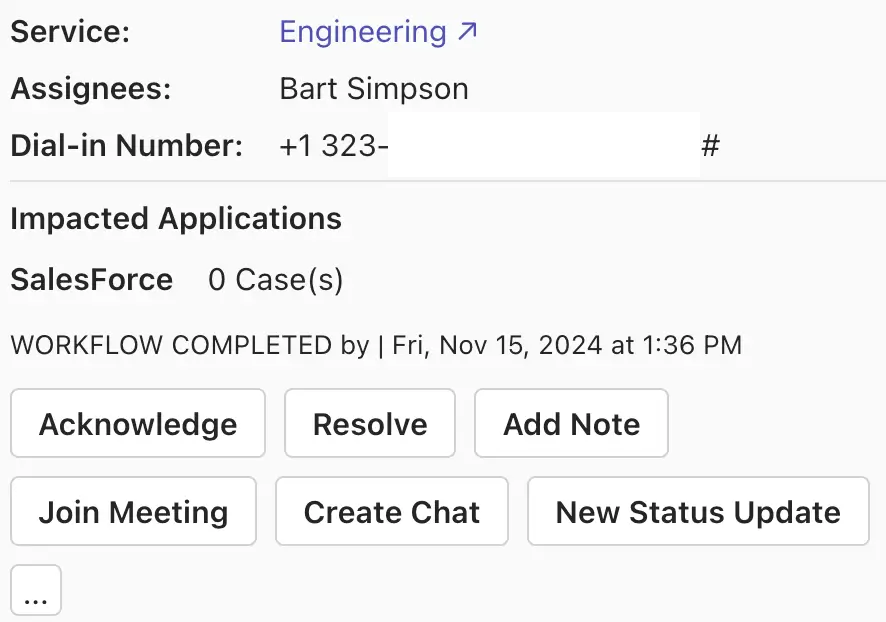 Meeting details on the incident notification card
 -
In PagerDuty, the meeting link and dial-in number, if available, appear on the incident's Conference Bridge and on a new note. The incident timeline shows an entry indicating that the meeting was successfully created by the meeting organizer.
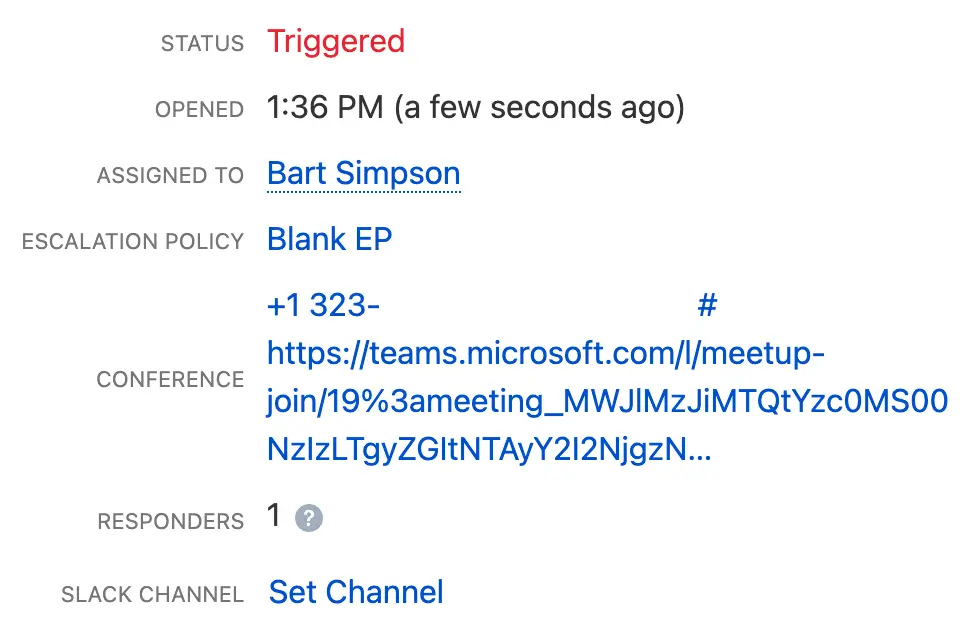 Meeting details on the PagerDuty incident
Join and Use a Microsoft Teams Meeting Conference Bridge
-
Click Join Meeting on the incident notification to join the Microsoft Teams Meeting Conference Bridge.
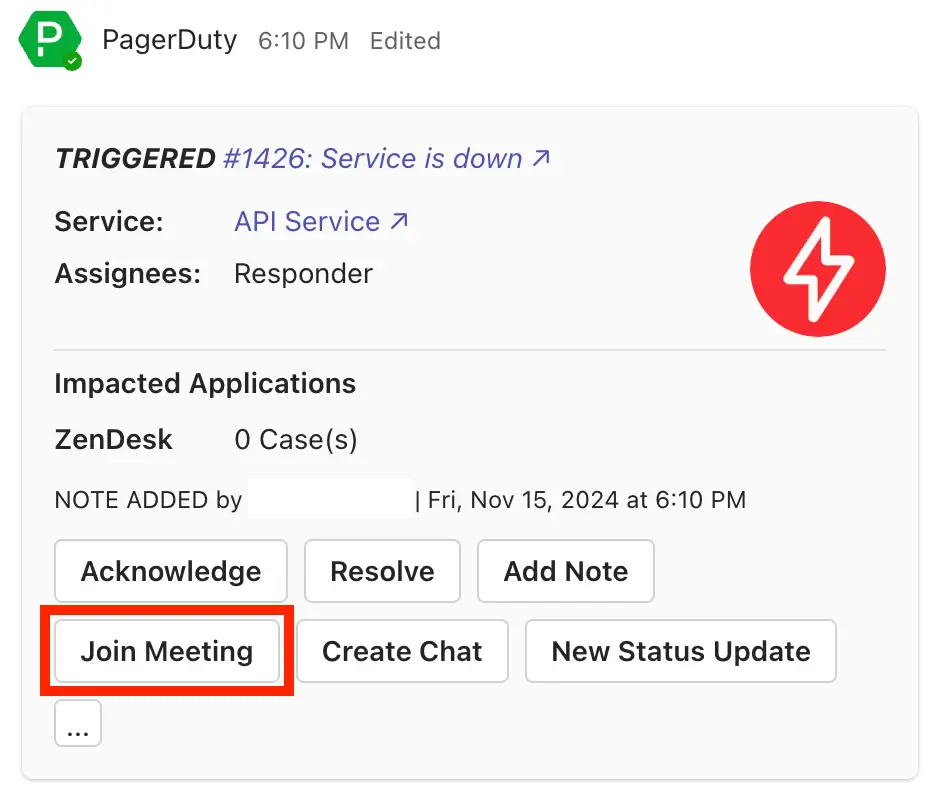 Join Meeting
 -
All comments made in the meeting chat — found by clicking Show Conversation at the top of the screen — sync with the Chat in the Microsoft Teams console, so you can request help from team members not currently in the meeting.
Create a Meeting Conference Bridge from the PagerDuty Web App
You can create Microsoft Teams meetings directly from a PagerDuty incident's details page when the following conditions are met:
- The incident does not already have a conference bridge.
- The account has not configured the Zoom integration.
-
Navigate to an incident's details page in the PagerDuty web app.
-
Click Create MS Teams Meeting.
-
After the meeting is created, the meeting link and dial-in number, if available, appear on the Conference Bridge and on a new note. The incident timeline shows an entry indicating that the meeting was successfully created by the meeting organizer.
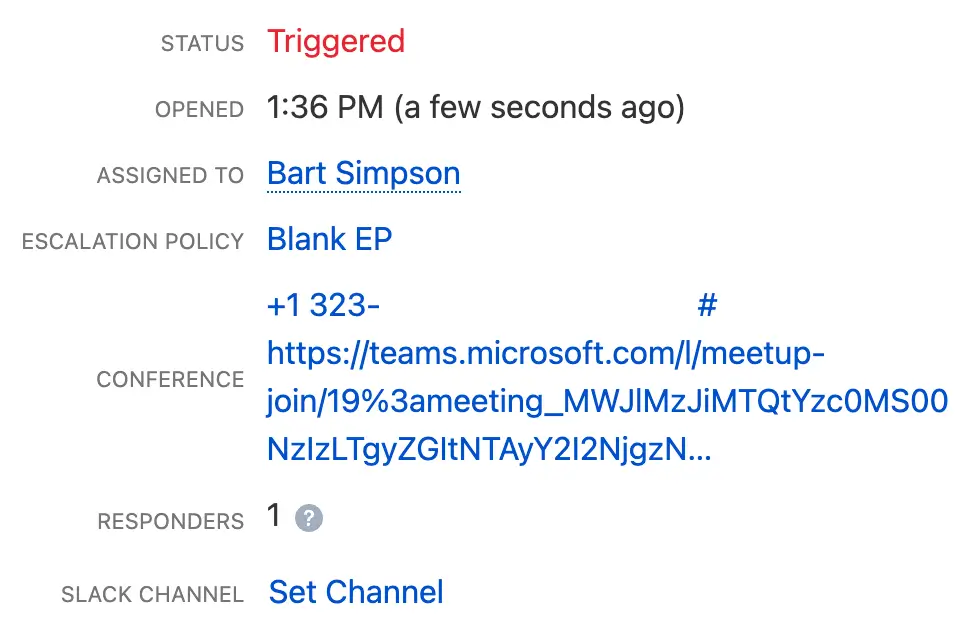 Meeting details on the PagerDuty incident
Create a Meeting Conference Bridge through Incident Workflows
You can create Microsoft Teams meetings via Incident Workflows. See Create Conference Bridge in Microsoft Teams for more information.
Create Microsoft Teams Dedicated Chats
You can add a Microsoft Teams dedicated chat to an incident. This automatically adds connected responders to the chat. The incident chat includes an incident notification card with real-time incident updates and incident action buttons.
There are two ways to create Microsoft Teams dedicated chats:
Create a Dedicated Chat from Microsoft Teams
-
After an incident notification posts in a Microsoft Teams channel, click Create Chat from the incident actions.
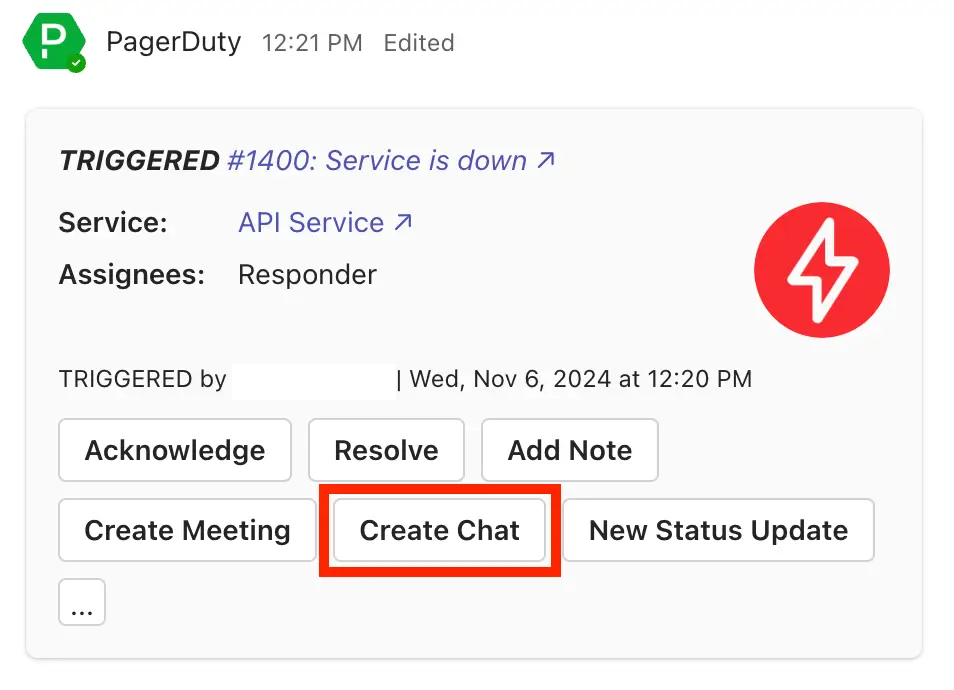 Create Chat
 -
After the dedicated chat is created, the chat's link is populated on the incident as a new note.
Join a Microsoft Teams Dedicated Chat
Click Join Chat on the incident notification card to join the Microsoft Teams dedicated chat.
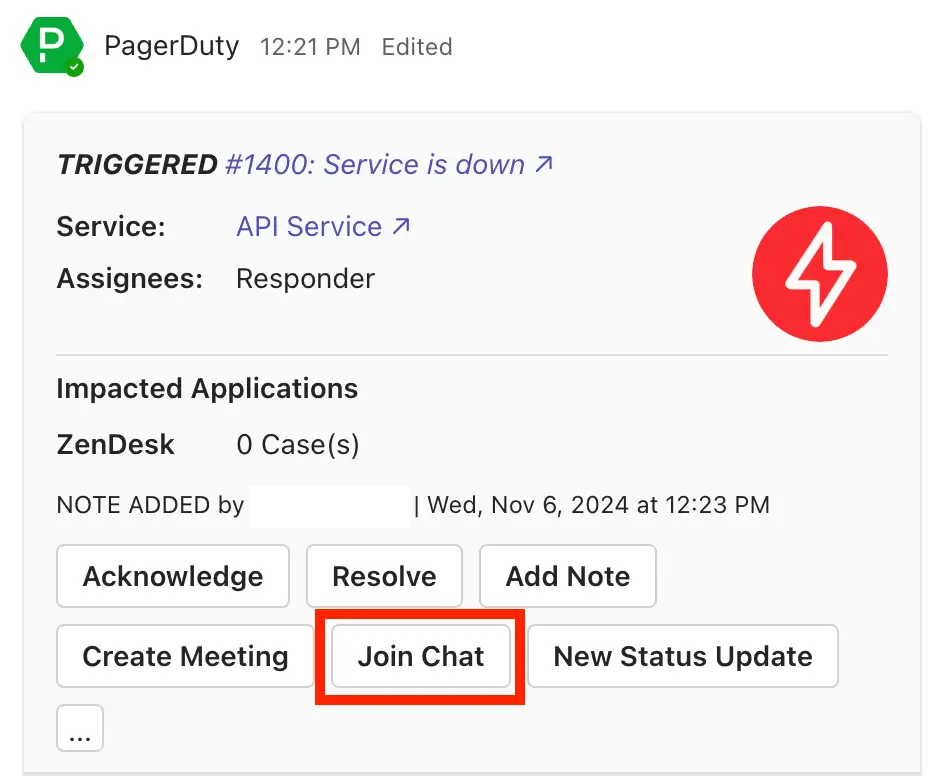 Join Chat
Create a Dedicated Chat through Incident Workflows
You can create an incident's dedicated chat via Incident Workflows. See Create a Dedicated Chat in Microsoft Teams for more information.
View Impacted Applications in Microsoft Teams
View customer service application impact during an incident in Microsoft Teams. Services with Salesforce or Zendesk integrations list the number of cases related to the current incident, with links to individual cases.
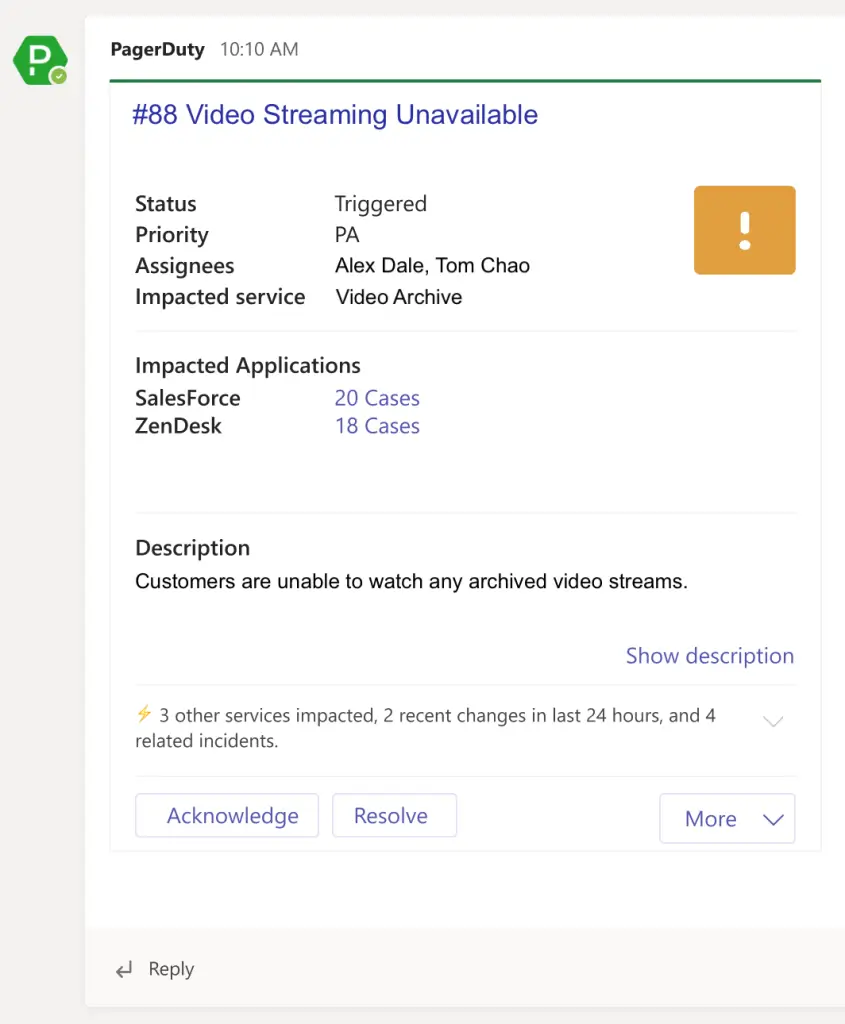 View impacted applications in Microsoft Teams
To view individual cases:
- Click
[#]Cases to the right of the application you want to view. - In the modal that appears, click a case number to navigate to the integrated application and view the case.
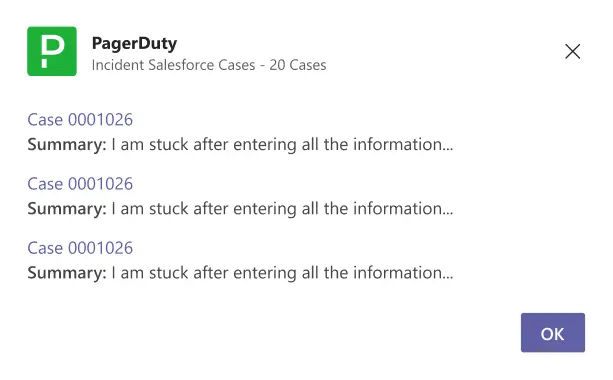 Associated cases
MS Teams Incident Workflow Actions
Incident Workflows allow you to run a workflow to create a Microsoft Teams dedicated chat or conference bridge. See the Microsoft Teams Workflow Actions library for more information.
Delegated vs. Application Permissions
Delegated permissions let a Microsoft Teams app act as the currently signed-in user, while application permissions let the app act as itself without any user present.
Migration Path
If your organization is currently using application permissions and wants to transition to delegated permissions, follow these steps:
- An IT admin approves delegated permissions in Entra ID (one-time action).
- Each user executes the
graphAuthcommand in the Teams app via personal conversation with the PagerDuty app. - Once all users have completed step 2, the IT admin can revoke the application permissions.
Delegated Permissions
Used when a user is signed in and the app is calling Microsoft Graph on behalf of that user — for example, a Teams tab or bot using SSO.
- Effective access is the intersection of what the app has been granted (scopes such as
User.ReadandChat.Read) and what the user themselves is allowed to do. - Consent can be given by users for low-risk scopes, or by an admin to cover all users, depending on Entra ID consent policies.
- Typical use: reading a user's own chats, profile, calendar, or files in the context of that user's session in Teams.
Application (App-Only) Permissions
Used when the app runs without any signed-in user — such as background services, daemons, or lifecycle apps that manage Teams data at scale.
- The app acts with its own identity (app role) and can access data across users and teams, subject to the app permissions granted (for example,
Chat.Read.AllandTeam.ReadBasic.All). - Only admins can consent to application permissions. They are treated as higher risk and cannot be classified as low-risk for user self-consent.
- Typical use: compliance and archive jobs, analytics, provisioning or governance services that need org-wide Teams or chat access.
How This Maps to Teams Apps
Teams apps can request both Microsoft Graph delegated scopes and app-only (application) permissions, as well as Teams-specific resource-specific consent (RSC) permissions in the app manifest.
RSC Application permissions in the manifest let the app operate within a specific team or chat when added there — for example, creating channels or managing tabs — while Graph delegated permissions are used when the app needs user-context data such as profile or mail.