AI & Automation
PagerDuty Automation Actions
Run diagnostic or remediation actions at the push of a button
PagerDuty Automation Actions invoke jobs that are staged in Runbook Automation (SaaS or Self-Hosted). An Automation Action can also invoke a script run by an installed Runbook Automation Self-Hosted Runner. By associating Automation Actions with a PagerDuty service, responders get push-button access to a library of defined diagnostic or remediation actions, resulting in shorter resolution times and fewer disruptive escalations.
Automation Actions can also be used as part of an Event Orchestration to enrich incident data with diagnostics information or perform remediation actions on incidents automatically.
Automated Diagnostics
Availability
Automation Actions are available for accounts with Runbook Automation (SaaS or Self-Hosted).
If you are not yet a Runbook Automation customer, you can sign up for a trial.
Configure Automation Actions
Runner Configuration
A Runner is the piece of software that invokes of an Automation Action. There are two types of Runners: Runbook Automation Self-Hosted and Runbook Automation.
You must download, install, and configure a software package when using a Runbook Automation Self-Hosted Runner. This type of Runner is best paired with PagerDuty Runbook Automation Self-Hosted, but it can also be used to invoke a local script or a job in Rundeck OSS (version 4.0 and greater).
When configuring a Runbook Automation Runner, an API token for a valid Runbook Automation account is required to complete the setup wizard and create a link between your PagerDuty Incident Response and Runbook Automation accounts.
Required User Permissions
A PD Automation Actions user license is required for this feature. Please read Flexible Licensing for more information about assigning users a specific license type.
Users with the following roles can create, edit and delete Automation Actions and Runners:
- Account Owner
- Admin/Global Admin
Users with the following roles can create, edit and delete Automation Actions and Runners associated with their Teams:
- Manager Team roles
Users with the following roles can run Automation Actions on incidents:
- Account Owner
- Admin/Global Admin
- Manager base roles
- Responder
Users with the following roles can view all Automation Actions and Runners:
- Account Owner
- Admin/Global Admin
- Manager
- Responder
- Observer
There are two ways to create a Runner with PagerDuty:
- Create A Runbook Automation Self-Hosted Runner for our self-hosted automation platform.
- Create A Runbook Automation Runner for our SaaS-based workflow automation.
Create A Runbook Automation Self-Hosted Runner
Create a PagerDuty API Key
In the PagerDuty web app:
- Navigate to Integrations API Access Keys and click Create New API Key.
- Enter a Description that will help you identify the key later on. If you would like it to be read-only, check the Read-only option.
- Click Create Key.
- This will generate a unique key for the REST API. Copy it to a safe place, as you will not have access to copy this key again. Once it has been copied, click Close.
- Note: If you lose a key, you will need to delete it and create a new one.
Create a PagerDuty Runbook Automation Self-Hosted Token
In PagerDuty Runbook Automation Self-Hosted:
- Go to User Icon Profile.
- To the right of User API Tokens, click .
- Enter a name for the API token and click Generate New Token.
- Copy the User API Token and keep it in a safe place for later use.
Create a PagerDuty Runbook Automation Self-Hosted Project
- Create a Runbook Automation Self-Hosted Project that will contain the Job you’d like PagerDuty responders to be able to execute.
Create a PagerDuty Runbook Automation Self-Hosted Job
- Create a Runbook Automation Self-Hosted Job in the Project. After the job is created, copy its ID and keep it in a safe place for later use.
Create a Runbook Automation Self-Hosted Runner
Next, you will add a new runner to generate an ID and secret.
- In the PagerDuty web app, navigate to Automation Automation Actions Runners tab Add Runner.
- Select the Process Automation runner type, and click Continue.
- Enter a Runner Name and Runner Description.
- Optional: If you'd like to limit who has access to the runner, select one or more Teams from the Teams dropdown.
- On the following screen, click Download ID and Secret to download the file
credentials.pdrunner-creds, and click Create Runner. - Open
credentials.pdrunner-credsin your preferred text editor, replace<API_Token>with the PagerDuty API key from step 7 above, and save the file:
id:XXXXXXXXXXXXXXXXXXXXXXX3P1C
secret:XXXXXXXXXXXXXXXXXXXX2I4B
token:<PagerDuty_API_TOKEN>
rundeck_url: http://localhost:4440
rundeck_token: <Your_Saved_PagerDuty_Process_Automation_API_TOKEN>
Security Tip
If you do not wish to store your runner credentials in plaintext, you can use environment variables instead. In zsh, for example, you can set can set an environment variable for the runner ID by adding export RUNNER_ID=<runner-id-value> to .zshenv and then running source ~/.zshenv to activate it.
After setting and activating environment variables for id, secret, token, rundeck_url and rundeck_token, you can update the credentials file:
id:${RUNNER_ID}
secret:${RUNNER_SECRET}
token:${RUNNER_PDTOKEN}
rundeck_url:${RUNNER_CLOUD_RDKCLIENT_URL}
rundeck_token:${RUNNER_CLOUD_RDKCLIENT_TOKEN}
- Run the following commands in order to install Java 11+ on the machine that will host the runner. We recommend Linux (Ubuntu 18) or higher. If the operating system is reasonably new, we also recommend performing an update:
a. Update the Ubuntu version.
sudo apt-get update
b. Install the open source Java version that the runner uses.
sudo apt install openjdk-11-jre-headless
c. Create a folder on your system in a preferred directory where you would like to place the credentials files.
mkdir automation_runner
d. Navigate to the runner’s directory.
cd automation_runner
e. Move the file credentials.pdrunner-creds from step 16 above into the automation_runner folder you just created. It should already contain the PagerDuty API key from a step 7 above.
f. Rename the file to pdrunner-creds.
mv credentials.pdrunner-creds .pdrunner-creds
g. Download the latest runner software from PagerDuty.
wget https://runbook-actions.pagerduty.com/pd-runner.jar
h. View the current files in the directory: .pdrunner-creds and pd-runner.jar.
ls -larths
i. Launch pd-runner.
java -jar pd-runner.jar
j. (Optional) Verify activity in runner.log.
tail -f /home/ubuntu/automation_runner/runner/logs/runner.log
- Check the runner’s status in PagerDuty: Automation Automation Actions Runners. A green check mark indicates that the runner is active and running successfully. A red circle indicates that the runner is not running or there is a problem with the runner. Please verify your Java 11+ installation and check the local runner logs, or refer to our Automation Actions FAQ.
Create an Automation Action with a Runbook Automation Self-Hosted Runner
Once the Script & On Prem runner is running successfully, you can add an action.
- In PagerDuty, navigate to Automation Automation Actions Actions tab and click Add Action.
- Select the radio button next to your desired runner and click Next.
- Perform the following:
| Field | Instructions |
|---|---|
| Pick a runner to execute the action | Select the runner from the dropdown menu. |
| Select type | Select Script or Process Automation to determine how you would like the action to be invoked. |
| Select or add a category of action | Select Diagnostic or Remediation. To create a custom category, select Add a category and enter a category name. The custom category will be available as an option on future actions you define. |
| Define your action | Depending on your Select type selection, enter the following: Supply the action with a script — this can be a script in a particular language, or a simple Unix command. The only requirement is that the runner host is capable of running the script and supports the script's language. Enter Process Automation Job ID — enter your desired Process Automation Job ID. This should be an existing job ID in the Process Automation instance. (Optional): It is also possible to enter Process Automation options — for example, passing the PagerDuty incident ID at runtime as a string option: -pd_incident_id ${pagerduty.incidentId}. Enter a Process Automation node filter. |
| Action Name | Enter a Name for the action. |
| Action Description | Describe the purpose of the action. |
| Associate this action with one or more services. The action will be available on any incidents that trigger on the selected service(s) | Select one or more PagerDuty services from the dropdown menu. (Optional) checkbox: Make this action available to run on all services. |
| Associate with a Team to limit who has access to run this action | Associate this action with a particular PagerDuty Team (Optional). |
| Invocation Options | Only allow invocation on unresolved incidents: Check this checkbox to deny action invocation on resolved incidents. Allow invocation manually: Check this checkbox to allow manual action invocation on an incident. Allow invocation from event orchestration: Check this checkbox to allow action from an Event Orchestration rule. |
- Click Create Action.
Responders will now be able to run this action on incidents.
Create A Runbook Automation Runner
Create a PagerDuty Runbook Automation Token
In Runbook Automation (Rundeck):
- Go to User Icon Profile.
- To the right of User API Tokens, click .
- Enter a name for the API token and click Generate New Token
- Copy the User API Token and keep it in a safe place for later use.
Create a PagerDuty Runbook Automation Project
- Create a Runbook Automation Project that will contain the Job you’d like PagerDuty responders to be able to execute.
Create a PagerDuty Runbook Automation Job
- Create a Runbook Automation Job in the Project. After the job is created, copy its ID and keep it in a safe place for later use.
Create a Runbook Automation Runner
- In PagerDuty, navigate to Automation Automation Actions Runners tab Add Runner.
- Select the Runbook Automation runner type, and click Continue.
- Enter a Name and Description and click Continue.
- On the following screen, enter your Runbook Automation instance’s subdomain and Runbook Automation User API key from step 4 above, and click Confirm.
- The confirmation page will present a green check mark indicating that the runner is active and running successfully.
Create an Automation Action with a Runbook Automation Runner
Once the Runbook Automation runner is running successfully, you can add an action.
- In PagerDuty, navigate to Automation Automation Actions Actions tab and click Add Action.
- Select a Runbook Automation runner, and click Next.
- Perform the following:
| Field | Instructions |
|---|---|
| Pick a runner to execute the action | Select the runner from the dropdown menu. |
| Select type | Select Script or Process Automation to determine how you would like the action to be invoked. |
| Select or add a category of action | Select Diagnostic or Remediation. To create a custom category, select Add a category and enter a category name. The custom category will be available as an option on future actions you define. |
| Define your action | Depending on your Select type selection, enter the following: Supply the action with a script — this can be a script in a particular language, or a simple Unix command. The only requirement is that the runner host is capable of running the script and supports the script's language. Enter Process Automation Job ID — enter your desired Process Automation Job ID. This should be an existing job ID in the Process Automation instance. (Optional): It is also possible to enter Process Automation options — for example, passing the PagerDuty incident ID at runtime as a string option: -pd_incident_id ${pagerduty.incidentId}. Enter a Process Automation node filter. |
| Action Name | Enter a Name for the action. |
| Action Description | Describe the purpose of the action. |
| Associate this action with one or more services. The action will be available on any incidents that trigger on the selected service(s) | Select one or more PagerDuty services from the dropdown menu. (Optional) checkbox: Make this action available to run on all services. |
| Associate with a Team to limit who has access to run this action | Associate this action with a particular PagerDuty Team (Optional). |
| Invocation Options | Only allow invocation on unresolved incidents: Check this checkbox to deny action invocation on resolved incidents. Allow invocation manually: Check this checkbox to allow manual action invocation on an incident. Allow invocation from event orchestration: Check this checkbox to allow action from an Event Orchestration rule. |
- Select Create Action to complete the configuration.
Context Variables
Use Context Variables in Automation Actions
You can enrich Runbook Automation Self-Hosted, Runbook Automation, and Script actions with context variables that use data from the first triggering alert attached to an incident. Where possible, you should send event data to PagerDuty in our Common Event Format (PD-CEF), since using standardized event data will make it easier to reuse actions for multiple event types.
You can reference alert fields using ${pd.alert.key} syntax, where key is the path of the JSON key name (e.g., ${pd.alert.details.target.name}). We also support square bracket notation for cases where event data may contain arrays or fields with dots in the name (e.g., ${pd.alert.details.nodes[0].hostname}).
Context Variable Placeholders
The following placeholders are available:
${incident.id}
${incident.first_alert_id}
${pd.alert.client}
${pd.alert.creation_time}
${pd.alert.dedup_key}
${pd.alert.description}
${pd.alert.event_class}
${pd.alert.severity}
${pd.alert.source_component}
${pd.alert.service_group}
${pd.alert.source_origin}
${pd.incident.custom_fields.FIELD_NAME}
Incident Metadata
Above, you’ll notice two incident metadata context variables, ${incident.id}, and ${user.id}. These context variables represent the obfuscated incident ID of the incident and the user ID that invoked the Automation Action (i.e., the user ID of the person that pushed the button in the PagerDuty web or mobile app).
${pd.incident.id}
${user.id}
You can also reference incident custom fields using ${pd.incident.custom_fields.field_name} syntax, where field_name should match the incident custom field you wish to reference.
Examples
PagerDuty Automation Action (Script)
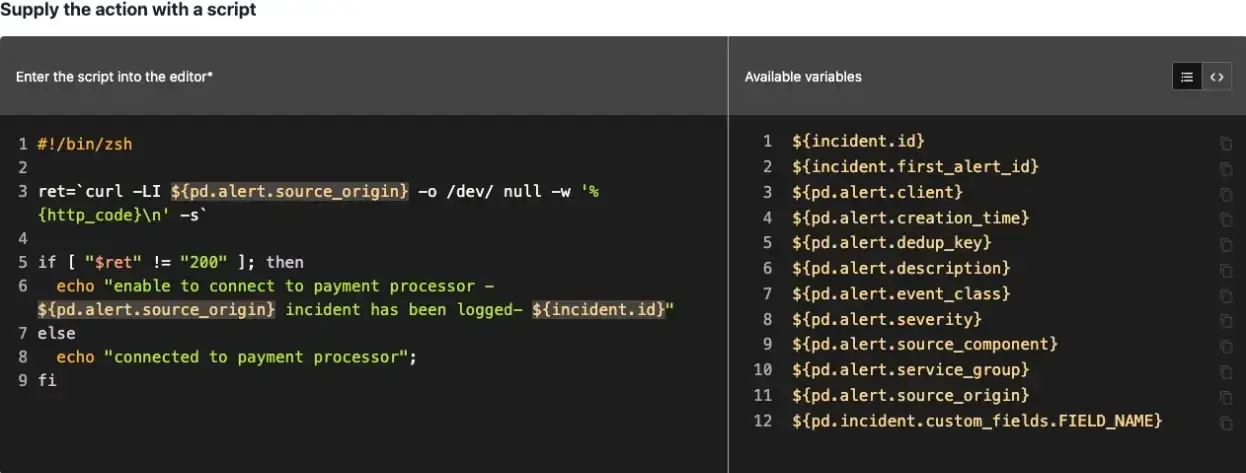 Script with context variables
PagerDuty Automation Action (Runbook Automation Self-Hosted Job)
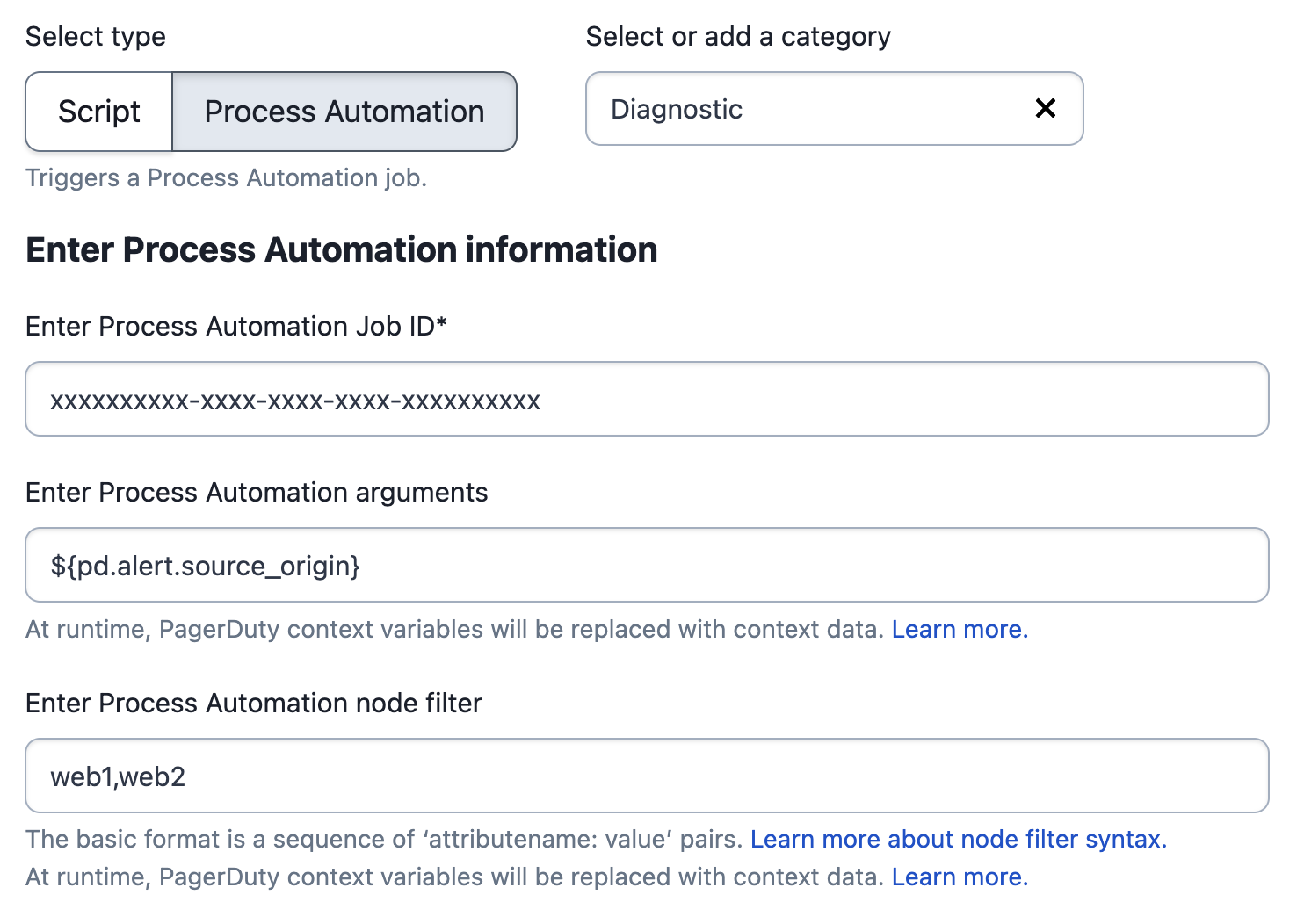 Process Automation with context variable
PagerDuty Automation Action (Runbook Automation Job)
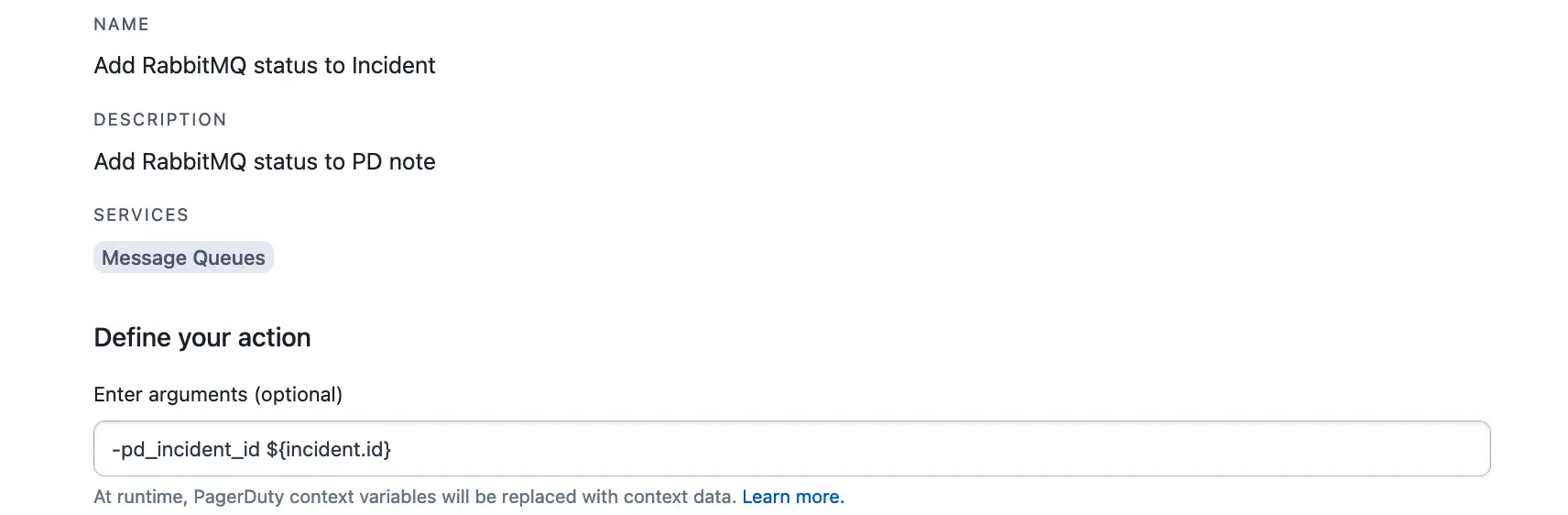 Runbook Automation with context variable
Search and Filter
You can search and filter any Automation Actions and Runners that have already been created. Navigate to Automation Automation Actions and use the following features in their respective tabs:
Actions Tab
- Search: You may search by action name.
- Filters:
- Services
- Teams
- Type
- Category
- Trigger Methods
Runners Tab
- Search: You may search by runner name or description.
- Type:
- Any Type
- Runbook Automation
- Process Automation
Configure Automation Actions Log
The Automation Actions Log reduces the time responders need to diagnose an issue and plan their next actions by providing a summarized list of diagnostics and remediation results that were triggered during the incident.
To use the Automation Actions Log, you must first add the PagerDuty Incident Output log filter at the global or step level of a given job in Process or Runbook Automation. This log filter can capture a regex capture group or a configurable number of lines of the logs generated (last 5, 10, 25, or all log lines). A custom text annotation can be added to each output.
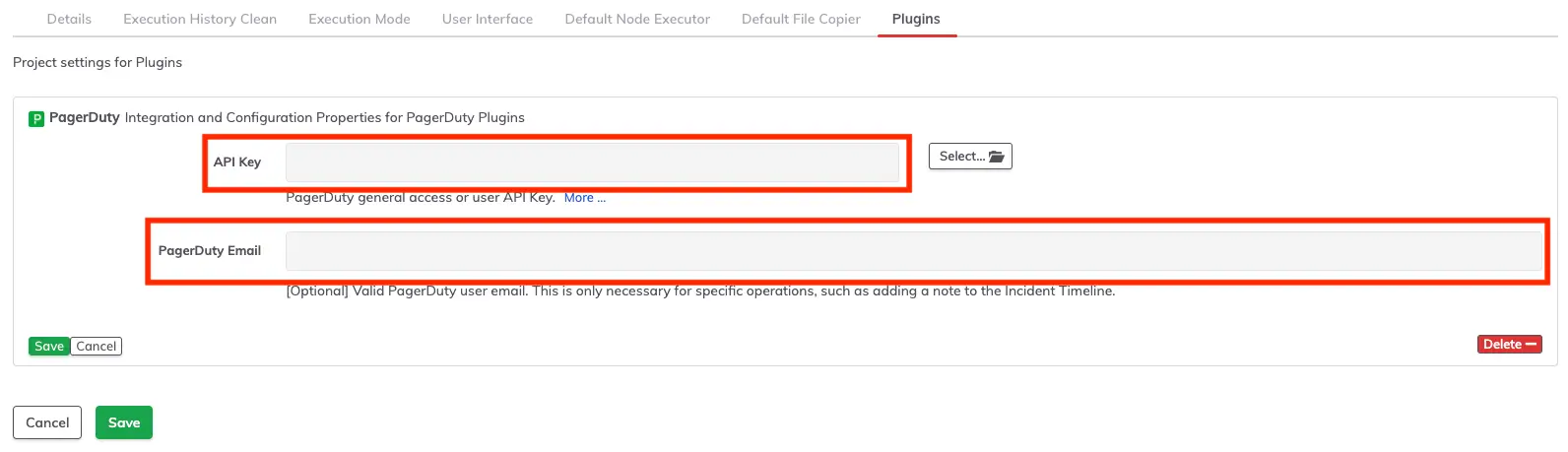
To enable credentials for Incident Output to be sent successfully back to PagerDuty Incident Response:
- Configure the PagerDuty plugin at either the system or project level with a global PagerDuty API key and a valid PagerDuty user email.
- When creating or editing a job, enable Send Incident Output to PagerDuty on the Execution Plugins tab.

- You can add Incident Output log filters at a job's global or step level. Multiple filters can be configured at each level. Each filter configured creates a separate entry in the action log view on an incident. The filter is evaluated for every step/node combination run during a given job.
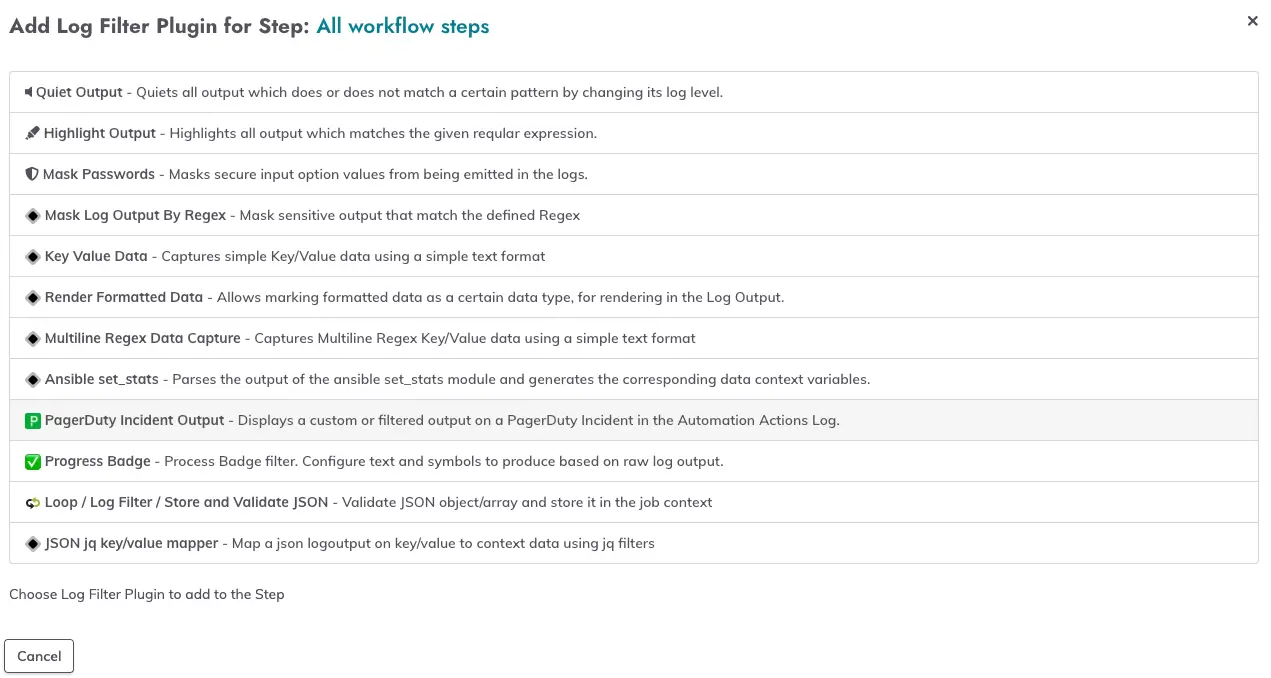
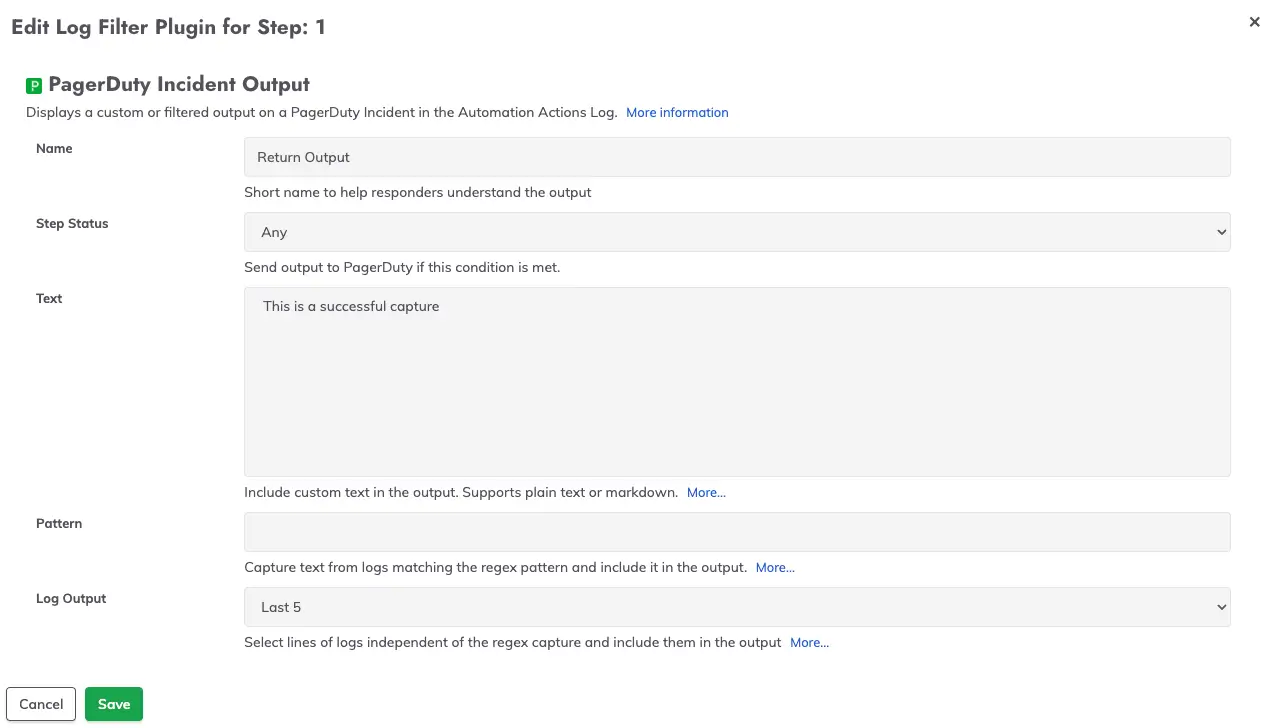
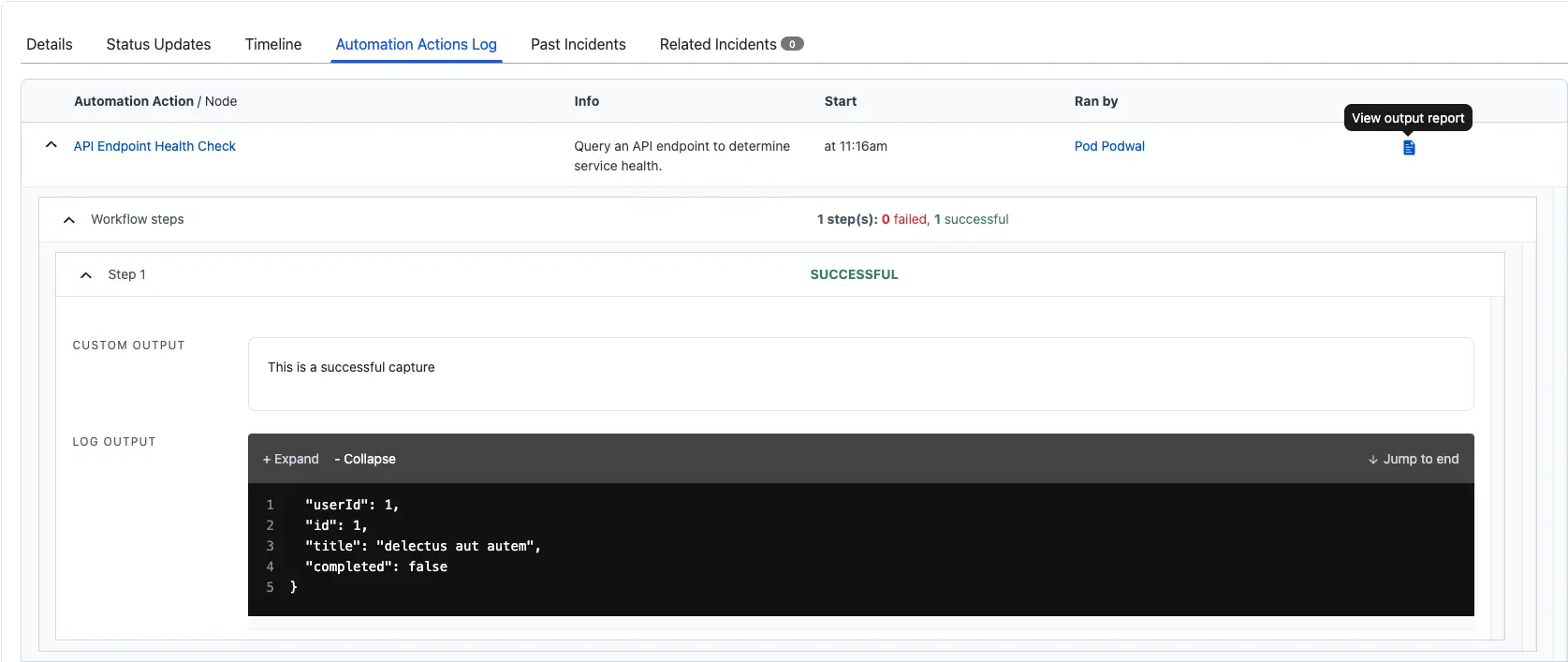
- After an Automation Action has been triggered, data returned from each Incident Output filter can be viewed in the Automation Actions Log tab on an incident. Each Automation Action run creates a parent record that can be expanded to view the details of the workflow node/step data collected from the completed job.
Delete an Automation Action
- Go to Automation Automation Actions.
- With the Actions tab selected, select the name of your desired action to go to its detail page.
- In the top right, click Delete.
- In the confirmation dialog, click Delete Action.
- Note: This action cannot be undone.
Run an Action on an Incident
Once you have configured configured Automation Actions, PagerDuty responders can run them on incidents. Automation Actions can run either a provided script or trigger a Job in PagerDuty Process or Runbook Automation. Results of actions can be viewed on the Automation Actions Log tab.
Run an Automation Action in the Web App
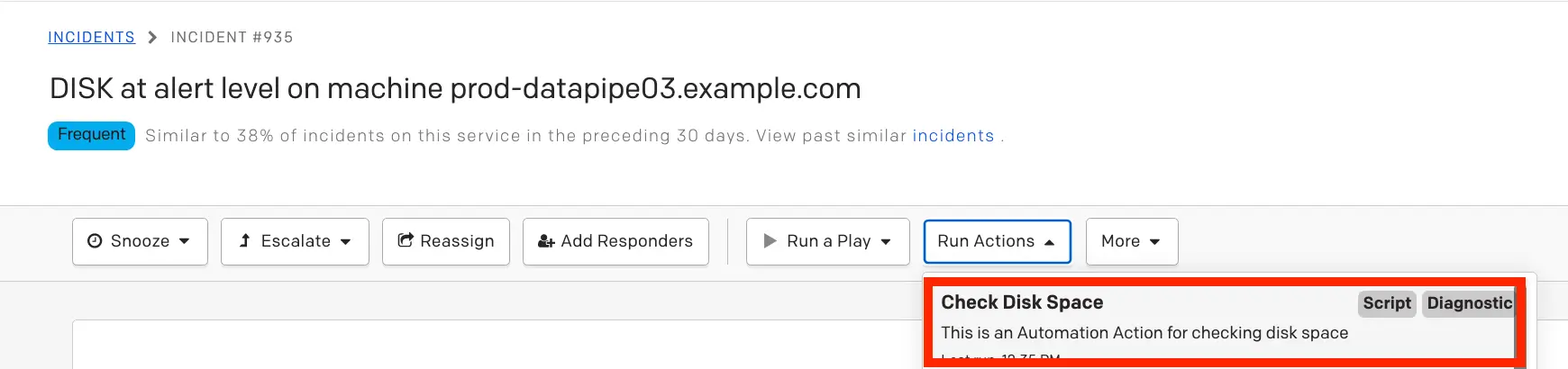
- Navigate to an open incident on a service where the Automation Action is configured, click Run Actions and select your desired action.
- Click Run Job (or Run Script) when prompted.
Run an Automation Action on a Grouped Alert
An Automation Action can use the context of a specific alert that has been grouped on an incident.
- On the Incident Details page, navigate to the Alerts tab.
- Select the checkbox for the specific alert from the list of grouped alerts that the Automation Action will use as the basis for its context variables.
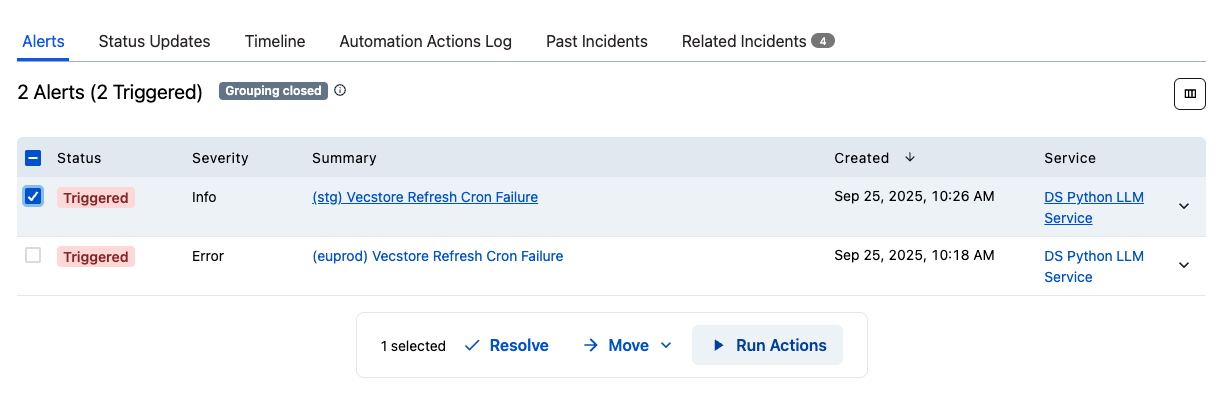 3. Click Run Actions. This will open the Automation Actions side-panel.
4. Select the Automation Action to invoke, then click Run Job. The details for the selected alert will be passed as context variables to the invoked Automation Action and its associated Runbook Automation Job.
Run an Action in the Mobile App
- Tap an incident to view its details page, then tap Automation Actions.
- Select your preferred Automation Action from the list, then tap Run Action.
- The Output tab will reveal the script or job's output.
- The incident will also have a history of all Automation Actions that have been run on the incident in the Initiated Automation Actions section. Tap View [x] Automation Actions and then tap an action to see its details.
Run an Action in Slack
Prerequisites
In order you run a PagerDuty Automation Action in Slack, please ensure the the following:
- You have configured the Slack V2 Next Generation integration
- You have an active Runbook Automation Self-Hosted Runner
- In Slack, trigger an incident with the
/pd triggercommand.- Read more about Incident Card Actions in Slack.
- Select More actions… Run an action.
- If prompted, please follow the steps to authorize your user in Slack.
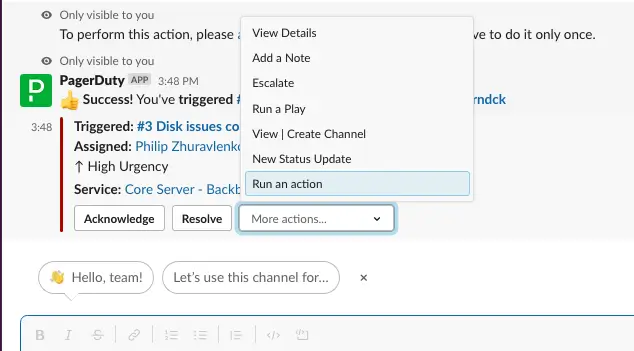
- Select an action from the dropdown.
- Review the action’s details and click Run.
A message posts in Slack when an action begins, as well as when it finishes. Select View output report in the completion message for full details about the action.
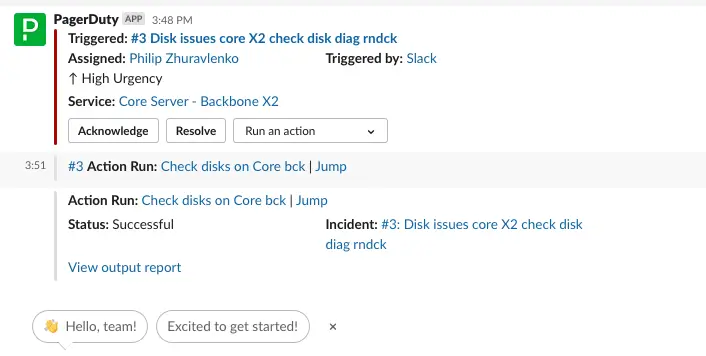
Run an Action in Incident Workflows
You can select Automation Actions as a step in Incident Workflows. Please read Incident Workflows for more information.
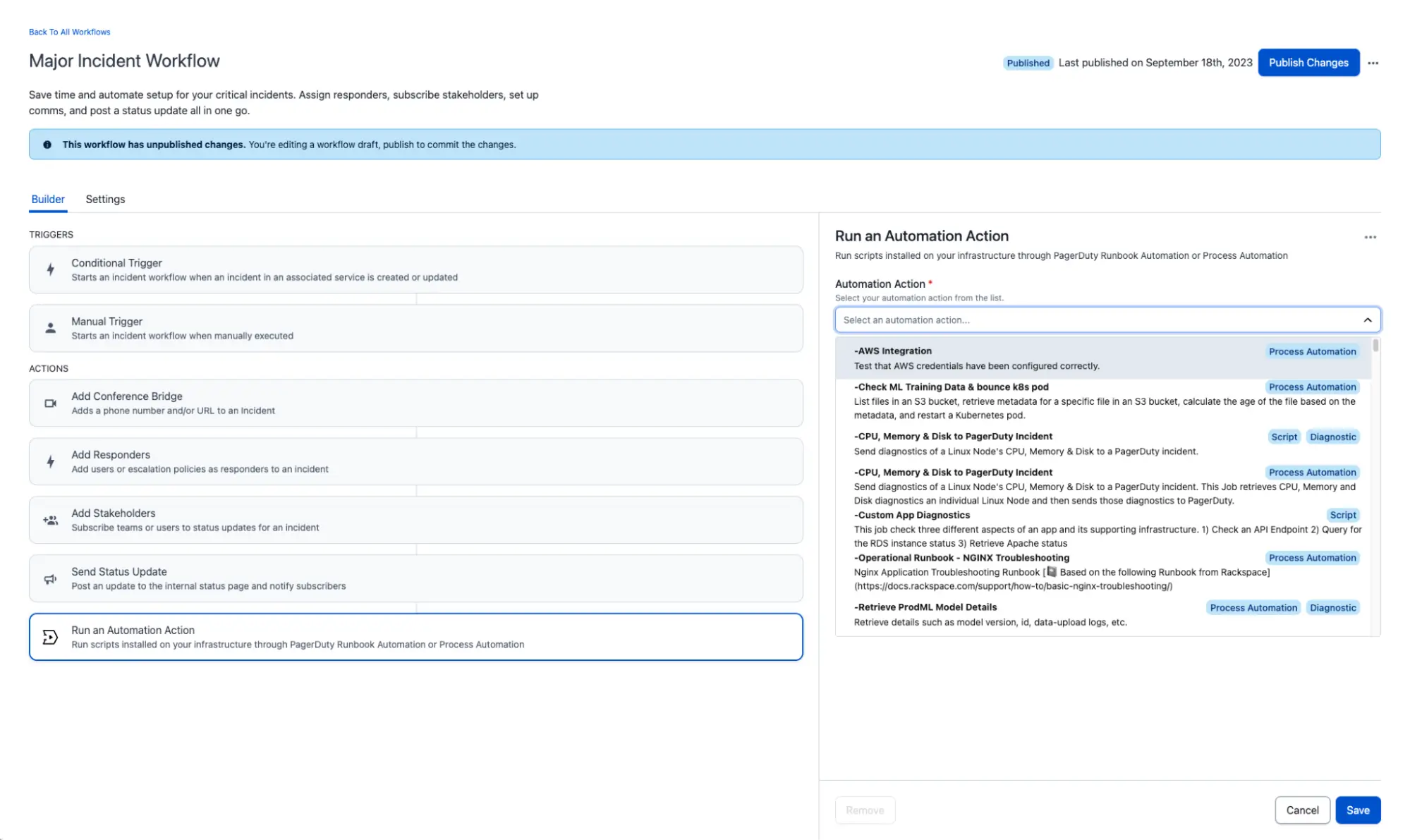
Run an Action in Event Orchestration
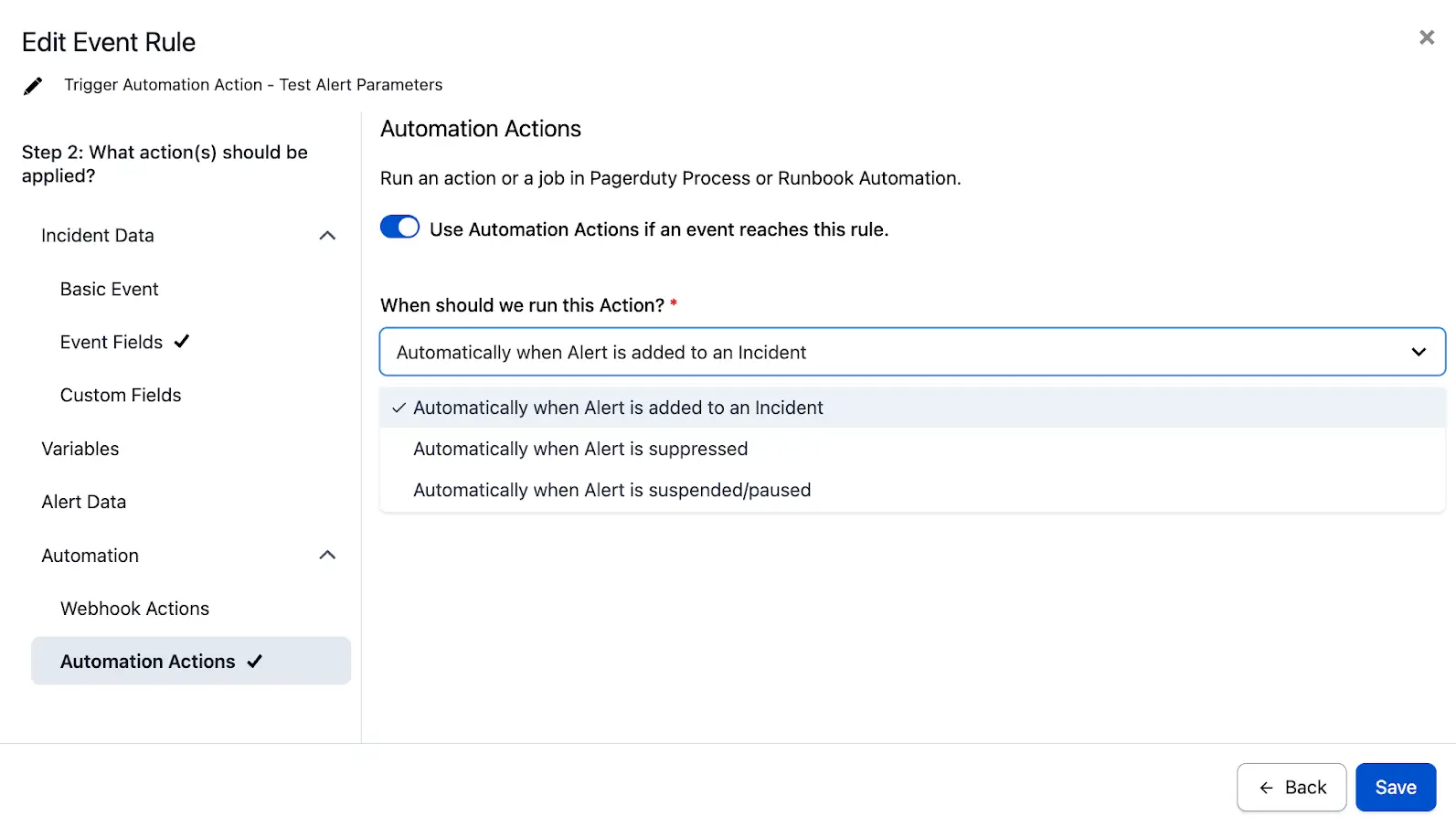
You can invoke Automation Actions on Service Orchestrations concurrently with an incident. Automation on Alerts also allows you to invoke Automation Actions when an Alert is suppressed or paused. Please ensure you have configured the Invocation Options on your action to allow for it to be invoked from Event Orchestration. Please read our Event Orchestration article for more information.
View Automation Action Output
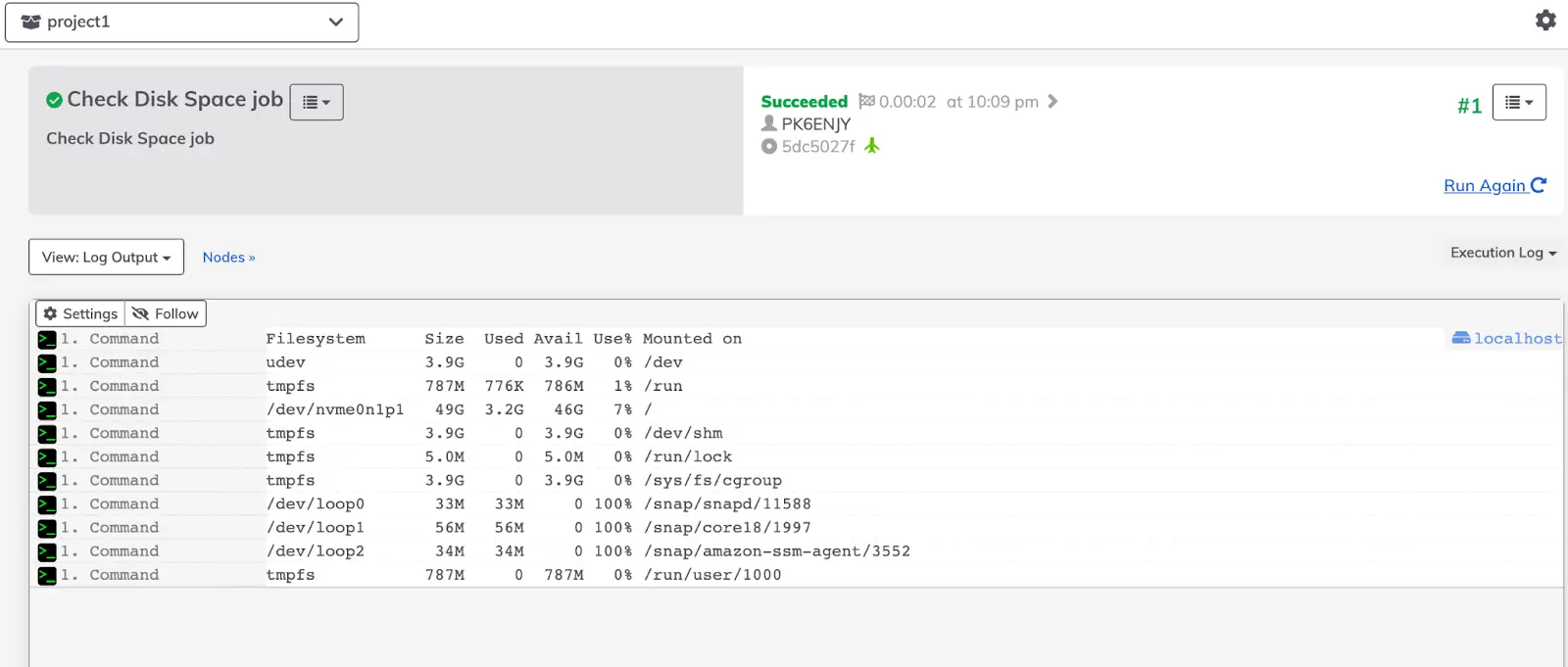
You can view logs captured from Runbook Automation (SaaS and Self-Hosted) in the Automation Actions Log tab on an incident's details page. Each entry in the table corresponds to an Automation Action or Runbook Automation Job. You can expand the entry to see the job's targeted nodes and the steps executed against each node.
- Navigate to an incident's details page and select Automation Actions Log tab to see in progress and completed actions results.
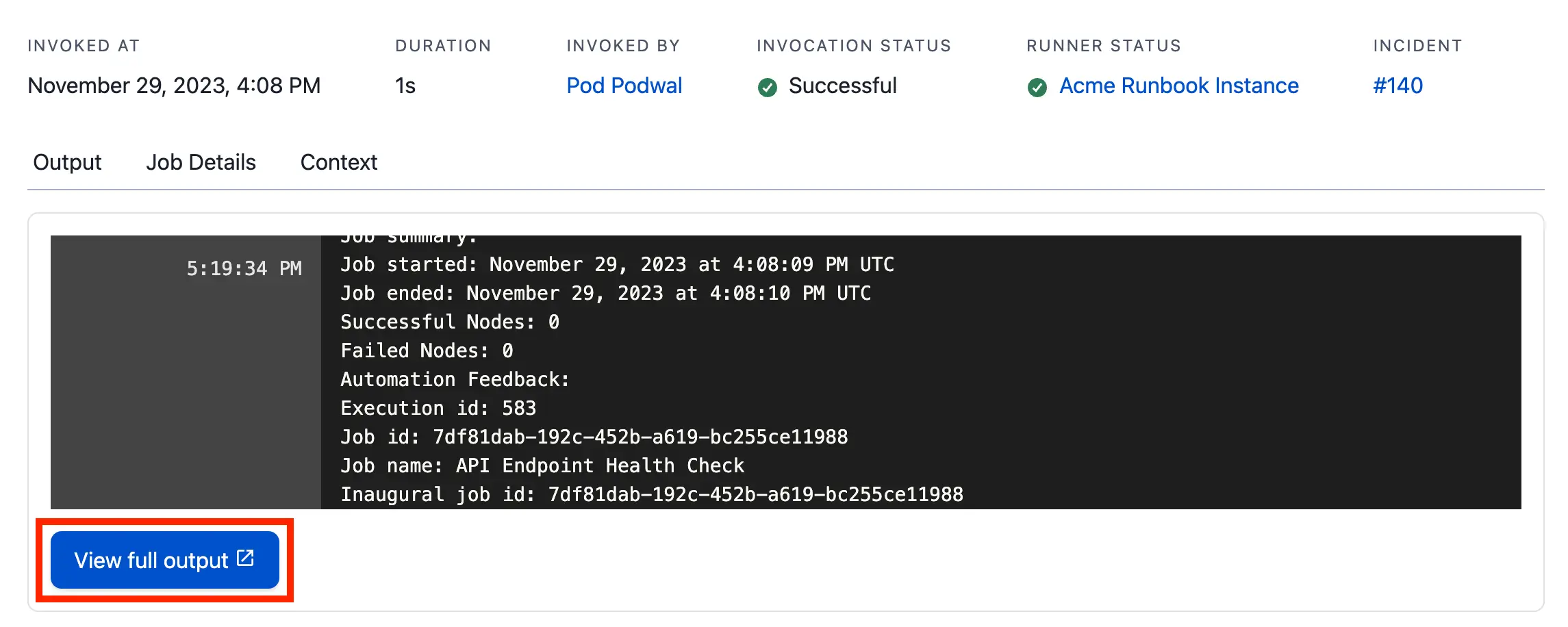
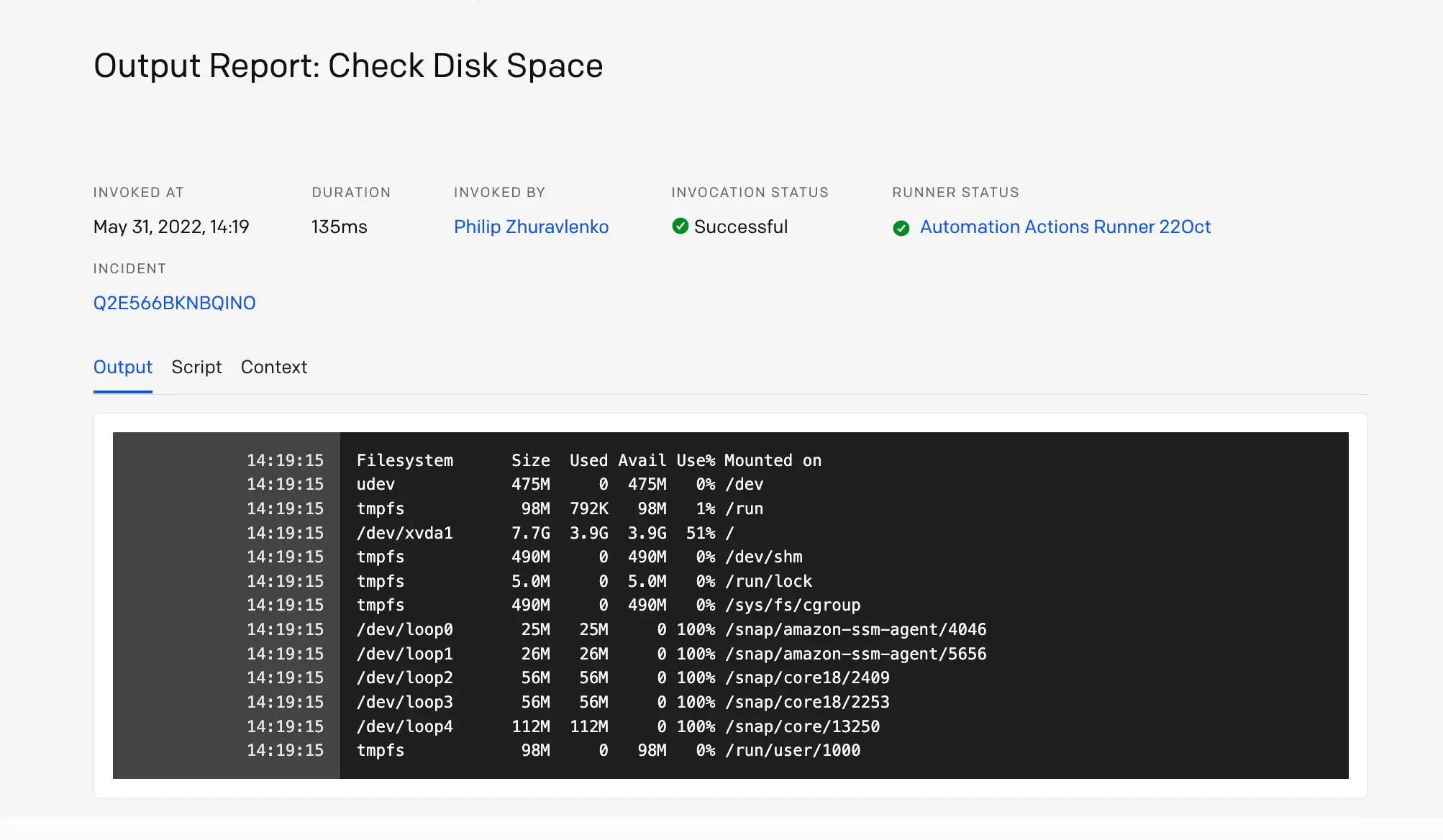
- Access the job's output through the View output report link on each action result, or in the incident timeline's record of the completed action.

- (Optional): To see the full Runbook Automation (SaaS or Self-Hosted) job details, click View full output on the Output Report page.
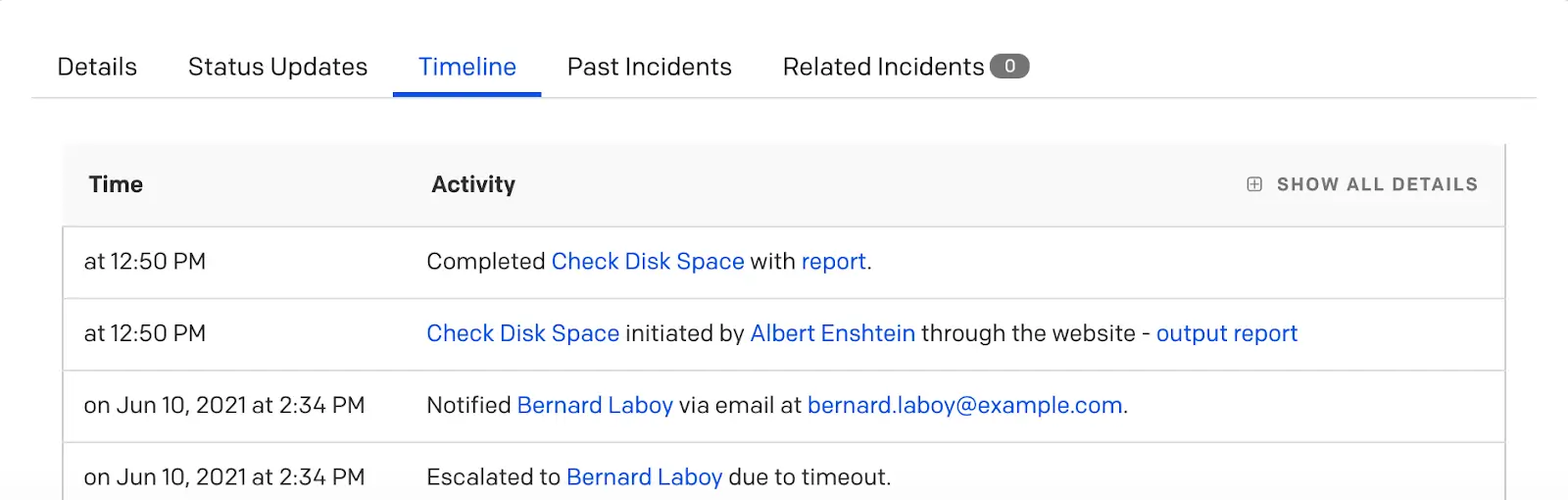 Automation details in the incident timeline
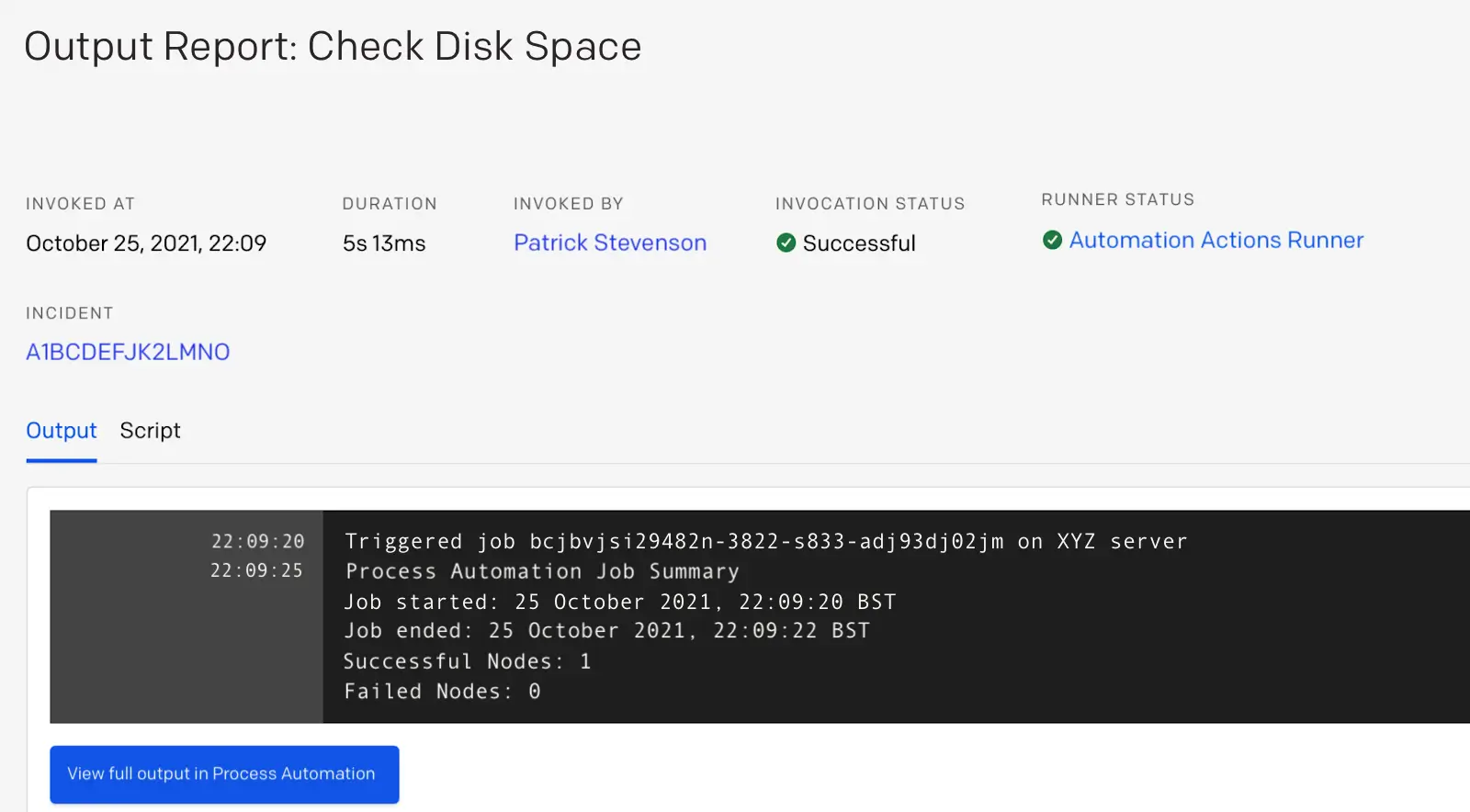
- Click View full output in Process Automation to view the Runbook Automation Self-Hosted Job and see the results.
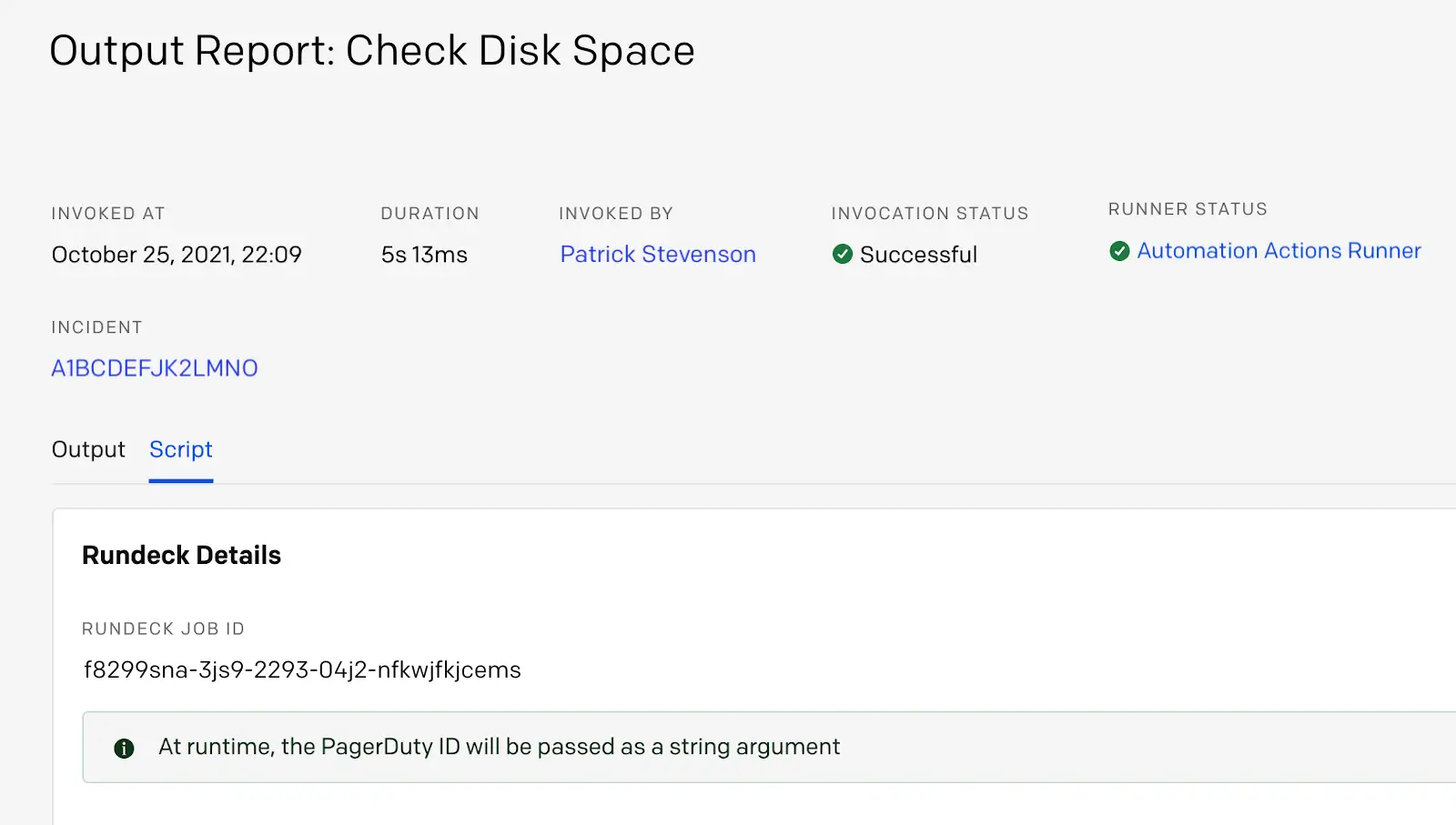
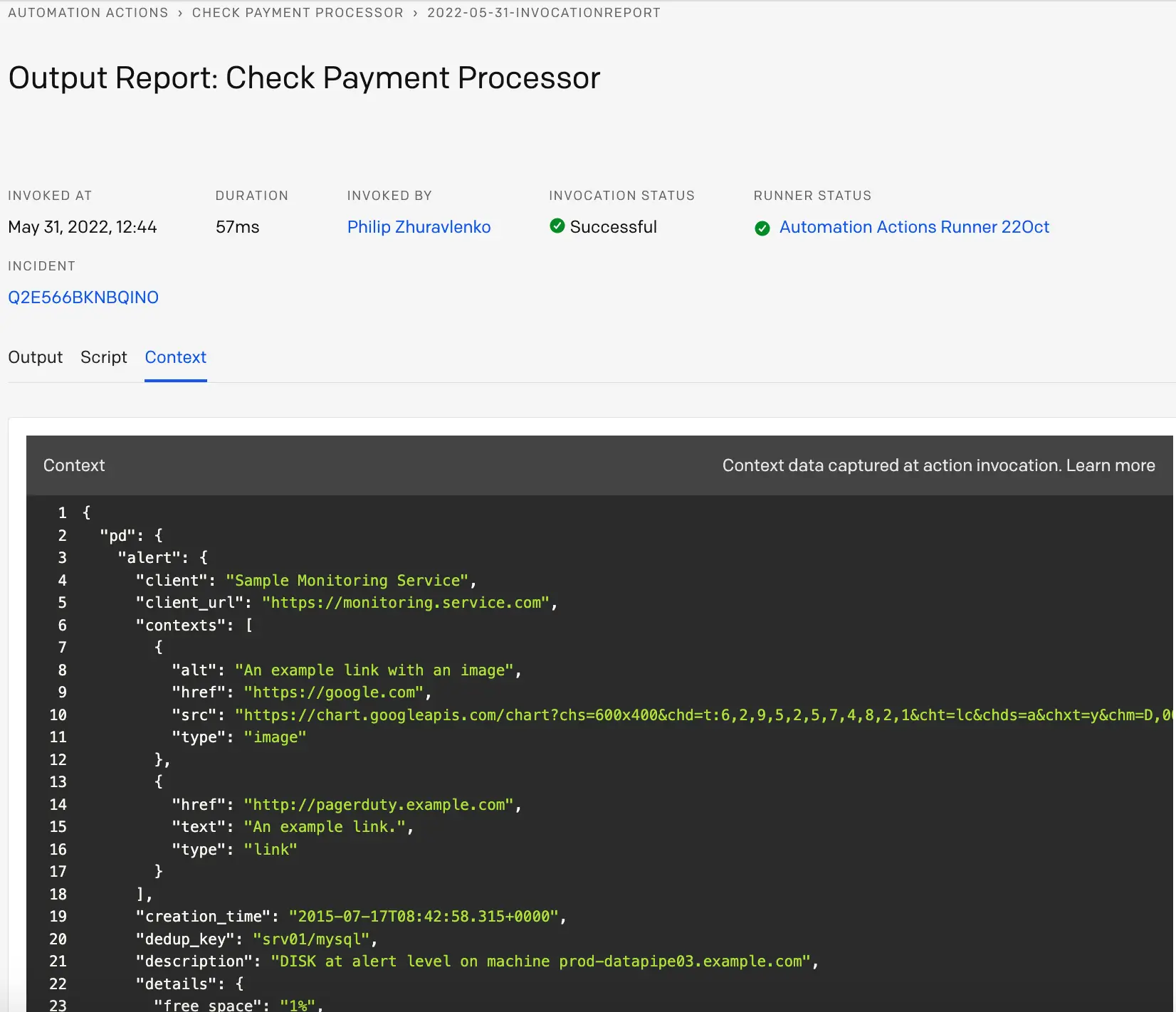
- Select the Script tab on the output report to see the detailed view of the Process or Runbook Automation Job that ran.
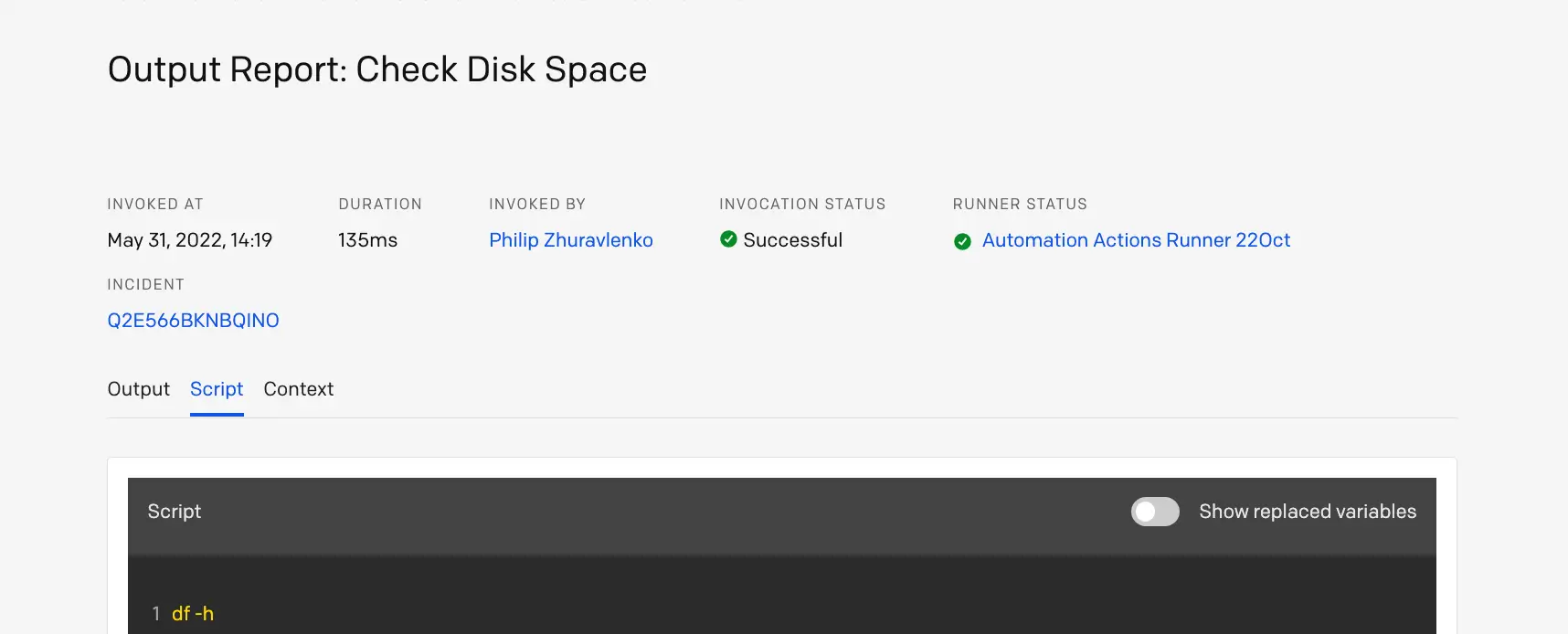
- The Script and Context tabs detail the settings and alert context captured at runtime of the action.
PagerDuty Advance for Automation Digest
Availability
Required User Permissions
The following roles can create an Automation Digest:
- Account Owner
- Admin/Global Admin
- Manager
- Responder
- Observer
PagerDuty Advance for Automation Digest synthesizes log output generated by Automation Action invocations and automatically generates a digest which provides:
- Incident details
- Action details
- Log summary
- Suggested next steps
To generate a PagerDuty Advance for Automation Digest:
- Navigate to your desired incident and scroll to the Automation Actions Log tab.
- Click Generate in the upper right to generate the Automation Digest.