AI & Automation
Cache Variables
Event Orchestration Cache Variables
Event Orchestration Cache Variables allow you to store event information once events are converted into alerts or incidents. You can then use this stored information in Event Orchestration rules for setting conditions or triggering actions. Using cache variables in this way helps manage scenarios where understanding a system's status, event patterns, or timing is critical for diagnosing issues.
There are two ways to store data in variables. Both variable types populate whenever an event matches the conditions assigned to a cache variable:
- Recent event values: Assign data from an event to a cache variable.
- Count of events: Number of occurrences of events matching the cache variable’s condition.
Cache Variables vs. Rule Variables
Tip
Configure Event Orchestration Cache Variables
Cache Variable Usage Limited to Orchestration of Origin
Step 1: View Cache Variables
You can access Event Orchestration cache variables from either the Global Event Orchestration or Service Event Orchestration builders.
To view cache variables:
- In the web app, navigate to AIOps Event Orchestration select an Orchestration then select your desired Global Orchestration or Service Orchestration.
- Click View Cache Variables in the bottom left. This will expand the Cache Variables pane.
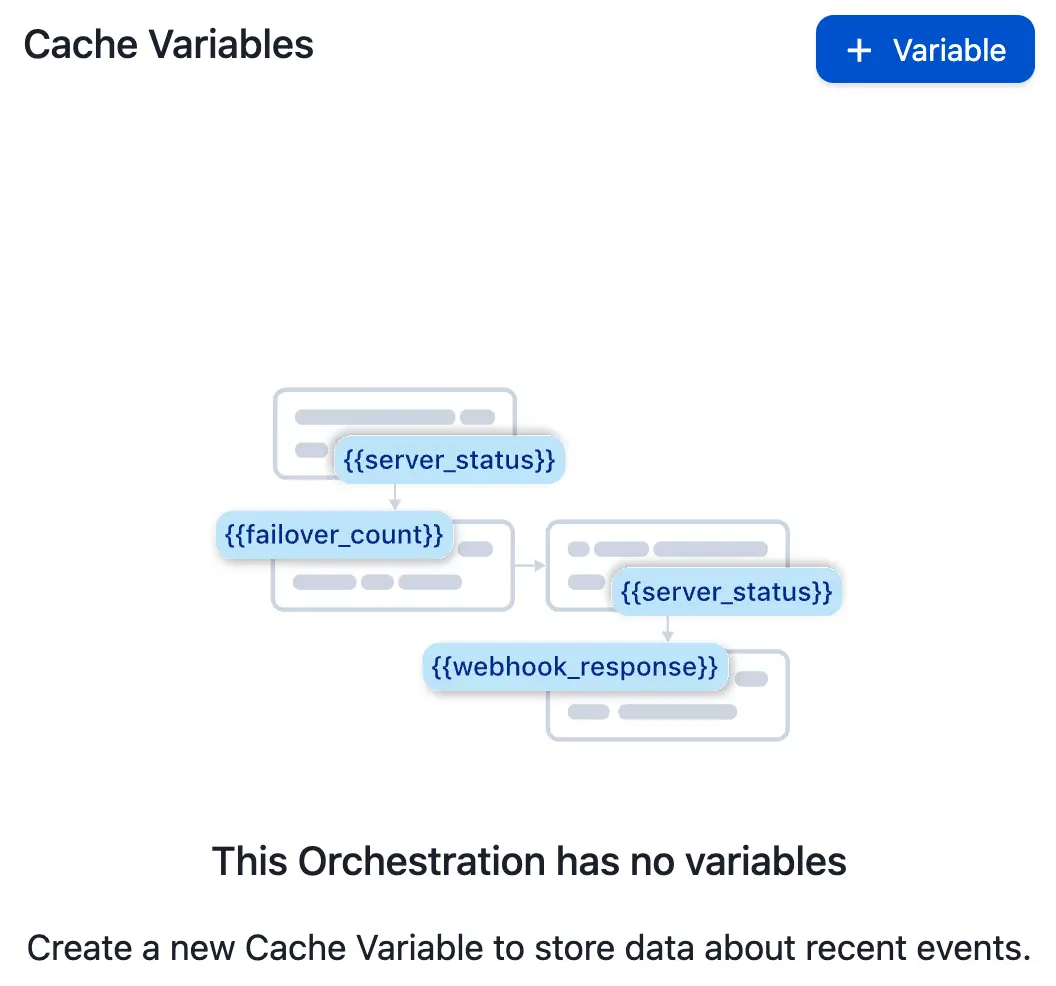
- Any existing cache variables will display in this view. If no cache variables exist yet, you will be able to review some information about creating your first cache variable.
Step 2: Create a New Cache Variable
To create a new cache variable:
- Click + Variable to open the cache variable creator modal.
- Define the conditions that will determine when a cache variable populates with data:
- Variable Type: Select a variable type from the dropdown. This defines what data populates into a cache variable. There are four options for cache variable type, and you can only select one at a time for each cache variable. Choose one of the following options and fill in the required fields:
- Event Data (CEF): Stores CEF data associated with an event in the cache variable. Note: If Event Orchestration has altered an event’s data prior to cache variable population, the altered data will be stored in the cache variable.
- Raw Data: Allows you to target information in an event’s raw payload for storage.
- Event Count: Tracks the number of times an event matching the specified cache variable conditions has occurred.
- External Data (API / Manual input): Allows you to leverage data from external sources to add additional context to orchestration rules.
- Choose a Data Format to set what type of data (Text String, Number, or Boolean) can be stored in the variable. Please view the table in the Product Limits section for limit information.
- Enter your desired Data Retention timeframe (in seconds) to set the Time To Live (TTL) for how long the data will be stored for. The TTL timer resets upon each cache variable value update. The configured TTL sets when the data loads and cannot be retroactively changed for existing data. If you update the TTL, it will apply after the next cache variable value update.
- Variable Type: Select a variable type from the dropdown. This defines what data populates into a cache variable. There are four options for cache variable type, and you can only select one at a time for each cache variable. Choose one of the following options and fill in the required fields:
- Variable Name: Enter a variable name. This is the display name that will appear in Event Orchestration rules and actions.
- You may optionally add further conditions by clicking + New Condition. Note: Creating conditions for cache variables follows the same process as creating routing rules for Event Orchestration.
- When you are finished, click Save.
Step 3: Use Your Cache Variable
You can use cache variables in either Event Orchestration rule conditions or actions.
Cache Variable Duration
Use a Cache Variable in a Condition
-
Click + New Rule, + Else Rule or Nest Rule to add a new rule, or click to edit an existing rule in an Event Orchestration that contains cache variables.
-
Select If events match certain conditions from the condition type dropdown.
-
Assign the cache variable to either the target (e.g.,
event.summary) or value (i.e., the value being compared to whatever data is stored in the target) portion of the condition:-
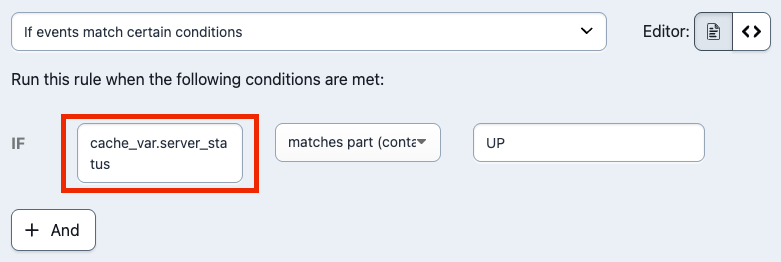
To assign a cache variable to the target portion of an Event Orchestration condition:
- Click the left cell that shows event and select Cache Variable from the dropdown. This will populate the cell with
cache_var., which is how Event Orchestration references cache variables. - Type the cache variable name you wish to use after the period in the same cell (e.g.,
cache_var.server_status). - Once complete, enter your preferred value in the right cell.
- Click the left cell that shows event and select Cache Variable from the dropdown. This will populate the cell with
-
 2. To assign a cache variable to the value portion of an Event Orchestration condition:
- Select your preferred target from the right cell and then click into the blank right cell in the condition builder.
- Type the name of the cache variable you want to reference using the following syntax:
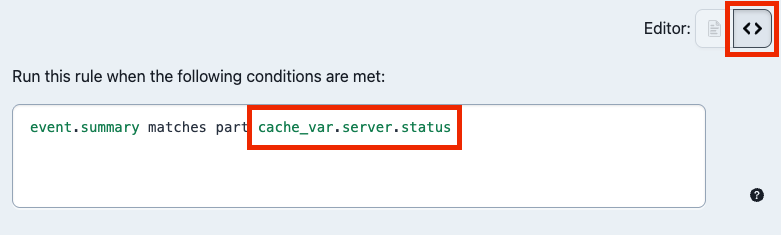
cache_var.your_variable_name. - Click the <> symbol to open the Advanced PCL editor.
- Remove the ' ' (single quotes) wrapping your cache variable so that the value of the cache variable is evaluated (e.g., change 'cache_var.server_status' to cache_var.server_status). Note: You must remove the quotation marks for the cache variable to be evaluated.
Tip
true or false without referencing the data in an event when an event is ingested. This allows you to create a logic gate that activates different branches of an Event Orchestration depending on what data is in a cache variable (e.g., maintenance_window, server_status, deployment_status, etc.).Use a Cache Variable in an Action
- Navigate to the action you wish to reference the cache variable in. Supported actions are:
- Add the cache variable to the action using the following syntax:
{{cache_var.your_variable_name}}. - Click Save.
View Event Orchestration Cache Variables
- In the web app, navigate to AIOps Event Orchestration select an Orchestration and then select your desired Global Orchestration or Service Orchestration.
- Click View Cache Variables in the bottom left to expand the Cache Variables pane.
- To view the current value for a variable, select View / edit data.
- The current value, if one exists, will appear under Current Data. You can also manually add data by clicking Add Data.
Edit Event Orchestration Cache Variables
- In the web app, navigate to AIOps Event Orchestration select an Orchestration and then select your desired Global Orchestration or Service Orchestration.
- Click View Cache Variables in the bottom left to expand the Cache Variables pane.
- To the right of your desired cache variable, select Edit configuration.
- Make your desired changes to the cache variable's condition(s) and properties and click Save.
Disable or Delete Event Orchestration Cache Variables
Disabled and Deleted Cache Variables
Please be advised that disabling or deleting a cache variable may lead to unexpected behavior if there are any rules that still reference it. When you disable or delete a cache variable, it evaluates as NULL. For example, say you create a cache variable host and use it in a rule: cache_var.host matches event.host. After disabling or deleting host, the rule would evaluate to NULL matches event.host.
As a best practice, please update your Event Orchestration rules before disabling or deleting a cache variable.
Disable an Event Orchestration Cache Variable
- In the web app, navigate to AIOps Event Orchestration select an Orchestration and then select your desired Global Orchestration or Service Orchestration.
- Click View Cache Variables in the bottom-left to expand the Cache Variables pane.
- To the right of your desired cache variable, select Disable.
- In the confirmation modal, click Disable.
To re-enable a cache variable, select Enable.
Delete an Event Orchestration Cache Variable
Deletion is Permanent
- In the web app, navigate to AIOps Event Orchestration select an Orchestration and then select your desired Global Orchestration or Service Orchestration.
- Click View Cache Variables in the bottom-left to expand the Cache Variables pane.
- To the right of your desired cache variable, select Delete.
- In the confirmation modal, click Delete.
Product Limits
Cache Variables per Orchestration
- Each Global Orchestration can have 100 cache variables.
- Each Service Event Orchestration can have 100 cache variables.
- We do not support Cache variables for Service Routes.
Cache Variable Content
| Cache Variable Type | Data Format | Limitations |
|---|---|---|
| Event Data (CEF) | String | Maximum of 1024 characters |
| Raw Data | String | Maximum of 1024 characters |
| Event Count | Integer | Maximum value of 1000. Disclaimer: A condition referencing a cache variable compared to a value that exceeds the limit of 1000 may lead to unexpected behavior. |
External Data Variable Content
| Data Format | Limitations |
|---|---|
| All Formats | Maximum TTL of 259,200 Seconds (72 Hours) |
| String | Maximum of 1024 characters |
| Number | Value must be between -9007199254740991 and 9007199254740991 |
Cache Variable Accuracy
Cache variables will process in order in a best-effort manner. Although it is expected that updates to the variables will be handled in FIFO order, this cannot be guaranteed when multiple updates occur in less than 1 second.