AI & Automation
Related Incidents
View active related incidents across all services to gain helpful context during incident triage
The Related Incidents feature provides responders with up to 20 recent incidents on other services that are potentially related to the incident they are investigating. This feature uses a completely online and real-time machine learning algorithm and service dependency data to provide an at-a-glance-view of the full scope of incident impact. Related Incidents enriches incidents with deep contextual insights to help responders coordinate an effective team response and mitigate business disruption.
AIOps Feature
Legacy Availability
View Related Incidents
You can view the Related Incidents feature in multiple places:
Web App
- From the Incidents page or on a service’s detail page, select your desired incident’s Title.
- On the incident’s detail page, select the Related Incidents tab.
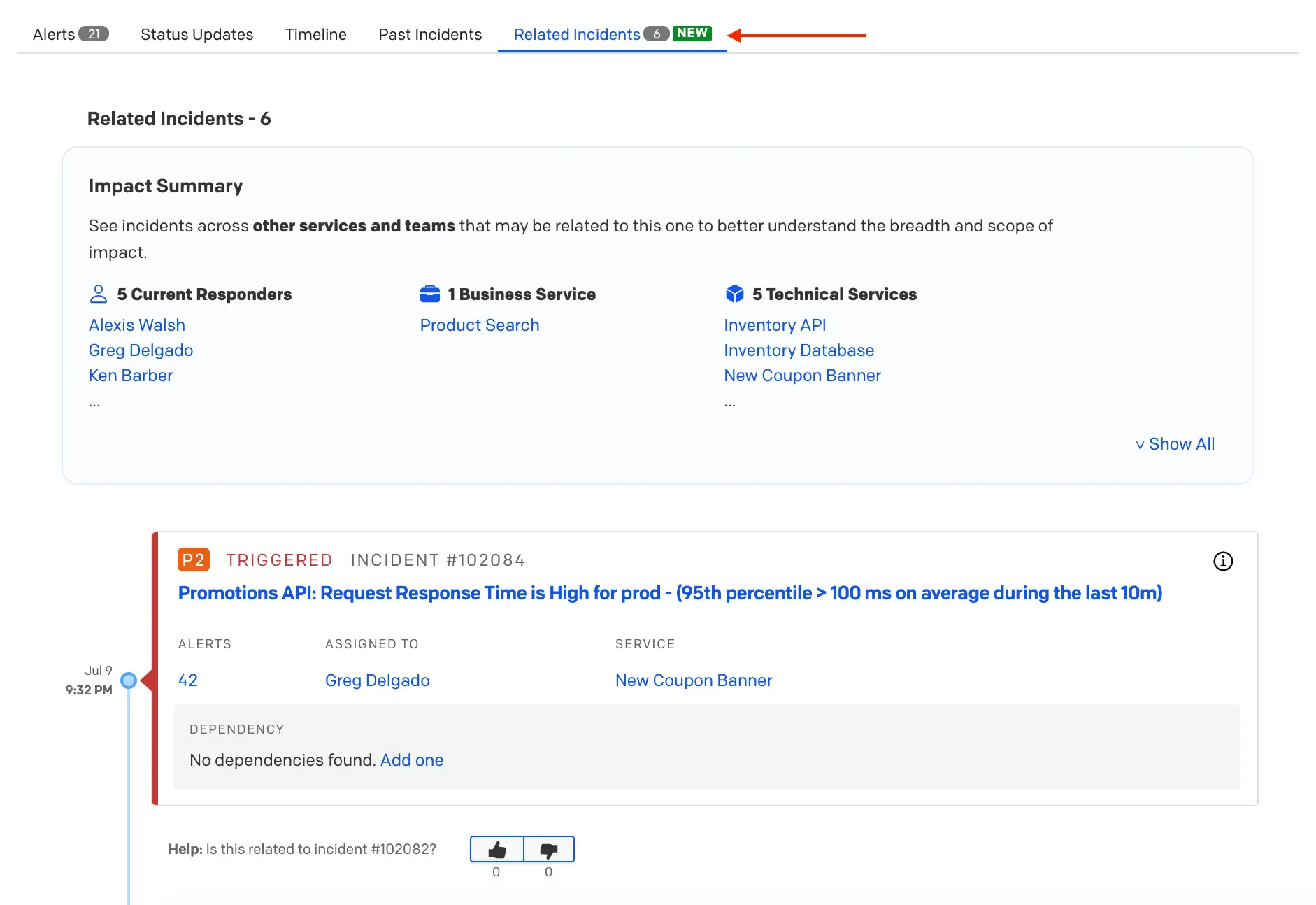
The Related Incidents tab includes the following information:
- Related Incidents -
#: A total count of related incidents. - Impact Summary: A list of impacted responders, business services and technical services.
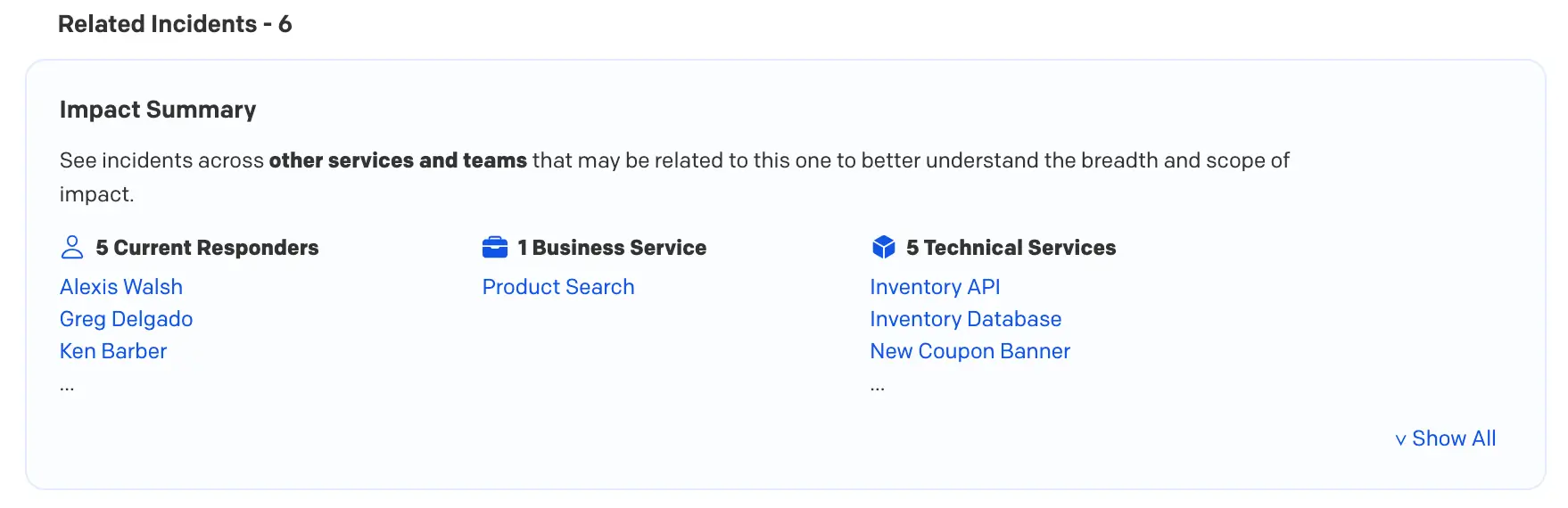
- List of Related Incidents on a Timeline: Related Incidents on the timeline include the following:
- Incident Details: You may click on an incident’s title, number of alerts, Assigned To user or Service to view more details.
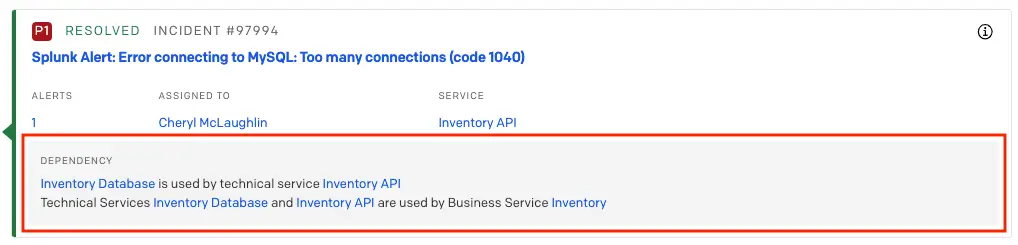
- Dependency Pane: If incidents are related due to a Technical or Business Service dependency relationship, that dependency will be shown here. If there is no service dependency relationship for that incident, you can click Add One to define your service dependencies. Related Incidents with no dependencies are those that were correlated via machine learning. Read our section on types of Related Incidents to learn more.
- Information Icon: View why the incident was suggested as related by clicking on the icon in the top right corner of the Related Incidents card.
- Thumbs Up/Thumbs Down: Indicate whether you agree that an incident is or isn’t related to the one you are investigating, and give our machine learning model feedback. Feedback is real-time, completely processed online, and is applied to suggest future Related Incidents. You can click the numbers below the thumbs up/down to view who voted for each option. Note: the thumbs up/thumbs down component is only visible on incidents generated by the machine learning algorithm, and it takes about 5–10 human inputs to train our algorithm on a new behavior.
Mobile App
- On the Open Incidents screen, select an incident to navigate to its details page.
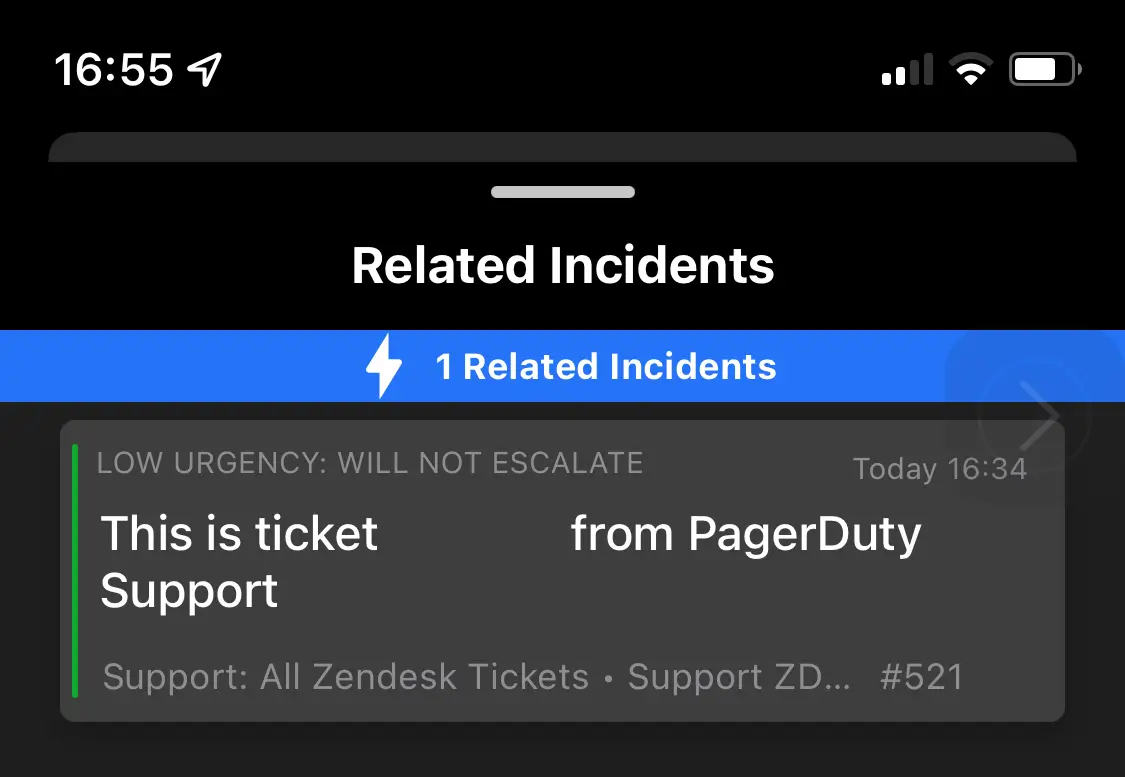
- Tap Overview, scroll down to the **Triage **section and tap Related Incidents.
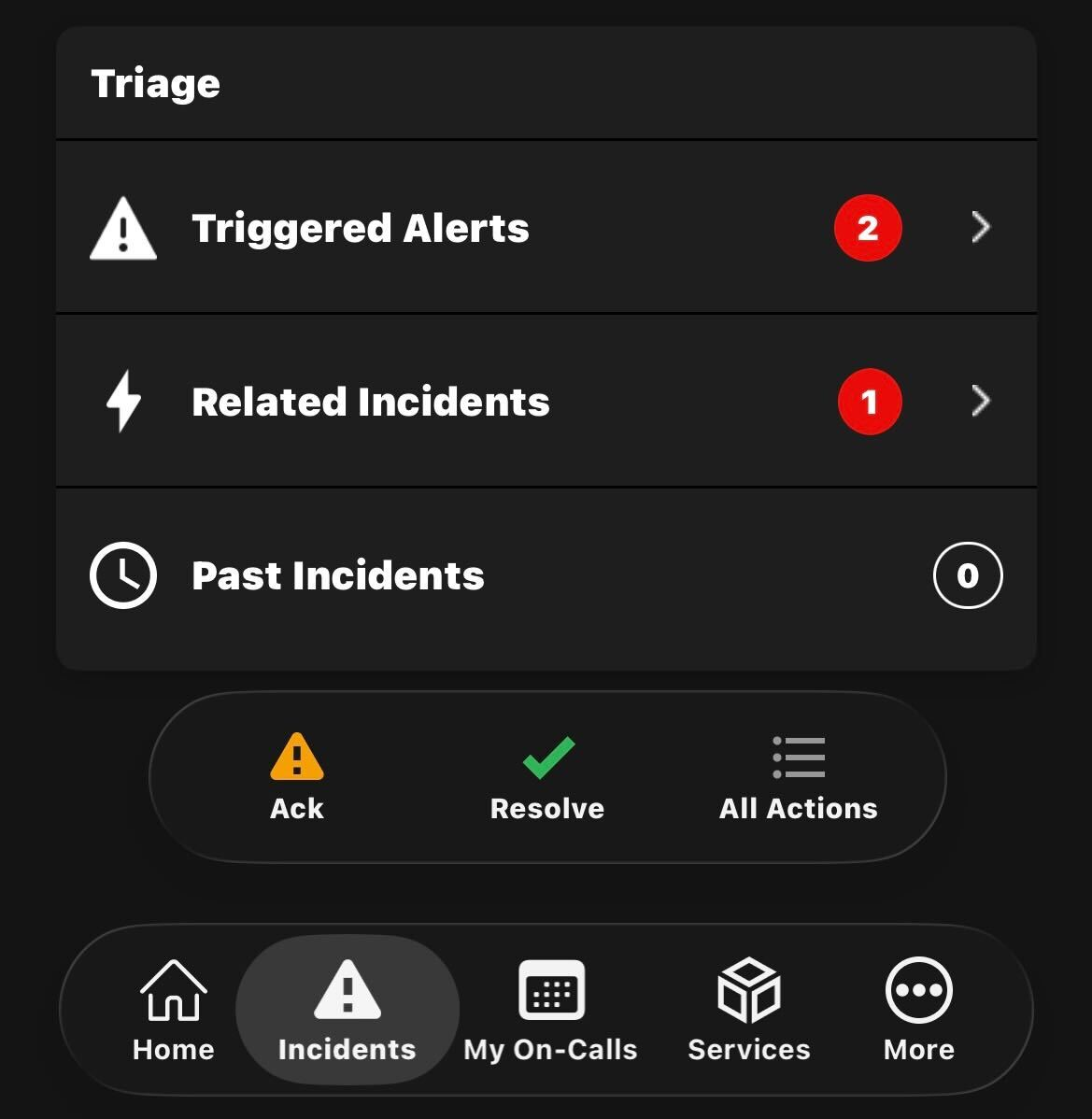 Related Incidents in the mobile app
REST API
To access Related Incidents via the REST API, please visit our API documentation.
Related Incident Types
There are two types of Related Incidents:
Machine-Learning-Based Related Incidents
Machine-Learning-Based Related Incidents are determined by three main factors:
- How close in time the incidents were created.
- How related the alert metadata is.
- Human response behavior: Thumbs up/thumbs down and/or merging incidents across services.
You can identify Machine-Learning-Based Related Incidents by clicking on the icon or by the presence of the thumbs up/thumbs down feedback mechanism.
Dependency-Aware Related Incidents
Some Related Incidents may be determined by your technical or business service dependencies. When two incidents are triggered within five minutes of each other and one service is directly dependent on the other, these incidents will be marked as related. Similarly, if incidents occur within this time frame and share a parent business service, they will also be marked as related. These service relationships will be identified in the Dependency pane on individual Related Incident cards.